

I tested Nvidia’s DLSS 4.5 beta update: here’s how much faster it made Cyberpunk 2077 run
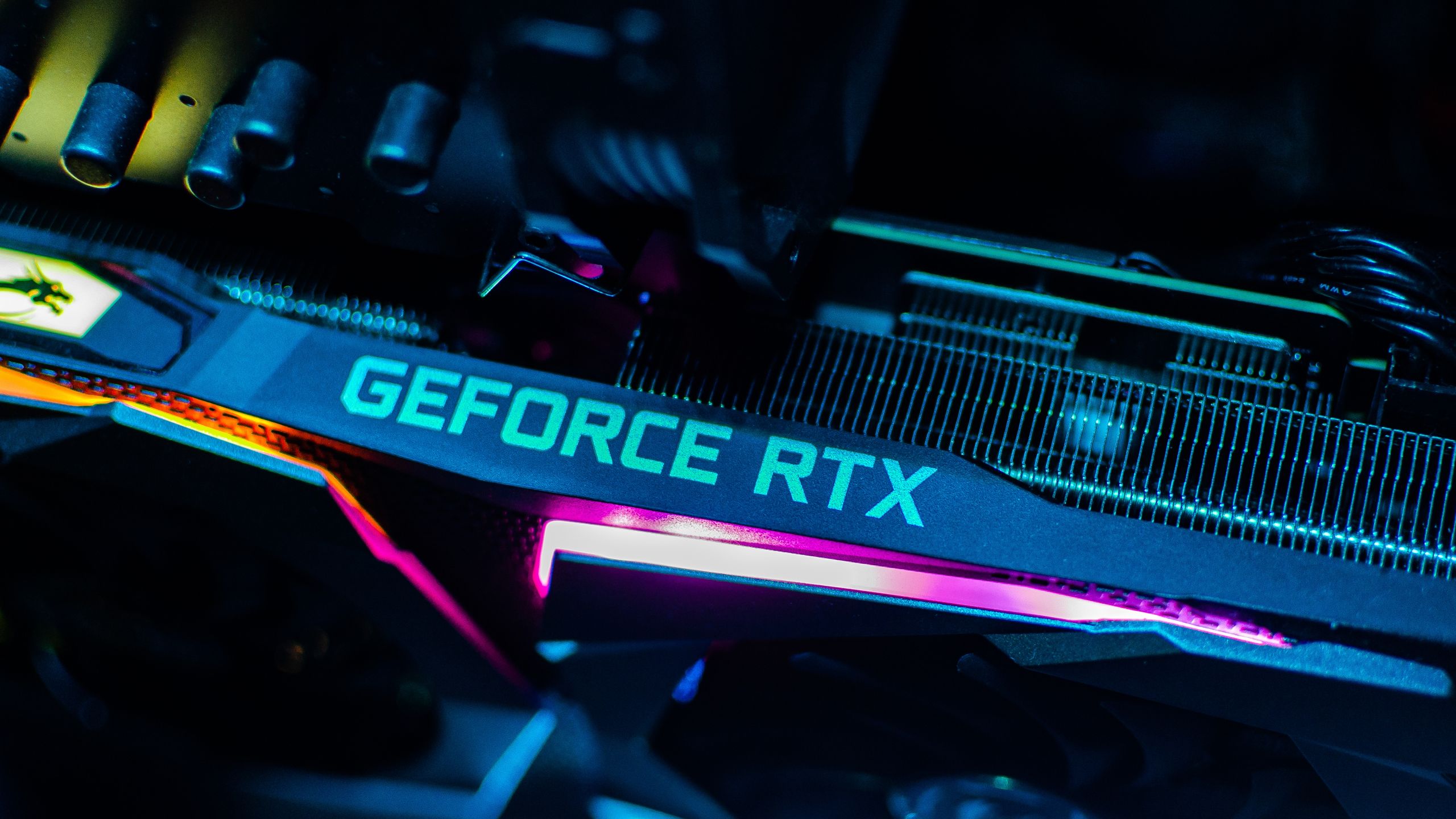
AI was a popular initialism at CES 2026 in Las Vegas this week, and Nvidia helped lead the charge. But while company chief Jensen Huang talked chiefly about algorithms and AI-powered robots during Nvidia’s keynote, after hours the company announced exciting news for GeForce owners: there’s a new version of DLSS on the block.
Digitpatrox at CES
Follow all of our CES 2026 live coverage for the biggest gadget news straight from Las Vegas. And be sure to follow Digitpatrox on TikTok for the coolest videos from the show.
So a new version is significant, even when it’s clearly telegraphed as a half-step forward. And while DLSS 4.5 doesn’t officially start rolling out until next Tuesday (January 13), you can already download and check out the beta version if you’re curious to see what a difference the new features could make in your favorite games.
According to Nvidia’s announcement, the biggest upgrades you get with DLSS 4.5 are an upgraded Super Resolution model that’s better trained to take full advantage of Nvidia GeForce RTX 40-series and 50-series GPUs, as well as a new 6X Multi-Frame Generation mode (up from the current 1X-4X speeds) and a Dynamic Multi-Frame Generation mode which intelligently attempts to generate just enough additional game frames to hit your target refresh rate.
Those three additions make this a meaty update, so rest assured we plan to put DLSS 4.5 through the wringer in our testing lab once the official release goes live. But since the beta version is already available to try and certified to support 400-plus games already, I decided to test it out this week while so many of my colleagues were running around CES hunting for the coolest laptops and gadgets they could find.

My results, while terribly unscientific, might help you decide whether to try the DLSS 4.5 beta now or wait for the official release to go live and get a few updates. At the time of writing I saw minor performance improvements in Cyberpunk 2077: Phantom Liberty when toggling the Super Sampling between Quality, Performance and Ultra Performance modes, but the difference was biggest the farther I got from Quality.
When testing how much of a difference (if any) the DLSS 4.5 beta made, I found that configuring everything for Performance I saw an average uplift of 3-5 FPS by upgrading to DLSS 4.5. When configuring for Ultra Performance, I saw a reliable improvement of 5-7 FPS. However, I barely saw any framerate improvement when enabling DLSS 4.5 with settings optimized for Quality.
Now, a better framerate is just one component of what the DLSS 4.5 beta is meant to accomplish — the new transformer model for Super Resolution “has a deeper understanding in every scene, and more intelligently uses game engine pixel sampling and motion data to deliver images that have better lighting, finer edges, and improved motion clarity,” according to Nvidia, which is a fancy way of saying it should make your game not only run faster but look better doing it. So even if the upgrade to DLSS 4.5 doesn’t kickstart the framerate in your favorite games, it should make playing those games with DLSS 4.5 enabled look better than they did under boring ol’ 4.0.
Nvidia claims the visual upgrade is biggest when you’re optimizing games for Performance or Ultra Performance, as the second-gen transformer is especially good at that. And sure enough, that lines up with my anecdotal experience testing the DLSS 4.5 beta this week.
And while I don’t have the keenest eyes in the biz, I feel like I did notice a minor but appreciable improvement in image quality when flipping between DLSS 4 and DLSS 4.5 in both Quality and Performance modes. So while I can’t say for sure whether enabling the DLSS 4.5 beta will deliver a good or noticeable improvement while playing the best PC games, I definitely say it’s worth trying if you’re curious.
The process of enabling DLSS 4.5 is fairly easy, even while it’s still in beta. I’ll walk you through it step-by-step to show you what I mean.
How to enable DLSS 4.5
Get the latest version of the Nvidia app

You need to download the Nvidia app from Nvidia’s website if you haven’t already, and make sure it’s updated to the latest version. Don’t worry about hitting update — the app will automatically check and give you a notification if it’s time to update.
Opt in to beta features

Now you need to tell Nvidia you want the fun stuff, even if it’s not quite finished yet. You have to opt in to receiving beta updates, which requires you to open the Nvidia app, navigate to Settings > About >Early Access submenu and check the “Opt In to access beta or experimental features” box.
Relaunch the app and install the latest update

Once you check that box you may have to wait a few minutes, but you should soon see a notification pop up at the top of the Nvidia app instructing you to relaunch the app to install a new update. Click the Relaunch Now button to update and relaunch the app.
Download the latest GeForce driver

Now that the Nvidia app knows you want beta updates, it should tell you that you have a new GeForce Game Ready driver to download. Go ahead and click the big green Download button to start downloading the latest beta drivers.
Install the driver

Once the little green download bar at the top of the app fills up you should see a new notification that your beta driver is ready to install. Click the big green Install button to install the beta driver. Choose Express installation unless you really want to selectively enable which new components are installed, in which case choose Custom.
The app will install your new display driver, which will likely cause your PC’s screen to turn off and on a few times. Hang in there, it doesn’t typically take more than a few minutes.
Enable the latest DLSS features

Once you have the latest beta GeForce drivers installed, relaunch the Nvidia app and navigate to the Graphics menu. From here you have two tabs of settings you can play with; the Program Settings let you set specific settings for a given game, whereas the Global Settings should affect every GeForce-supported game you run.
Now, in the few days the DLSS 4.5 beta has been available the folks at Nvidia have stated a few different ways of enabling the latest features. As of publication, here’s what worked for me:
Navigate to the Global Settings tab of the Graphics menu and scroll down to DLSS settings. Set “DLSS Override – Model Presets” to Latest. Set “DLSS Override – Super Resolution Mode” to whatever Super Resolution your game is set for: Balanced, Performance, Quality, etc.
If you don’t notice a difference after doing that and launching your game, try adjusting the same settings in the game’s specific Program Settings and give it another shot. For the duration of the DLSS 4.5 beta period I expect you might run into bugs or unfinished features.
That’s all there is to it! If you’ve made it this far, you should be well-equipped to mess around with these new (and at the time of writing, still in beta) features in your favorite games.
You will want to double-check what you’ve read here matches up with the latest guidance from Nvidia, and rest assured you can always click the “Restore to default” button in the Nvidia app if you don’t like your changes!

Follow Digitpatrox on Google News and add us as a preferred source to get our up-to-date news, analysis, and reviews in your feeds.
More from Digitpatrox

Back to Graphics Cards

