

TP-Link Tapo C246D HybridCam Duo review: Two cameras are better than one
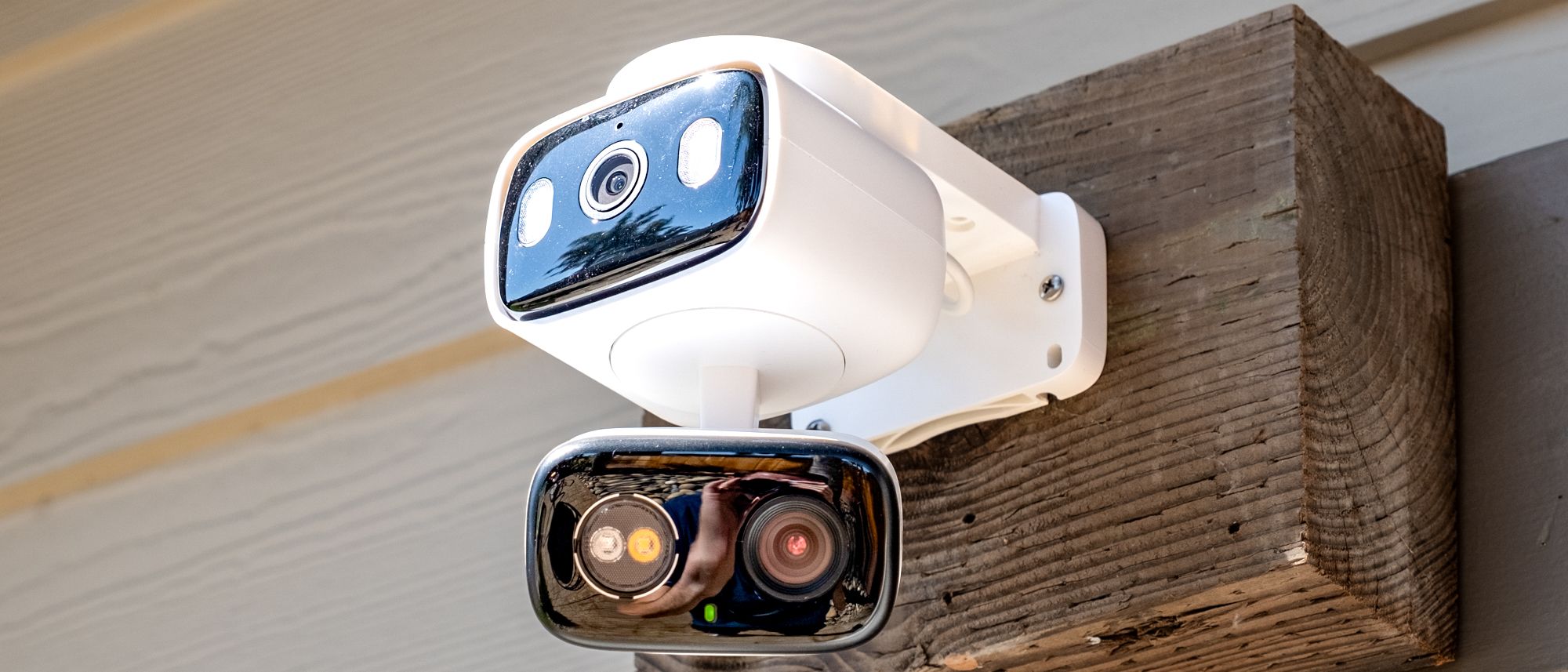
TP-Link Tapo HybridCam Duo: Specs
Video: 2,304 x 1296
Field of view: 125 degrees
Night vision: Infrared and color night vision
Wireless: 2.4 GHz Wi-Fi 4
Weather resistance: IP65
Power: DC 5.0V/2.0A
Works with: Alexa, Google Home, IFTTT, Samsung SmartThings
Basic security cameras are a dime a dozen. The result? Manufacturers are starting to have to build more features into their cameras to stand out. But instead of putting just one camera in a device, how about two? The TP-Link Tapo HybridCam Duo has dual cameras to better monitor motion while keeping an eye on everything else.
TP-Link Tapo HybridCam Duo review: Price and Availability
The TP-Link Tapo HybridCam Duo is available right now from TP-Link and from other retailers. It comes in white, and is actually pretty affordable — it came at $69.99 from TP-Link and Amazon, and you can get a discount if you buy a two-pack, for $129.99.
TP-Link Tapo HybridCam Duo review: Design and installation
The design of the TP-Link Tapo Hybrid Cam Duo is a little different than most traditional security cameras. That, of course, is because of the dual camera system that’s designed to give you more flexibility in tracking motion. The camera itself consists of two halves: The top half connects to the mount, while the bottom half connects to the top half through a small arm that can rotate for motion tracking.
The rest of the camera’s design is fairly standard. It has a white body with a black front, along with sensors and lights on its face. There’s a small USB-C port on the back of the top half of the camera. It’s possible to plug in with the camera mounted, but a little tricky, so you might find it easier to plug the camera in before you mount it.
Mounting it is relatively easy. There’s a white mount that attaches to the wall or ceiling where you intend to install the camera. Then the camera itself simply pops into place on that mount. You will need to keep in mind that this is a wired camera and not a battery-powered one, which might inform where you intend to place it.

After you physically install the camera, download the Tapo app and follow the instructions on screen to add the device. Note that TP-Link confusingly gives its cameras two names, with the HybridCam Duo actually being called the Tapo C246D. That’s what you’ll have to look for in the app when you go to add your camera to your account.
The whole installation process took me around 10 minutes — and that included downloading and installing a firmware update. Assuming you have a screwdriver, a power outlet, and a decent Wi-Fi connection, I suspect most will have a similar experience.
TP-Link Tapo HybridCam Duo review: Image and audio performance
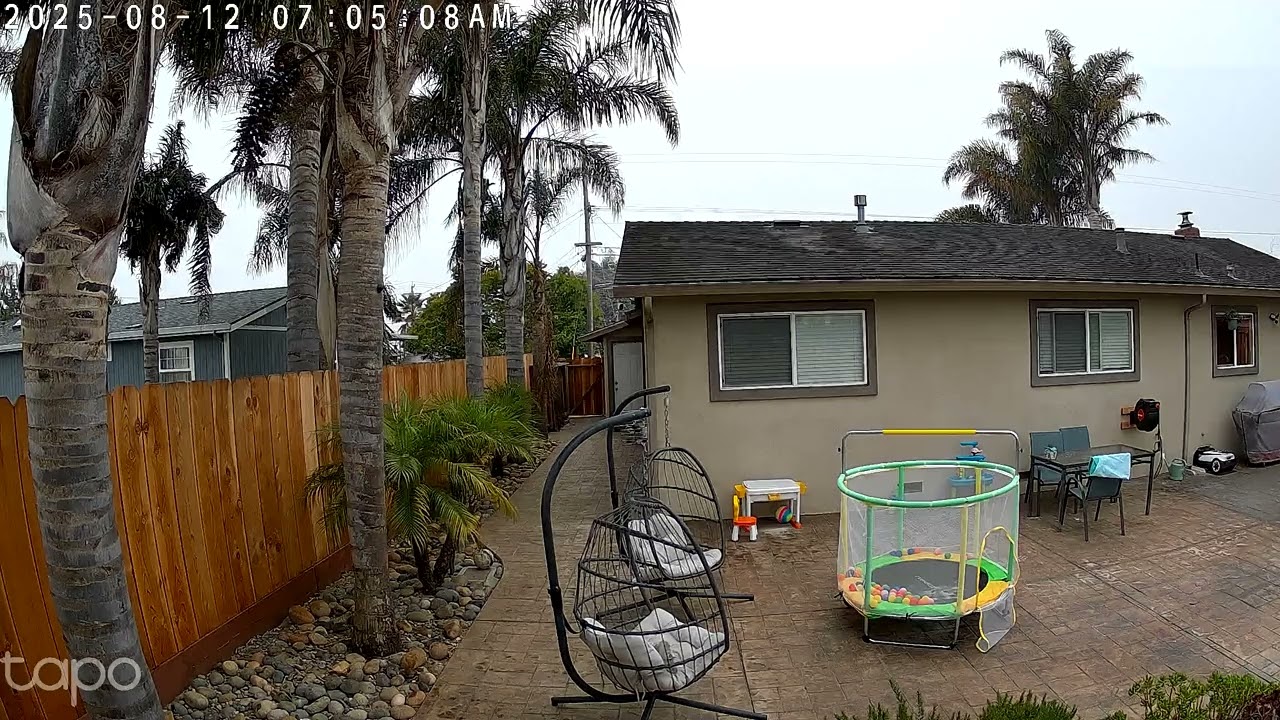
Of course, the unique thing about this system is that it has two 2K cameras built into it. One of them is a fixed wide-angle camera with a 125-degree field-of-view, while the other is a 6mm telephoto camera that delivers around 3x zoom compared to the main camera. You can also zoom to 10.8x with digital zoom. And, the camera supports smart tracking, so if there’s motion that’s spotted, it can be tracked with the telephoto camera. This feature works with people, pets, and vehicles, and you can choose to enable or disable it for those individual types of motion.
The camera can detect people, pets and vehicles separately, but it also has sound detection, and that works with crying (for babies), glass breaking, dogs barking, and even cats meowing. I didn’t test all of these, but the barking detection seemed to work fine for our neighbors’ dogs.
I do wish the wide camera had a slightly wider field-of-view. It’s not bad, but given the fact that it has to be mounted on a flat surface, I wasn’t able to place it in a way that it could see one side of my backyard. Again, it’s not a huge issue — and the telephoto camera was still able to pan to view areas that the wide-angle camera couldn’t see.
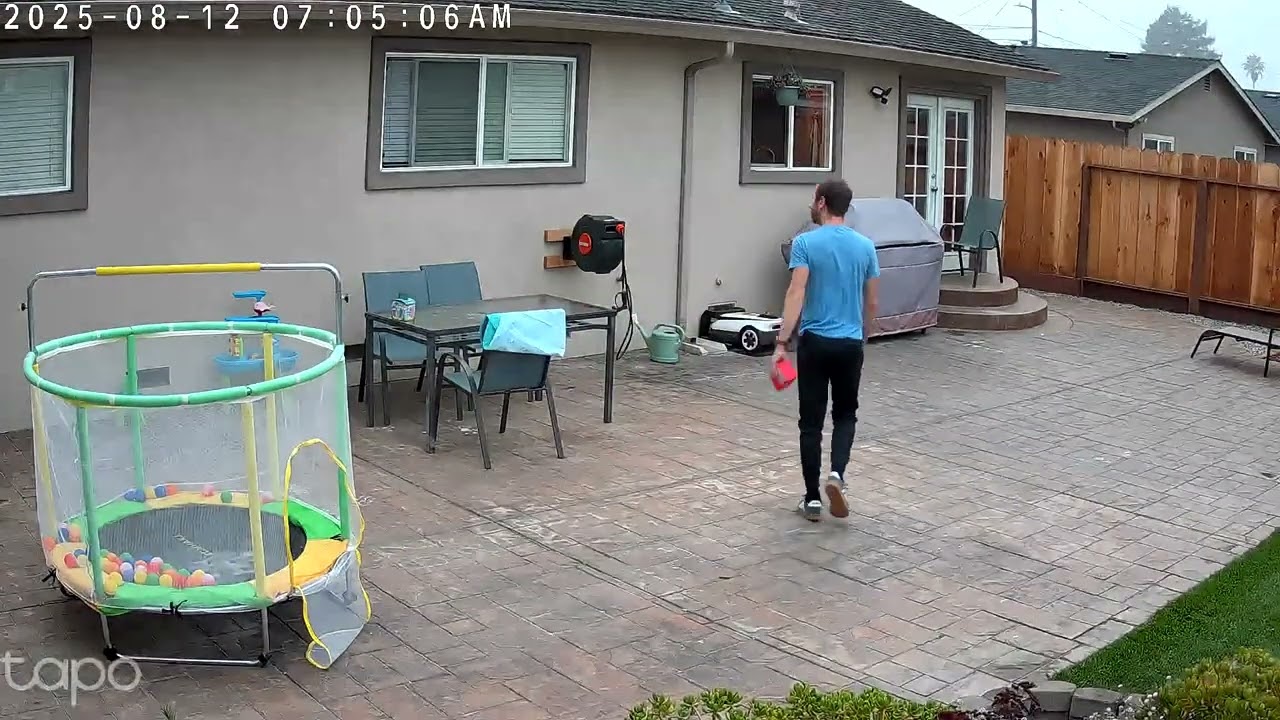
In good lighting, the camera performed quite well. Images were crisp, and it did a good job at automatically tracking movement, even if it wasn’t necessarily super smooth when it moved the telephoto camera to track my walking across my backyard. The image was also pretty natural, and the camera did a good job at capturing details in both shadows and highlights. That means that even on a bright sunny day, it’ll capture motion in darker parts of the image, unlike cheaper cameras that might have a lower dynamic range. Once it has finished tracking motion, it will return back to its set position, ready for more tracking.
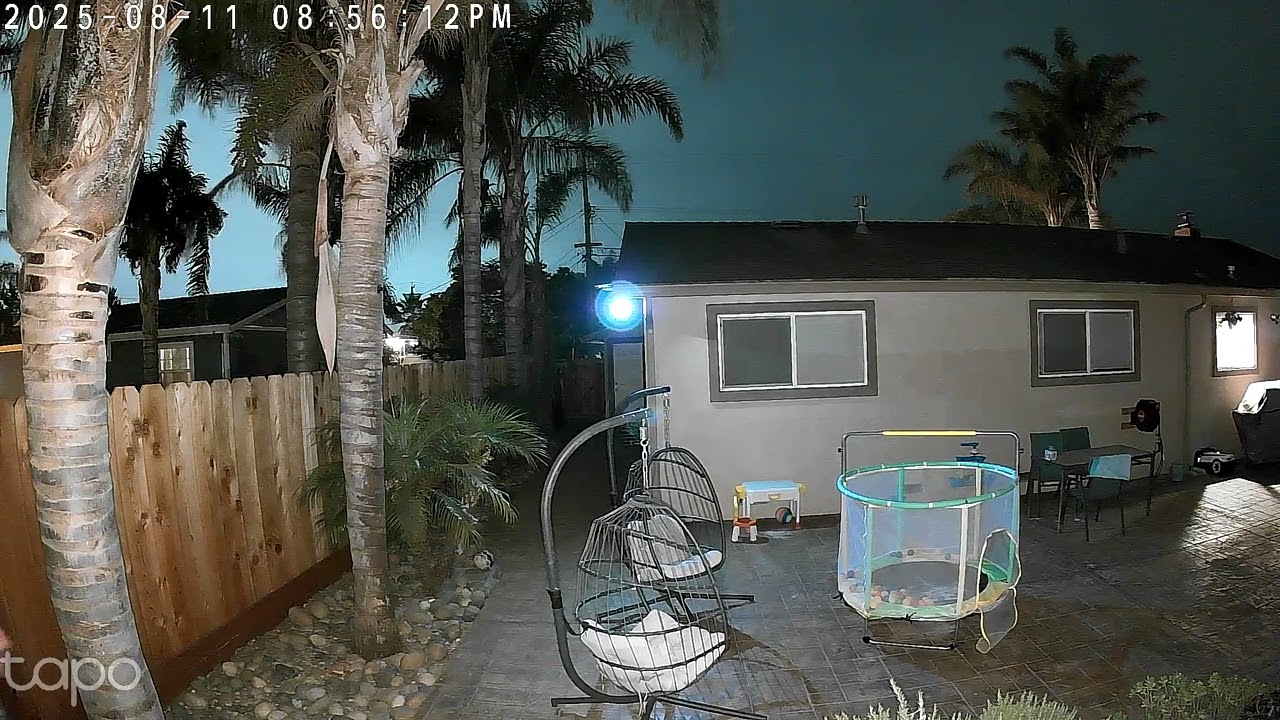
The HybridCam Duo supports both infrared and full-color night vision, and you can set the mode individually for each of the two cameras, which is a nice touch. Of course, if you enable the spotlight on one of them, it’ll undoubtedly illuminate the scene for both of them, but it’s still nice to be able to toggle settings to your preferences.
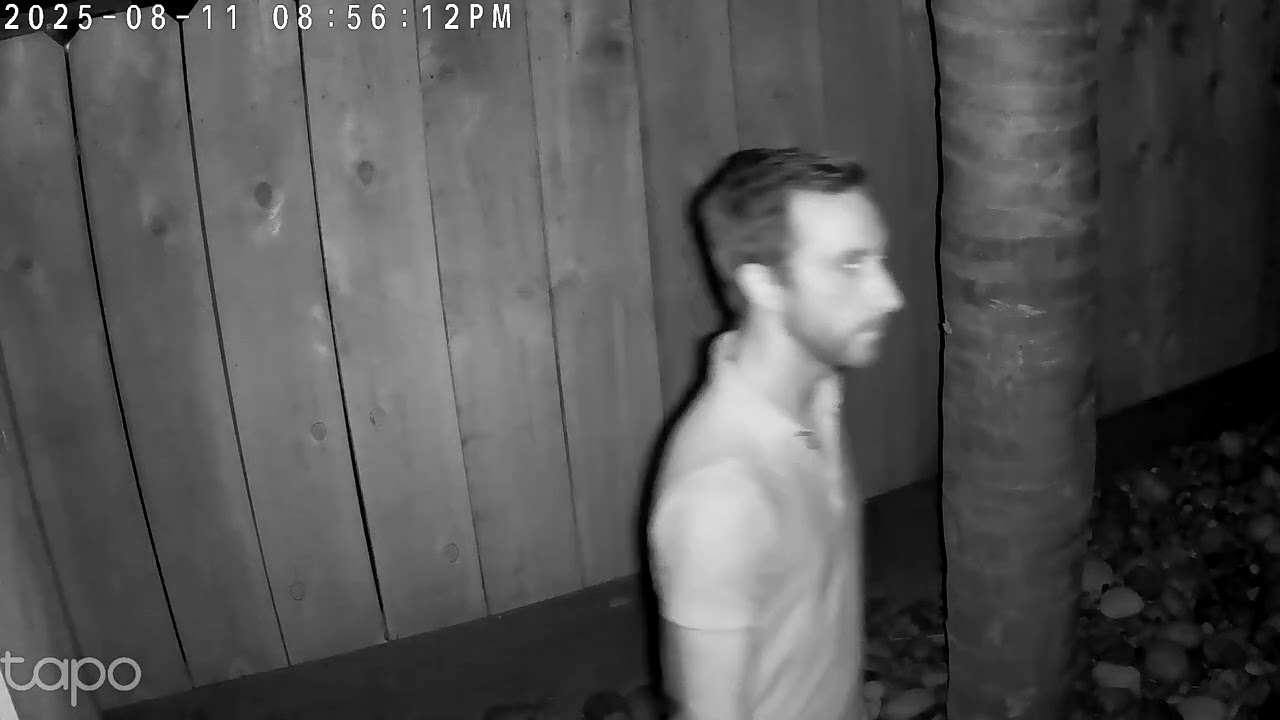
In low lighting both cameras continued to perform well, but I did find the image to be a little less crisp, both when using infrared and color night vision. I actually found the details to be similar in both modes (often, the trade-off to color night vision is detail, depending on the distance of the subject). The wide camera certainly looked a little better with color night vision, though the lights built into it aren’t the strongest, so if you want to record subjects at a distance you may be better off with the infrared night vision.
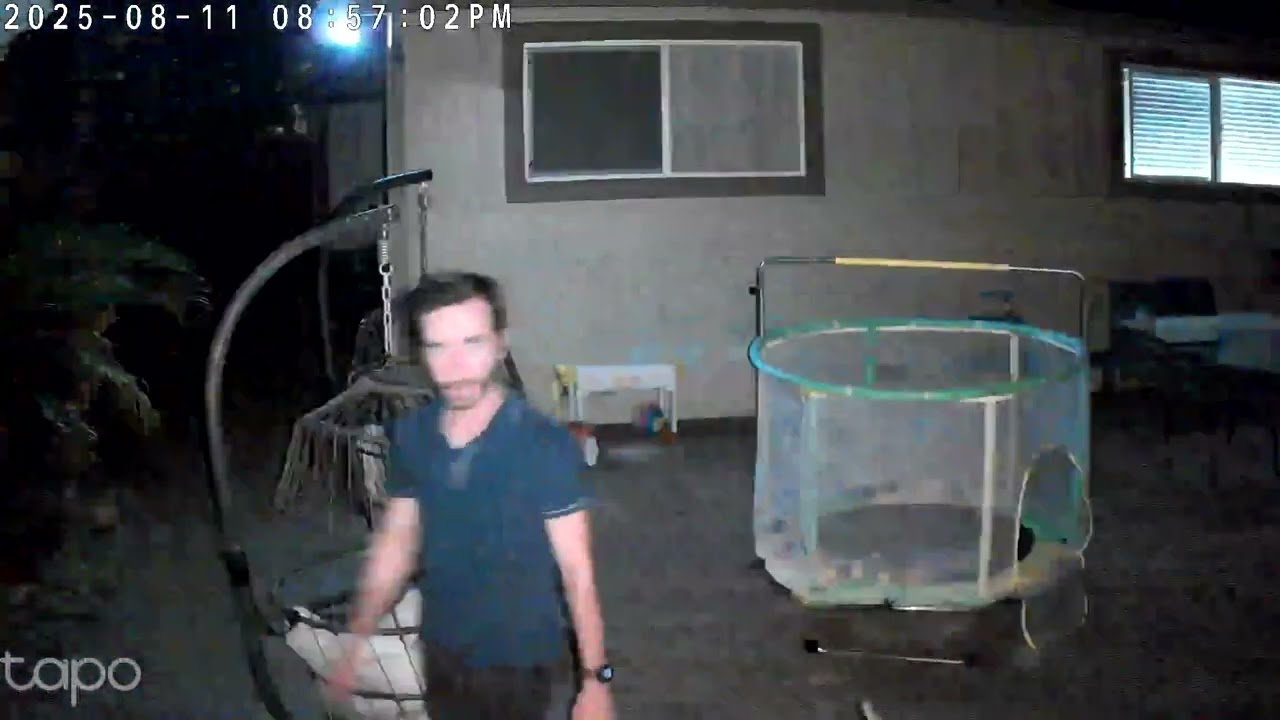
The good news is that you don’t necessarily have to decide whether you want to use infrared or color on one or both cameras. Instead, you can simply use the “smart” mode. Smart mode basically just keeps both cameras in infrared mode until motion is detected, at which point the telephoto camera turns on color night vision, while the wide camera sticks to infrared. It’s a good option for those who don’t want to spend the time experimenting on modes to find the perfect fit for their area.
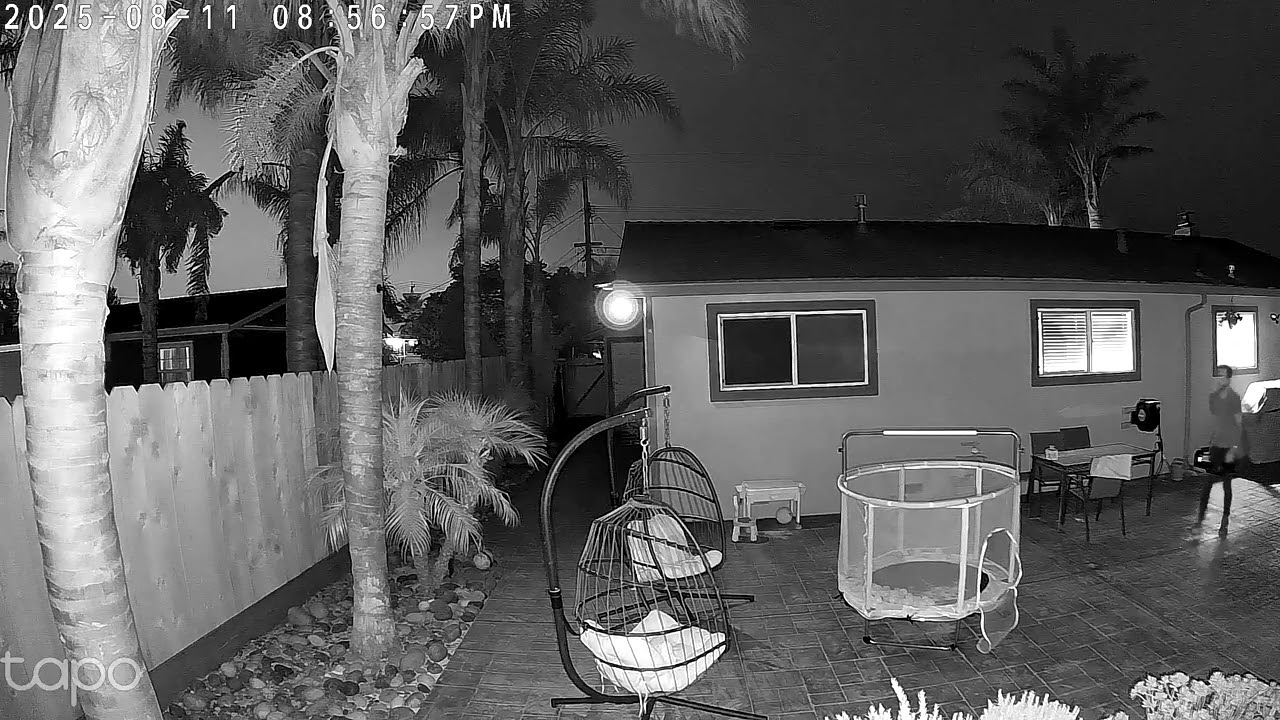
Regardless of the night modes you go for, the camera records excellent video for the price point. It’s quick to detect motion, and video quality is mostly pretty good. The camera also supports continuous recording with a microSD card inserted, which is a handy feature — but even without continuous recording, I found that it usually had enough buffer to include right before motion was detected in recordings for larger objects, like people, and recorded quick enough for smaller objects, like animals.
TP-Link Tapo HybridCam Duo review: App and smart home support
The TP-Link Tapo HybridCam Duo works with the Tapo app, which I found to be perfectly fine. It has a main screen that basically shows you your different Tapo devices at a glance, but it also has a “Cameras” tab that lets you see a snapshot of all of your Tapo cameras.

Tapping on your camera from the home screen or the cameras tab will bring you to its settings, and thankfully they’re relatively easy to manage. Here you can see a live feed of both cameras, but you can switch to a feed from the wide camera if you prefer. I found that even with the feed from both cameras, I was able to access all of the settings without having to scroll — only pre-recorded clips would require you scroll down a little. There are also buttons to record or take a photo or enter two-way audio. You can also pan and tilt the bottom telephoto camera, turn the built-in spotlight on and off, and initiate an alarm.

The app also offers some handy features related to the pan/tilt telephoto camera. For starters, you can manually pan and tilt it as needed, but even better is the fact that you can put it into a patrol mode that has it sweep between pre-set points, allowing you to get a closer view of what’s happening. And, you can create a panoramic view which gives you an overview of the entire visible area, and lets you select on that image where you want the camera to be pointed. You can set a 360-degree, 270-degree, or 180-degree panoramic view. It’s a neat feature, but it only accounts for horizontal panning. I wish it could account for tilting too.
My main issue with these pan/tilt features is that they work very slowly. If you’re manually panning or tilting, you’ll want to do so one tap at a time — you’ll overshoot if you hold down on the controls. I routinely had to wait a few seconds for changes to be made. To be fair, the camera was placed outside, where the Wi-Fi connectivity isn’t as good as it is inside — but you would assume that if the internet is fast enough to stream video, it should be fast enough to deliver basic controls without latency too.

The TP-Link Tapo HybridCam Duo works with Alexa, Google Home, IFTTT, and Samsung SmartThings. It notably does not support Apple’s HomeKit, so if you’re a HomeKit user you’ll need to keep looking.
TP-Link Tapo HybridCam Duo review: Video storage and subscription fees
The HybridCam Duo offers some versatility when it comes to video storage, which is always handy. Notably, it has a microSD card slot, which you can use to store footage locally. It supports cards up to 512GB, which should be enough to store a few weeks of recording, at least. You can even password-protect the microSD card in the Tapo app.

Of course, you can go with cloud storage instead, if you prefer. TP-Link has what it calls the Tapo Care plan, which can store 30 days of video history, plus supports activity notifications, video summaries, smart sorting features, and more. Tapo Care costs $3.49 per month or $34.99 per year, but you will get a 30-day free trial with the camera, and you don’t have to enter your payment details to get it – so you’ll be able to get an idea of whether it’s worth the money or not, without having to worry about automatic payments.
TP-Link Tapo HybridCam Duo review: Verdict
For around $70, you can’t really get a more versatile smart security camera than the TP-Link Tapo HybridCam Duo. It gets around perhaps the biggest issue with pan/tilt cameras — they can’t see everything, all of the time. This camera can, though. The pairing of a wide camera and a telephoto camera makes for a comprehensive security system that supports helpful features like local recording. While night vision could be better and the camera could be more responsive when manually panning and tilting, it performs well for the price.
Source link
