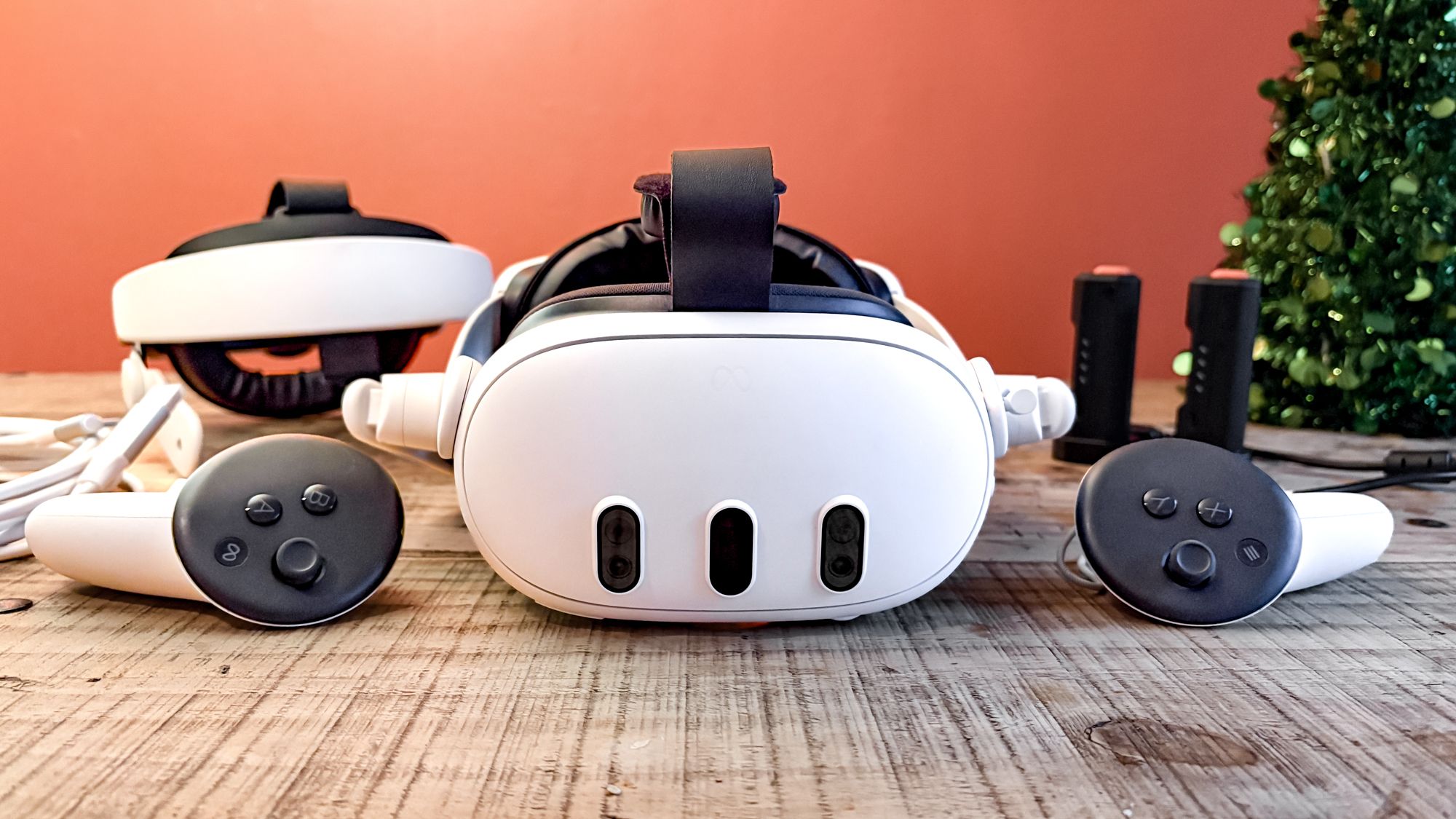
So, if you’ve just got yourself a Meta Quest 3 or Quest 3S, you may be asking yourself, “what now?” Well, aside from playing the best VR games in the market, you’ll find that these standalone VR headsets can do more than just gaming.
I’ve been discovering more about the latest Meta Quest VR headsets in the hundreds of hours I’ve put into these systems, and as it turns out, they go beyond just letting you become The Dark Knight in Batman: Arkham Shadows or exploring vast worlds in Asgard’s Wrath 2. If you’re looking for a way to watch your favorite shows while cooking up a storm in the kitchen or learn how to draw, you have just the device.
Turn your PC into a productivity machine
With this app, you’re getting the best parts of the Apple Vision Pro without paying a fortune. By that, I mean up to three massive virtual screens that act as easily adjustable, productivity displays that sync seamlessly with your Windows 11 PC.
Despite having a full-blown, gigantic 32:9 ultrawide panel that’s curved around you for ultimate immersion (one that could have easily measured over 50 inches right in front of my eyes), the first thing I noticed was the lack of lag. Latency felt virtually seamless even with a wireless connection; I moved my cursor and it reacted immediately on my headset’s virtual monitor.
Quite honestly, this caught me off guard, as I thought, “wait, I can actually really use this.” Not to say that I went in thinking the feature would be a dud, but I didn’t think I would want to use it on a regular basis.
Using the Quest’s Touch plus controller or just my hands via hand-tracking (which can be sketchy at times), I was able to move the virtual display wherever I wanted: right up to my face, far off in the distance, to the side, over my head; anywhere.
If the best monitors are past your budget, and you’re after a multi-monitor setup for less, then just connect your Meta Quest to your Windows 11 PC, and you’ll be off to the productivity races.
Stream shows with a cinematic big screen


Ever since its release, the Meta Quest 3 has had a long history of trying to be the next-gen streaming platform to replace TVs. It didn’t reach those heights, nor does it seem that it ever will (watching shows with family or a pal is hard to beat), but the smart TV-life Meta Horizon TV makes streaming your favorite series or movies on the fly a treat.
There are stilla few pain points, as when I binge-watched shows using Meta’s Horizon TV hub on Quest 3, it was more of an “Amazon Prime Video hub” more than anything else. But now, Disney+ has released its own app on the system (again), expanding the number of shows you can watch with the cinema treatment right before your very eyes.
Gone are the days of the age-old Netflix app only offering 480p resolution; Meta Quest VR headsets now make for a commendable TV streaming experience. Think watching a massive screen while lying on the couch, or chopping up some vegetables while checking out the top 10 movies on Prime Video and more.
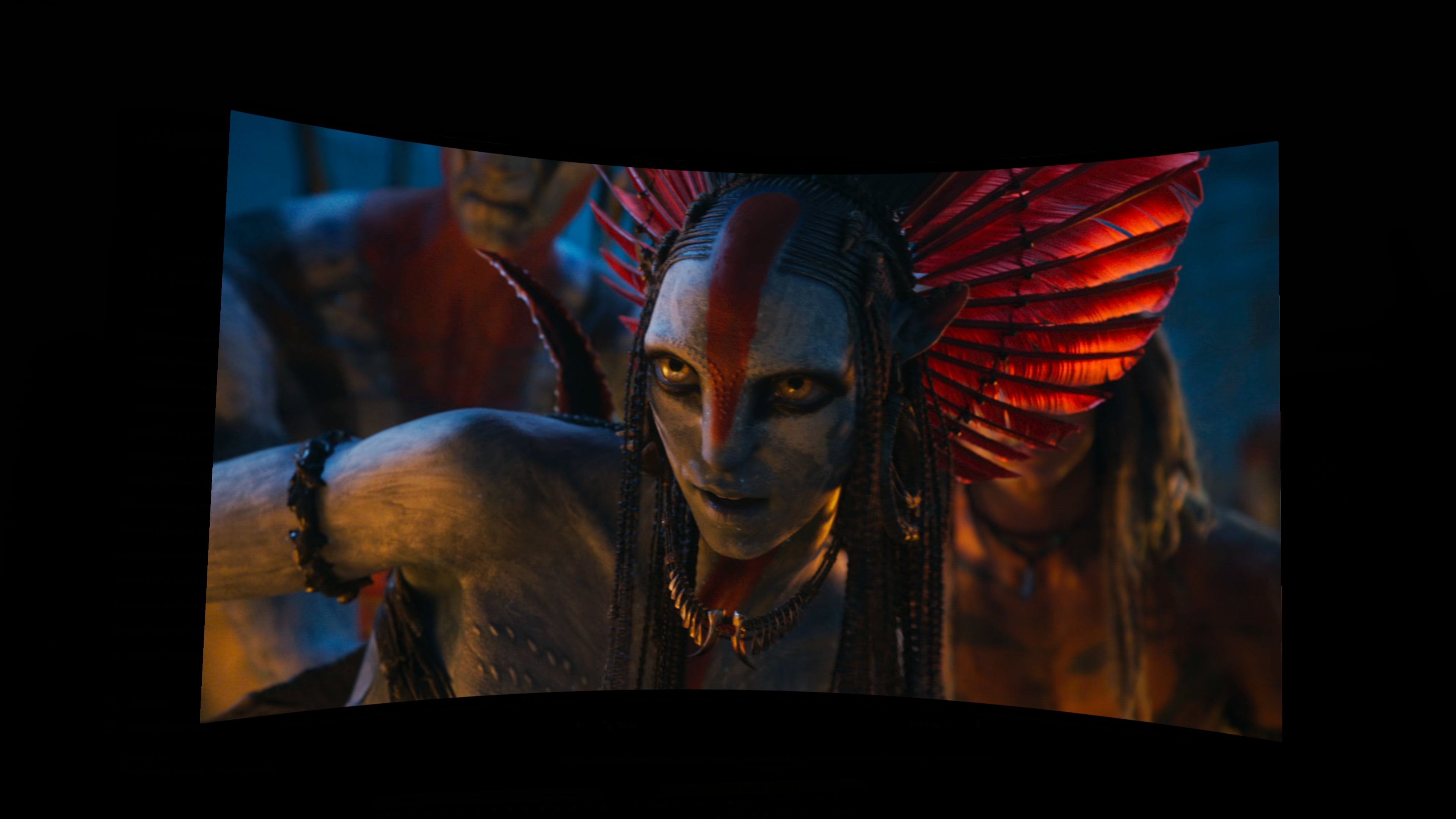

The latest Quest headsets promise more to come down the line, including immersive, 3D movies like “Avatar: Fire and Ash” or getting spooked by “The Black Phone” and “M3GAN,” which are both exclusive special-effect movies already available to those in the U.S.
There’s still some work to be done for Horizon TV, but binge-watchers after an all-new way to watch their favorite shows (“Landman” and “Supernatural” are my go-to picks right now), then get on board with Horizon TV on your Meta Quest 3 or 3S. It’s already pre-installed on your device, so get watching!
Boost your VR performance
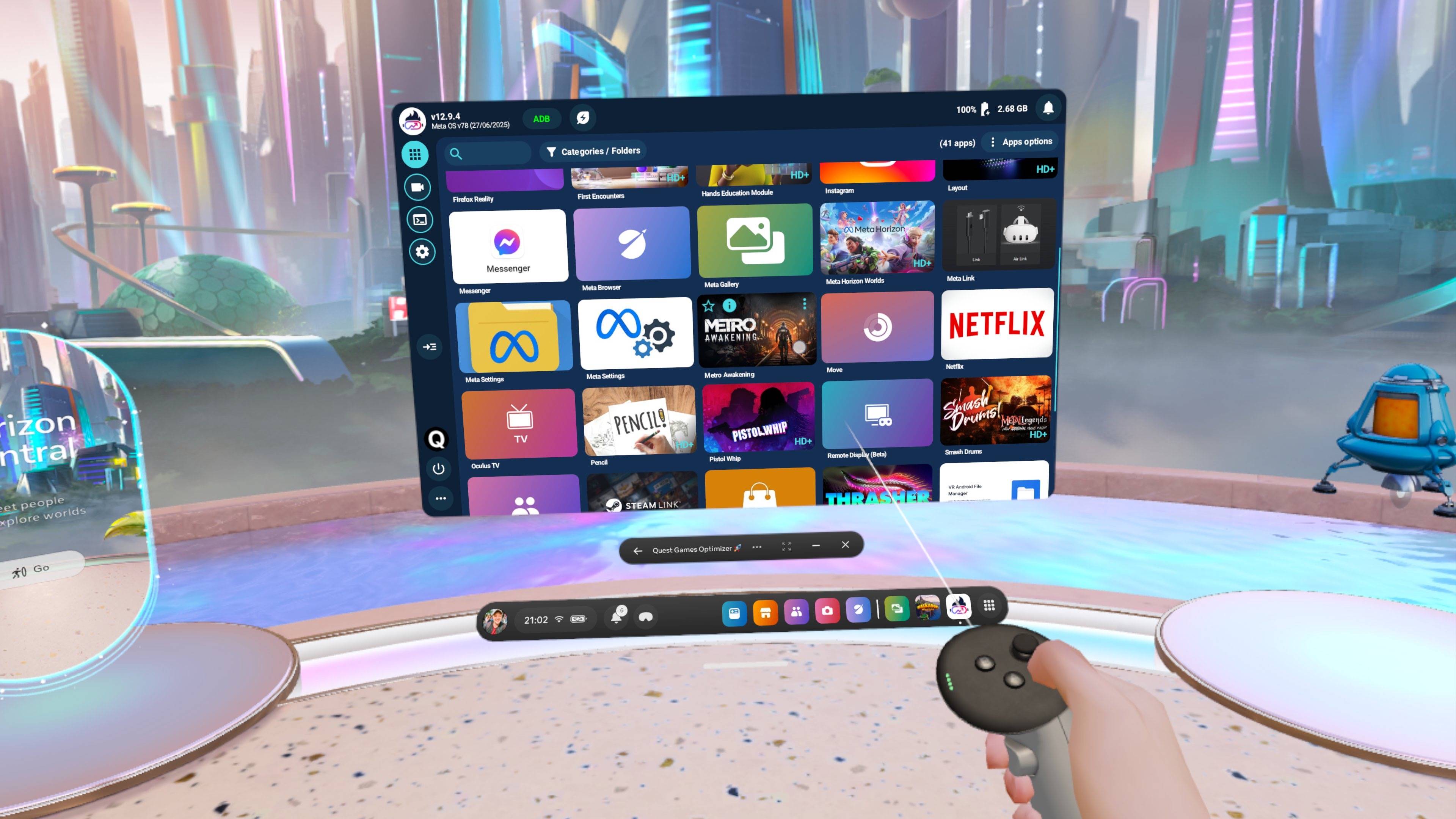
Think the Quest 3 or Quest 3S has more to show off? Well, you’d be right, but Meta tends to lock the performance of games and apps to make better use of the system’s battery life. However, if you’re using a wired connection to keep your headset powered up and want to push your device to its limits, then there’s a $12 Meta Quest app you need to try.
With Quest Game Optimizer (QGO), an app launcher that quite literally unlocks the potential of Meta Quest headsets, you can expect boosted performance, resolution and frame rates in virtually any VR game on the Meta store, and even launch and video record in 4K at 60 FPS.
Now, this one can be a hassle to install. You can use a PC and SideQuest (an Android sideloader) or through the Meta Quest Developer Hub with a PC, and both will have you setting up Developer Mode on your VR headset. That said, once done, you can customize the performance of games to extend your Quest 3 or 3S’ battery life, boost refresh rates for smoother gameplay and even expect superior visual quality in titles.
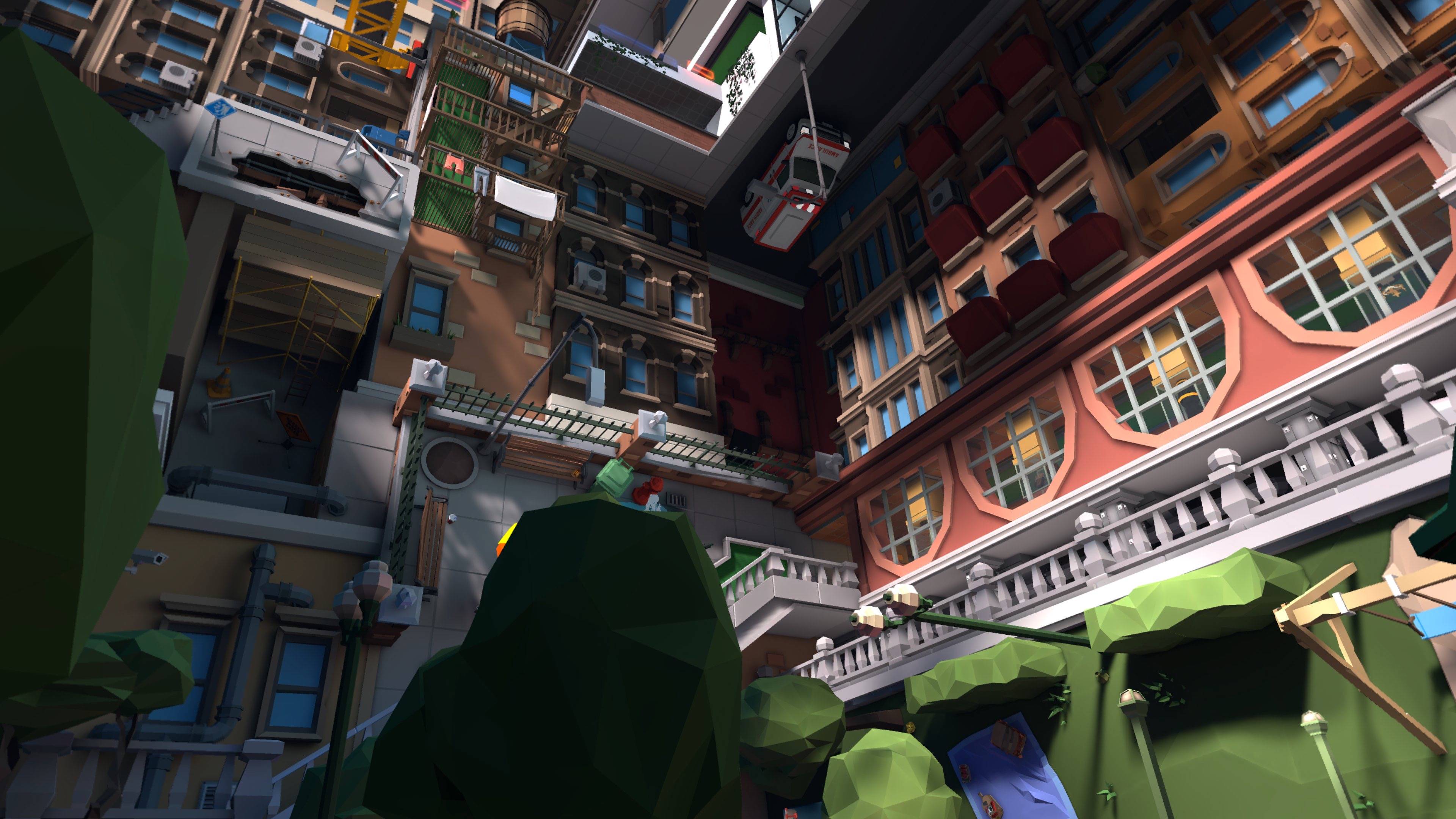
That means resolution going up to 4096 pixels per eye, a 120Hz refresh rate and “Ultra” performance in the Quest 3’s CPU and GPU. Now, I have found that it doesn’t make a massive difference in some titles, but when playing the likes of Walkabout Mini Golf or Metro Awakening, details and frame rates were as clear and smooth as ever.
If you’ve got the patience to download and install it all, and want to see what your Meta Quest 3 has to offer when pushed to its limits, then give QGO a try.
Learn to draw a masterpiece
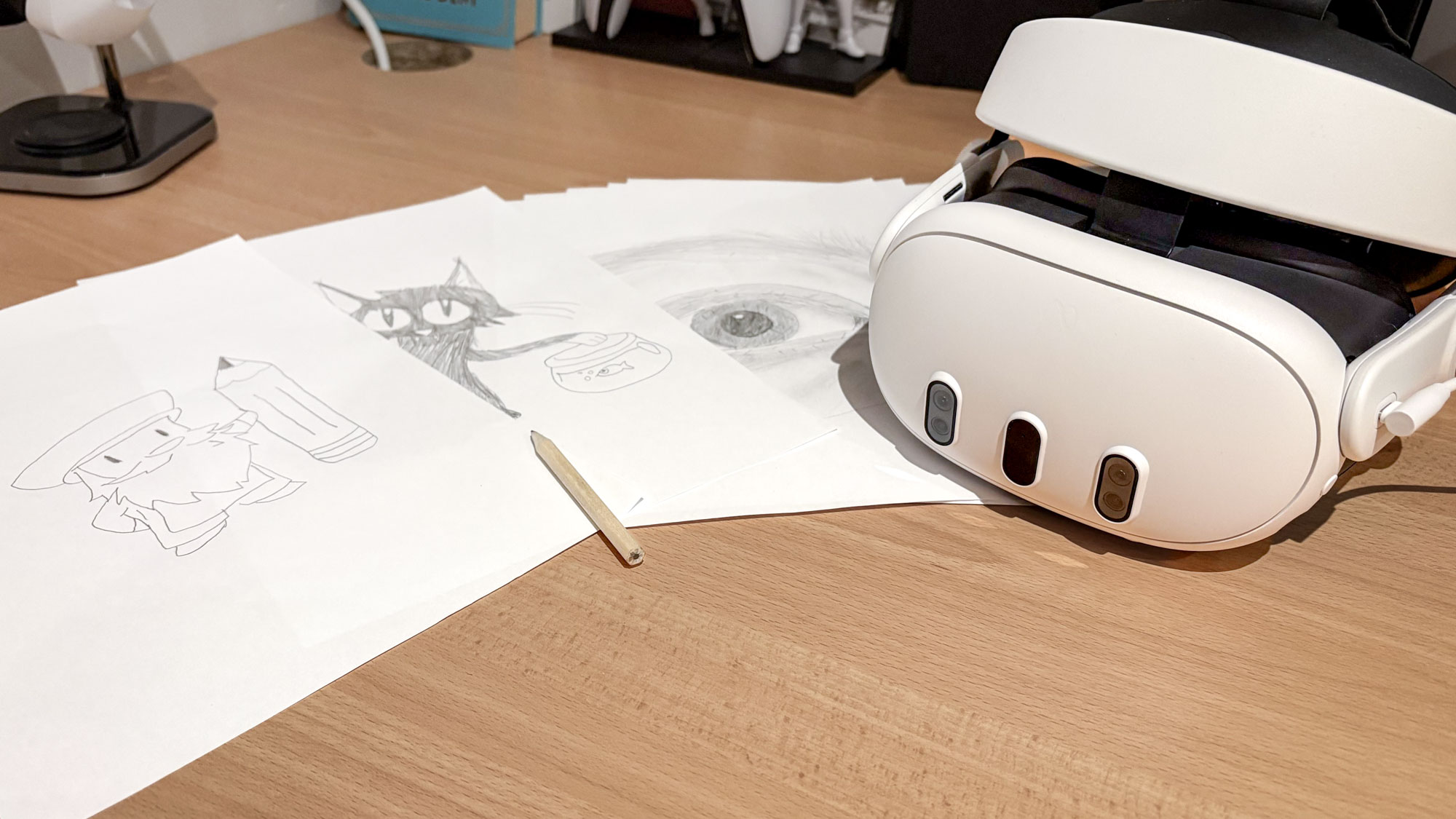
When I say that I am truly atrocious at drawing, I mean it. But developer Lead Head thought of a creative way to let people learn how to refine their (un)artistic expression using a VR headset, and that’s through Pencil – Learn to Draw.
This Meta Quest VR app taught me how to draw, and very well at that. Using the device’s mixed reality capabilities and full color pass-through tech, the Pencil app will guide you through a host of different drawing genres and styles so you can finally create the cartoon or realistic object or being you’ve longed for. Grab a pencil and a sheet of paper (and your VR headset, of course), and you’re all set to get learning.
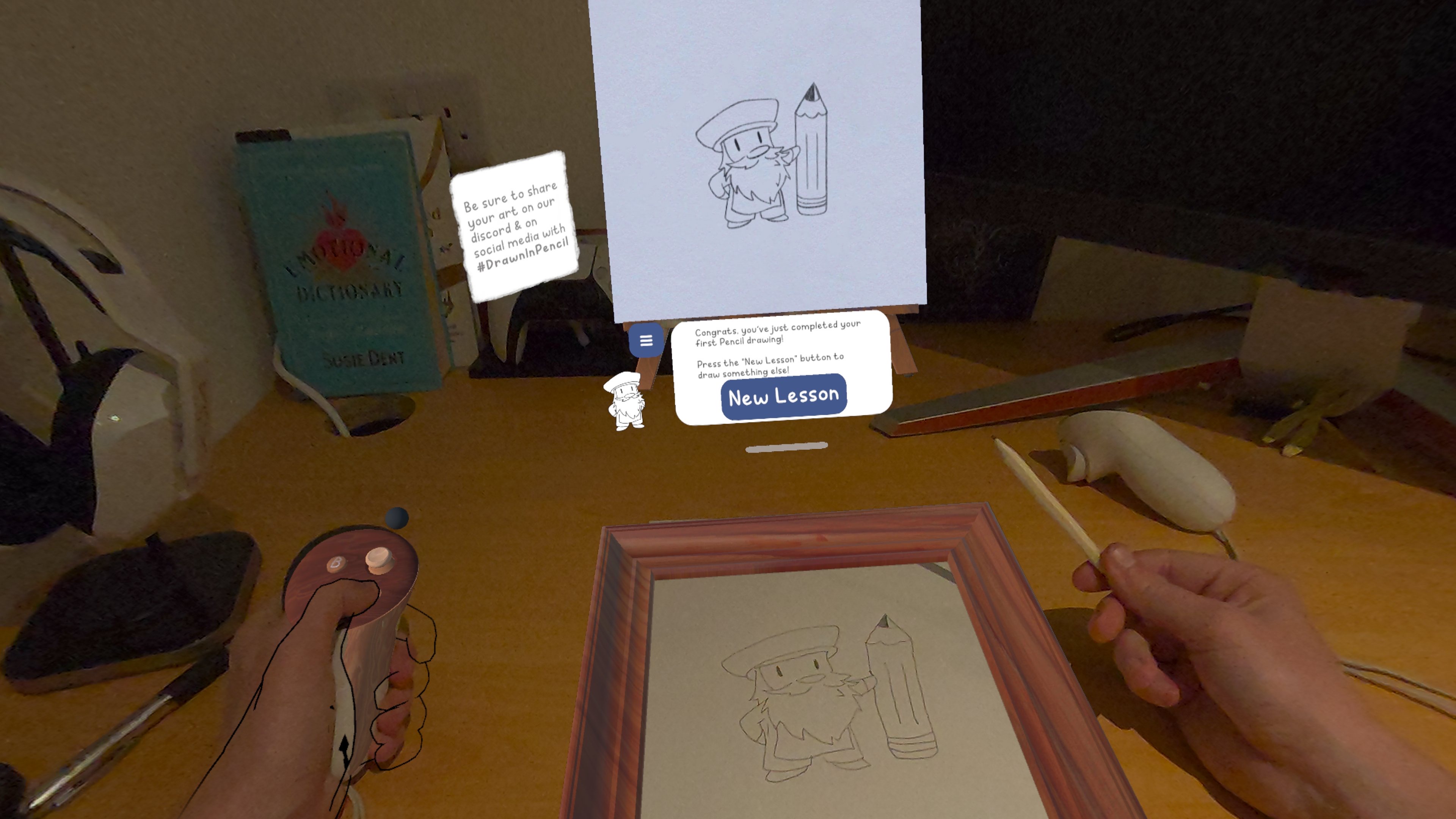
Now that the app is out of early access, you’ll get a wide breadth of ways to learn, from beginner to advanced artist. From outlining simple sketches to knowing how to use directional shading, blending and even erasing successfully, there’s a ton here to spark your creative flow. heck, I even learned how to draw a human eye.
It’s been an absolute blast creating everything from cartoons to still-life objects, and even realistic facial features. For me to say that I drew a human eye, with clear outlines, shading, reflections and tear duct included, is a satisfying accomplishment.
Work up a virtual (and real) sweat
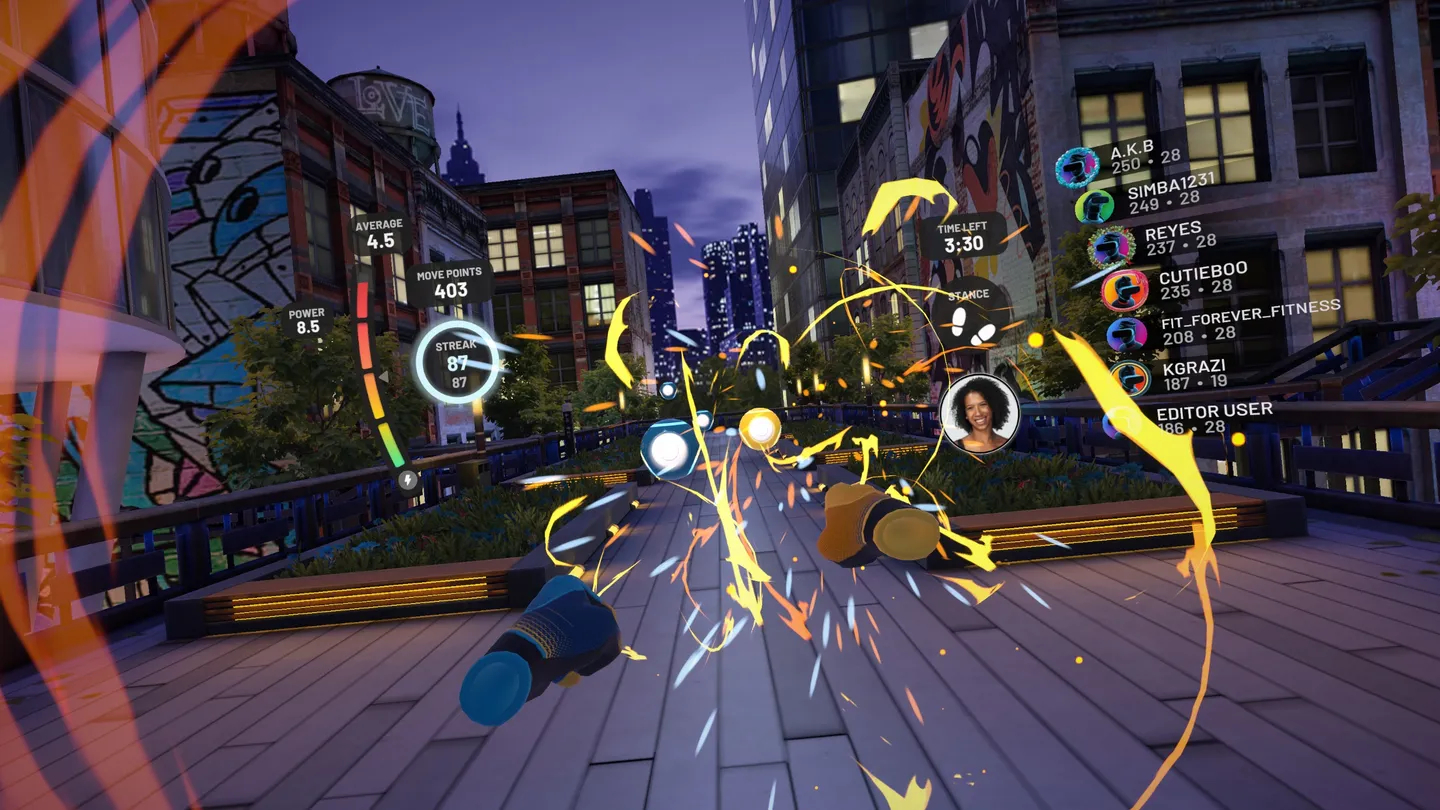

I know all too well the feeling of skipping a training day during those winter months. It’s miserable outside, it’s way too dark and there’s no motivation to get your body moving. But it can feel unsatisfying to give up and do nothing, and that’s when the Quest 3 and 3S can help as a fitness guide instead.
There are several apps on the Quest 3 VR headsets that can give you a sweat-worthy workout, including Beat Saber, Pistol Whip, Thrill of the Fight and more. But for targeted fitness classes brought straight to your space, you’ll want to try out FitXR or Supernatural: Unreal Fitness.
From rigorous boxing to unrelenting squats, you’d be surprised how much of a burn you’ll feel after a session in one of these workout-focused apps. So much so, in fact, that I decided to make FitXR my main way to work out, and was burning up to 500 calories per 40-minute session each time.
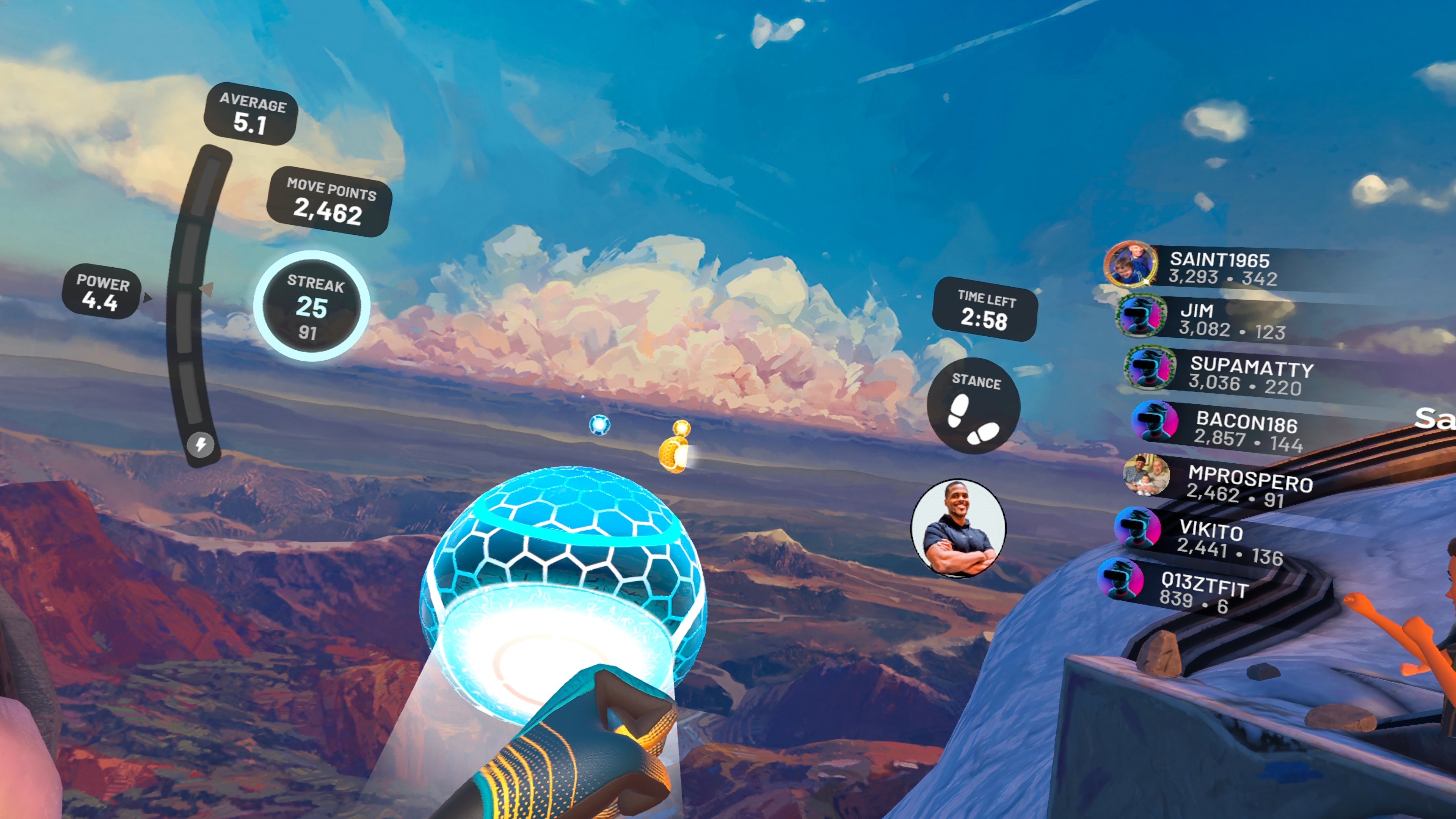
Of course, it all depends on you how much of a sweat you want to build up, as at the end of the day, there’s no one telling you not to just flick a wrist instead of doing a full punch. However, there’s plenty in these apps to keep you motivated, including scoreboards and virtual instructors that bring the hype (the pumped-up music is a nice touch, too).
It’s important to note that many of the exercises on offer are mainly for your upper body and are focused on cardio, as we’ve tested when using FitXR for two weeks. In any case, if you’ve been looking for an entertaining way to stay fit, the virtual reality method via the Quest 3 and Quest 3S offers up a satisfying burn.


Follow Digitpatrox on Google News and add us as a preferred source to get our up-to-date news, analysis, and reviews in your feeds.
More from Digitpatrox
Source link
-

-
-

-

-