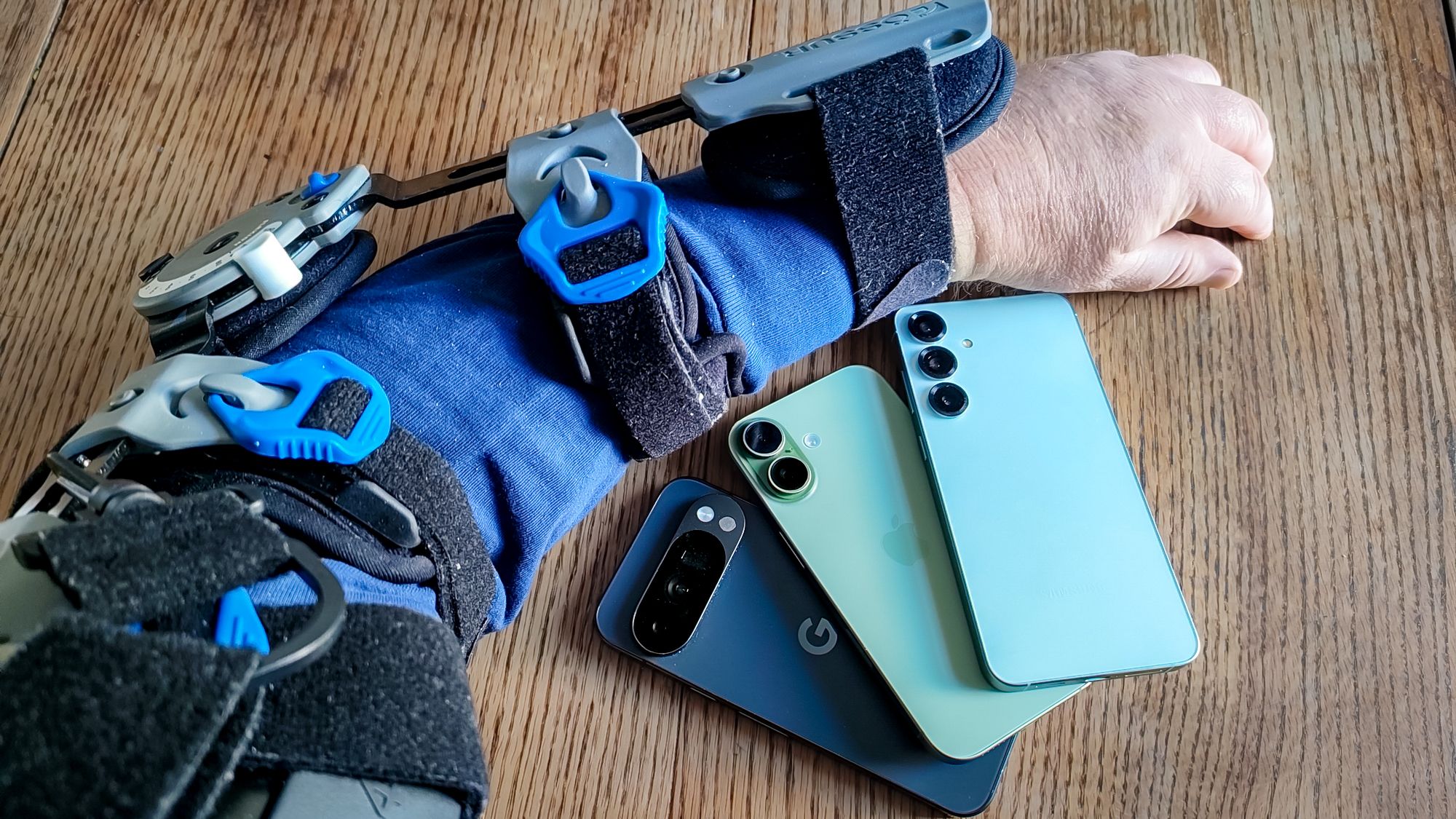
I recently broke my arm — and not just a little break, either, but one where the doctor looks at the x-rays, lets out a low whistle and summons the interns to marvel at the majesty of the fracture. Suffice it to say, my left arm looked to be out of commission for some time.
That’s a problem for me above and beyond the usual drawbacks to having a broken arm. I use my hands to work for a living — typing things out, to be clear, and not say, skilled artisanal craftsmanship, but work’s work. And while my left arm remained immobilized in a cast, that reduced me to one-handed typing with my right hand — not a speedy way of doing things and pretty uncomfortable, too
How I tested voice recorders
I don’t know if you’ve ever tried writing before, but for me, the words aren’t always free flowing. I might start writing a sentence, think better of it, erase what I’ve put down and try something else. If I were to try dictating an article out of thin air, you’d get a transcript with a lot of “ums,” “ers” and pauses large enough to drive a truck through. That would recreate a real world situtation, but it wouldn’t do much to test the accuracy of a voice recorder’s transcription feature.
So I came up with a bit of a cheat. To see just how accurately the three different recorder apps could transcribe my words, I took an existing article — this opinion piece on the OnePlus 15R specifically — and read it out loud, as the recorders captured what I had to say.
To make sure that all three apps had access to the same quality audio, I launched Voice Memo (iPhone), Recorder (Pixel) and Voice Recorder (Galaxy), hit the record buttons on each app and started dictating. That way, if I stumbled over words, each recorder would be hearing the same thing. For the purposes of making sure the transcripts were as accurate as possible, I recorded three takes and used the cleanest of the bunch.
After saving the recordings, I ran them through the transcribe feature in each app. I then exported the transcribed text to a writing app — Notes on the iPhone, Google Docs on the Pixel 10 Pro and Galaxy S25 Plus — where I used highlighting tools to markup any transcription mistakes.
Voice recorder face-off: Ease of use
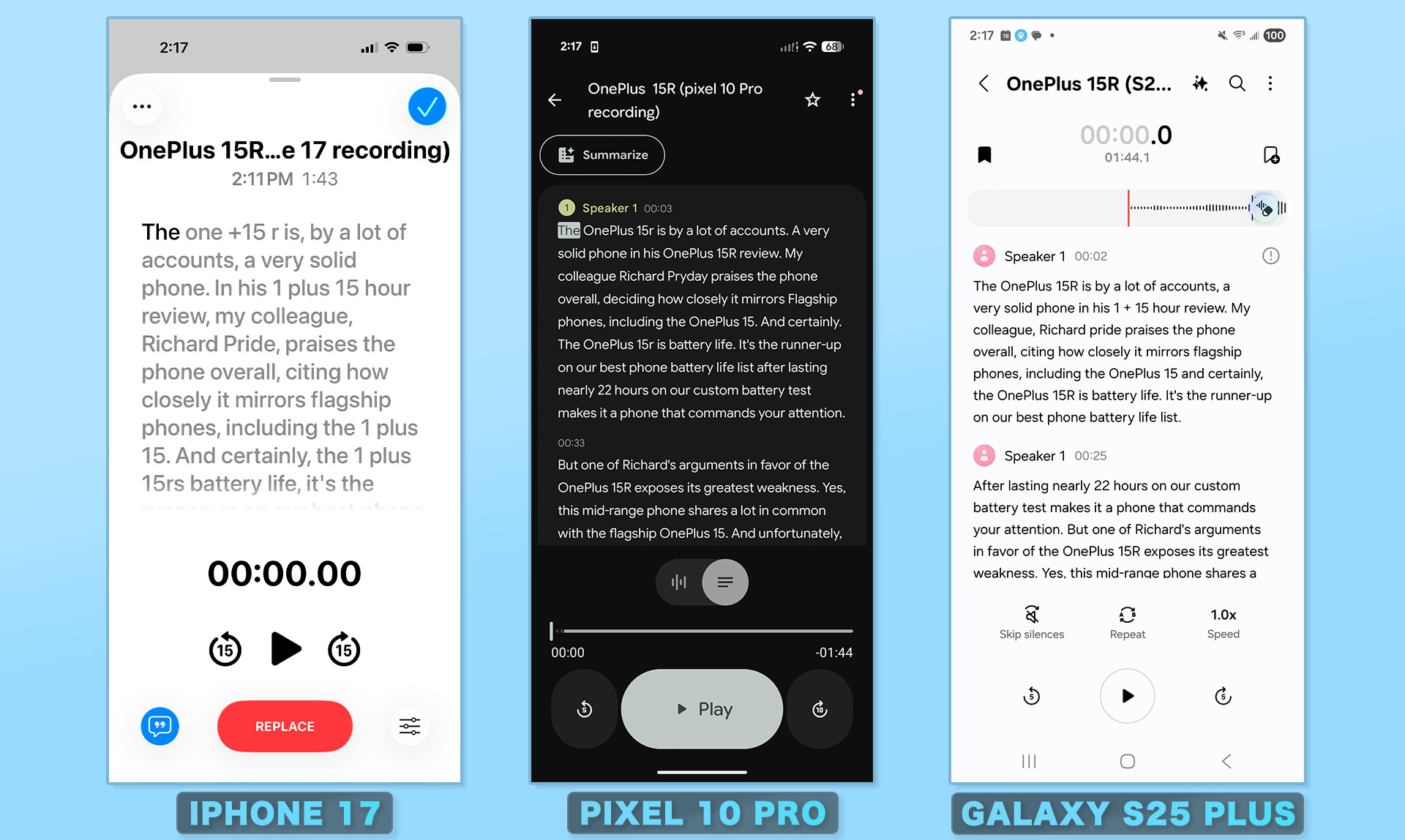

Recording your voice with any of the three apps follows a near identical process. Press the big red record button, and do your talking. On the iPhone and Pixel, you tap that button again to stop, while the Galaxy’s Voice Recorder gives you the option of either pausing or stopping the recording. Some may appreciate the flexibility of Samsung’s approach, but I think it adds a layer of complexity when all you want to do is fire off a quick voice memo.
By default, Google’s Recorder titles your recording with the date and time, while Voice Memos on the iPhone uses your location as the title. The Galaxy recording app assigns a random number. For the most part, you tap the More menu in each app to assign a specific title to the recording, though the iPhone also lets you tap on the title itself to change the name.
Only Google’s Recorder app offers live translation on the fly, and a button lets you toggle between the transcript and waveform view. You can only access the iPhone’s transcript after you finish your recording, but it’s accessible with a button tap.
Transcribing a recording in Samsung’s Voice Recorder app is the most involved process. You hit the transcribe button and you wait as the app creates a transcript. It only takes a little bit for shorter recordings, but it’s not as instantaneous as what the Pixel and iPhone offer.
What’s more, Voice Recorder has an Auto Detect Language feature that seems to be turned on by default — when enabled, the feature assumed I wanted a transcript in Australian English, which added another level of fiddling where I had to select U.S. English instead. Turning off the feature eliminated that extra step.
If you’re judging recording apps by how easy they are to use, Recorder on the Pixel phones has the easiest approach to recording and producing a transcript, though Voice Memos on the iPhone isn’t that far behind. Samsung tries to inject too many complexities into its Voice Recorder app for my taste.
Voice recorder face-off: Transcript accuracy
I used a four paragraph section of my pre-written article that also included a subhead. In retrospect, that was a mistake, as recording app transcripts do a poor job of recognizing paragraph breaks. That creates an issue when it comes to cleaning up your transcript, as we’ll talk about later.
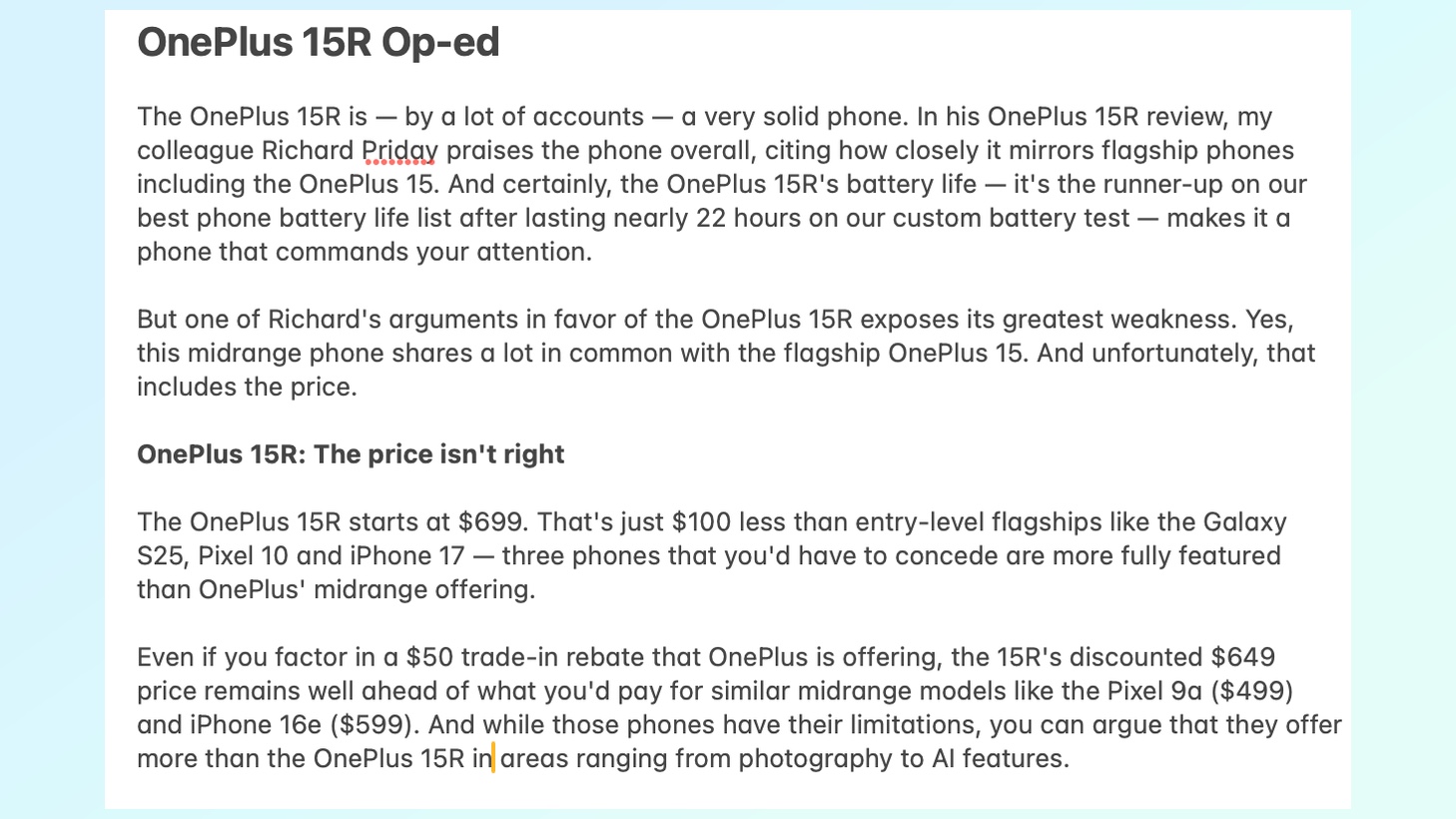

I made sure that my selected text included proper names and prices, as I was interested to see how the different transcription features would handle both. (Poorly, as it turns out for product names, decently for prices with one notable exception.) When marking up text for transcription errors, I was more forgiving for things like em-dashes and parentheticals, as it would be unfair to expect a those to show up in an audio transcription. I was less tolerant of misplaced commas or incorrectly punctuated sentences as those require edits that would make dictating articles less of a time-saver.
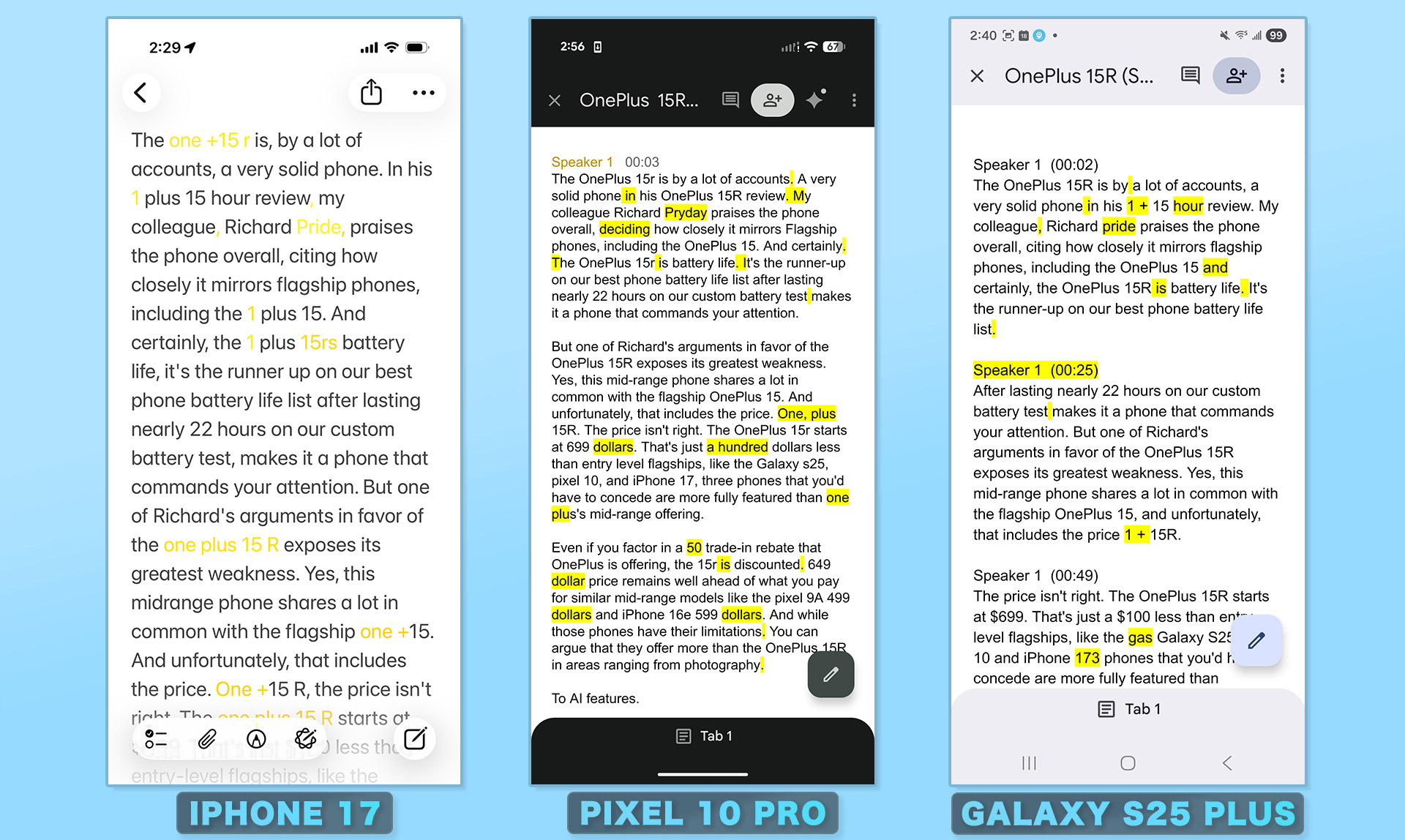
Let’s start with the iPhone, since it produced the cleanest copy in my opinion. The biggest recurring issue involved product names — specifically, products not produced by Apple. The one mention of the iPhone produced a correctly capitalized instance (lowercase “i” followed by uppercase “p”) while the OnePlus 15R was spelled multiple ways, none of them correctly. (The transcript couldn’t decide between “One +” and “1 plus,” though it did make sure to space everything out.)
That aside, the iPhone correctly reproduced prices and didn’t arbitrarily insert periods or capitalized words. There were no paragraph breaks, but that seems par for the course among transcription features.
The Pixel 10 Pro’s transcript nailed the OnePlus 15R names and came the closest of any of the apps to getting paragraph breaks correct. Like the other two voice recorders, it stumbled over the name of my colleague Richard Priday, but was the only one not to change his last name to Pride.
But the Pixel 10 Pro had some consistent problems. It couldn’t handle prices, writing out “649 dollars” rather than “$649.” It aslo stumbled over possessives, transcribing “OnePlus 15R’s” into “OnePlus 15R is” on several occasions. It also had the lone instance of a complete transcription error, using “deciding” when I said “citing.”
That said, the Galaxy S25 Plus and its Voice Recorder app produced the worst transcript of the bunch, as it was marred by random paragraph breaks and sentence fragments. Like the iPhone’s transcript, the Samsung version would occasionally get the name of the OnePlus 15R wrong — “1 + 15 hour” was the most egregious example — though it handled prices well enough.
Samsung’s Recorder app also insists upon identifying speakers, even though I’m the only one talking in this recording. The constant “Speaker 1” insertions not only lead to those sporadic paragraph breaks, but also create a lot of edits that I’ll need to clean up if I have any hopes of turning this transcript into an article I can submit.
Incidentally, the results here were consistent with some transcription testing we conducted this summer in our search for the phone with the best AI features. In that instance, the iPhone offered the best voice recording transcript, though Samsung’s ability to identify multiple speakers does come in handy for things like meetings where there’s a lot of back-and-forth discussion.
Voice recorder face-off: Editing tools
Let’s be honest: in the scenario I’m testing — person with broken arm tries to dictate articles — any editing or transcript clean-up is likely to be done on a computer, where you have the benefit of a bigger screen and a physical keyboard. But just for the sake of a thorough review, I tried cleaning up the transcript within each recording app to see which one offers the best end-to-end experience.
The editing tools in the iPhone’s Voice Memos app are strictly for trimming the audio. If you want to clean up the text, you would use the Copy Transcript option from the app’s menu to lift and place the text in the editor of your choice, whether that’s the built-in Notes app or a third-party option.
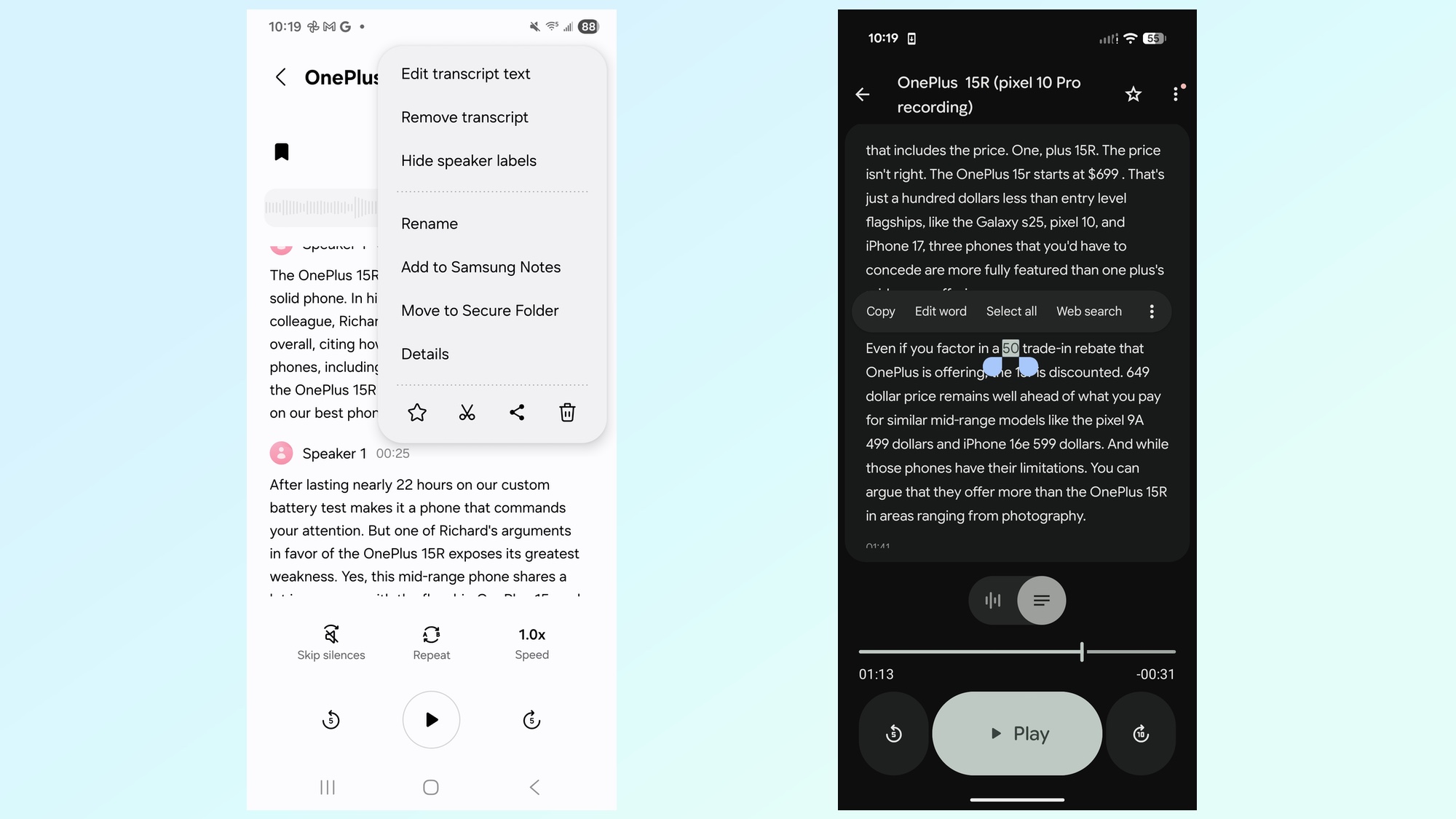
The Pixel 10 Pro’s Recorder app lets you tap on individual words and select Edit Word from the pop-up menu. This can be helpful for cleaning up incorrectly transcribed words, but you don’t really have an option for fixing bad punctuation or abruptly ended sentences. As with the iPhone, your best bet is to copy the transcript and paste it into a different app for more extensive edits.
Voice Recorder on the Galaxy S25 Plus offers transcript editing features, which you access by tapping the More menu — the three vertical dots in the upper right corner — followed by Edit Transcript Text. From there, it’s simply a matter of editing text by tapping what you want to change and using an on-screen keyboard to make your fixes, just like you would in any text editor. Again, I’d prefer to do editing on a computer screen, but Samsung’s phones at least give you the option of making extensive transcript edits without leaving the app.
Voice recorder transcripts: Which one I’d pick
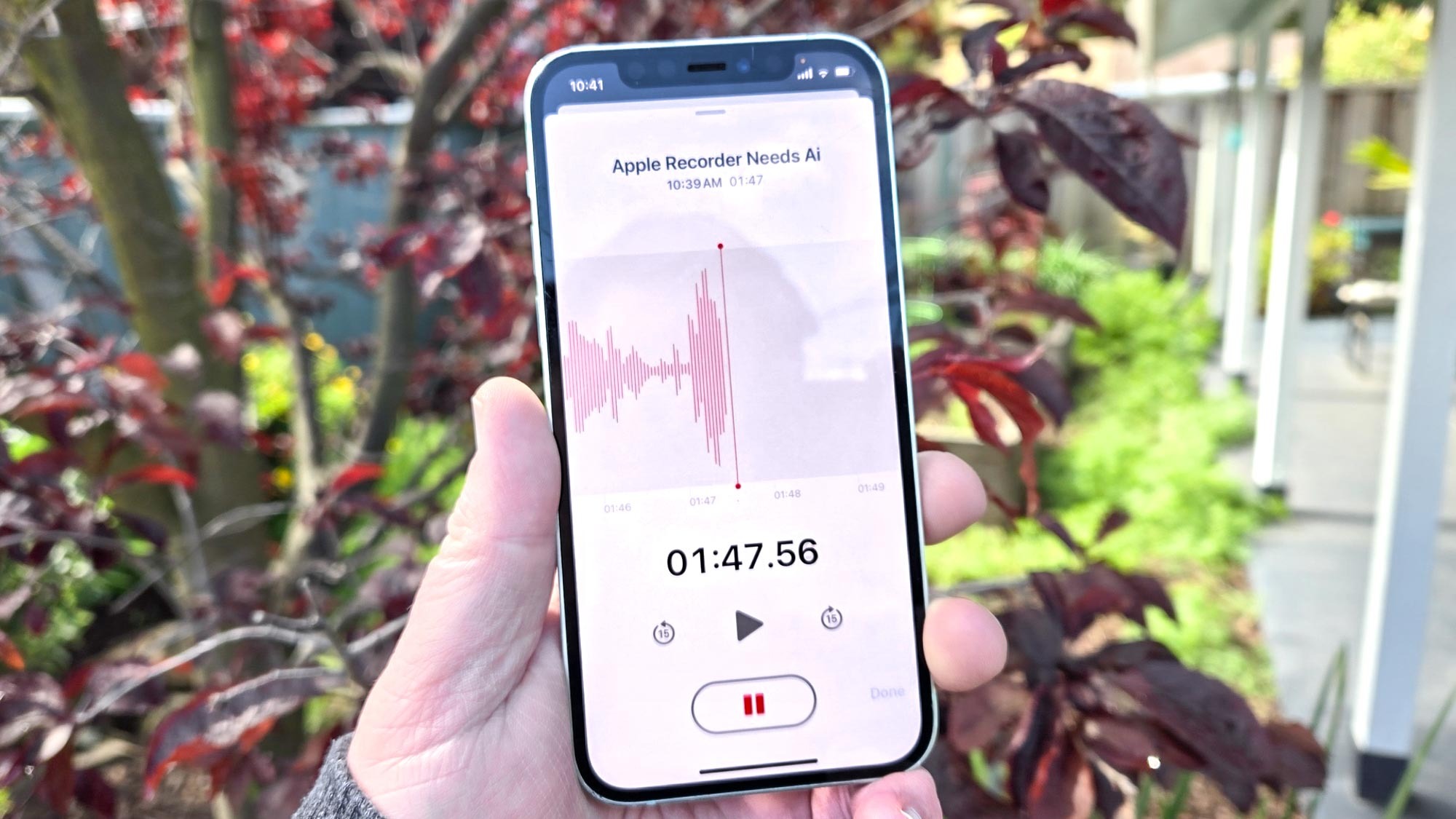
If I decided that the best course of action for producing articles with a broken arm was dictating my thoughts into a voice recorder, I’d pick Apple’s Voice Memos. It produces the cleanest, most accurate text — not just in this instance but consistently in similar tests I’ve conducted. Google’s Recorder app is easier to use than the Galaxy S25’s built-in option, though I’d be concerned by the number of errors that Google makes when transcribing audio into text.
That said, even the iPhone’s transcriptions aren’t perfect. And the process of taking that transcript, getting it into a text editor and then cleaning up the text doesn’t seem that much faster than hunting and pecking on a keyboard with my one good hand.
What this exercise taught me is what mobile voice memo apps are really designed for. You can use them to dictate out articles, though you’ll need to be prepared to do a lot of cleanup. Instead, I think these apps are best put to use recording meetings and lectures so that you have an auto-generated transcript you can refer to later on. In those situations, transcripts don’t have to be perfect and don’t require much in the way of editing after the fact.
Perhaps one day we’ll get an AI-infused recorder that can take the words I speak and turn them into ready-to-print copy with minimal involvement on my part. But we’re not there yet.

Follow Digitpatrox on Google News and add us as a preferred source to get our up-to-date news, analysis, and reviews in your feeds.
More from Digitpatrox
Source link
-

-
-

-

-