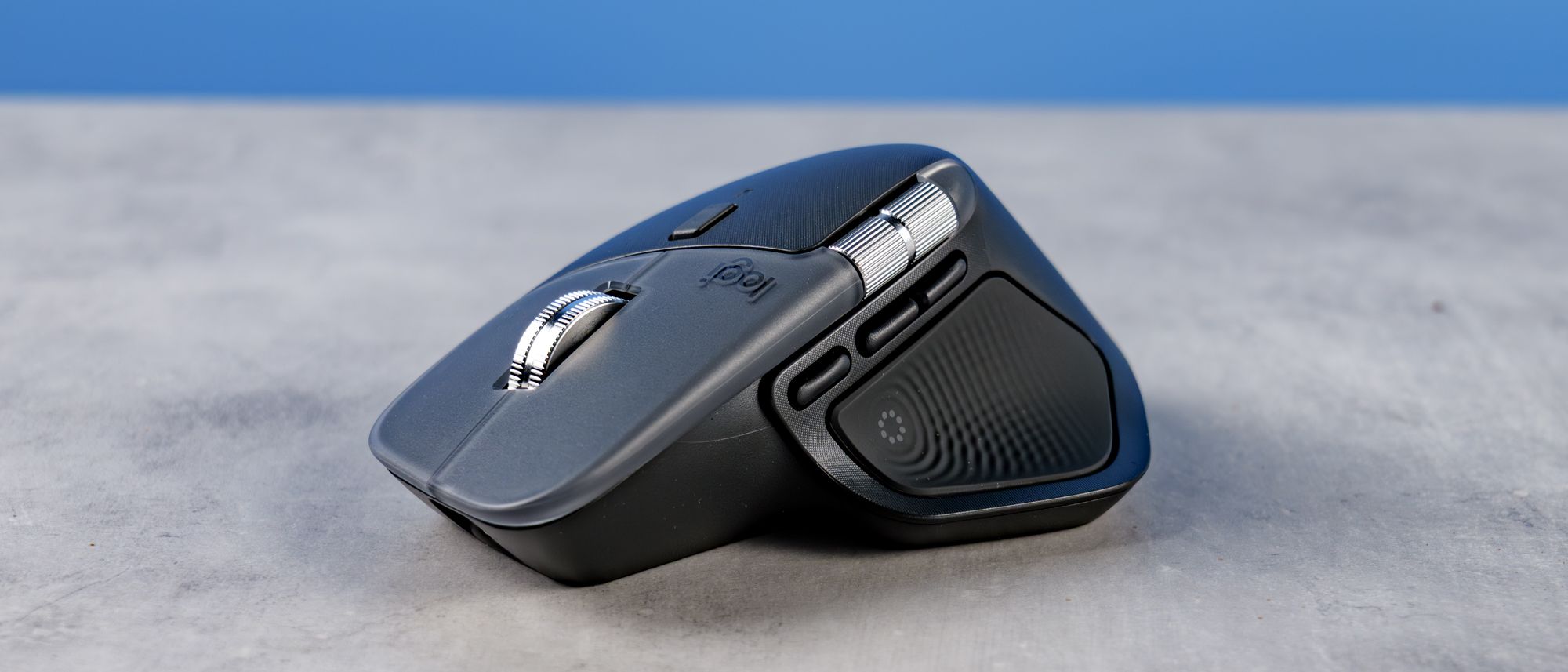
The king of mice has regenerated once more — all hail the new king. The Logitech MX Master 4 is the latest installment in Logi’s perennially popular line of premium productivity mice. It succeeds the Logitech MX Master 3S, a mouse I also reviewed, own and still use (3S in the office, 4 at home — I’m utterly spoiled).
So, is the Master 4 a worthy successor? Well, let’s get this straight early on. The 4 is an evolution, not a revolution of the 3S. And that kind of makes sense. The MX Master 3S was near perfect, so it’d be hard to totally rethink the formula without spoiling the brew.
The new model still brings some notable upgrades, though. The outer material has been changed from a rubberized to a hard plastic finish (which, in my eyes, is a positive), there’s now haptic feedback (which is slightly gimmicky) and there’s a control-ring-button-pad-thingy (I’ll explain below) to replace the slightly finicky gesture controls of the 3S.
Should newcomers buy it over the 3S? I think so. Should 3S owners upgrade? Potentially — but it depends on whether they have a specific grievance with the former model. Is the MX Master 4 nevertheless one of the best wireless mice out there? Absolutely.
Logitech MX Master 4 review: Cheat sheet
- What is it? A premium all-rounder mouse for productivity and casual gaming
- What does it cost? A pretty penny: $119 / £119
- What’s good? Stellar performance, premium construction, bags of customization and decent battery life
- What’s not? Some upgrades are divisive, the haptics feel pointless and it’s somewhat pricey (but you get what you pay for)
Logitech MX Master 4 review: Specs
|
Price |
|
|
Max DPI |
8,000 |
|
Buttons |
8 |
|
Size |
5.04 x 3.47 x 2 inches |
|
Weight |
5.29 ounces |
|
Colors |
Graphite; pale gray (Multi-platform) | Space black; white silver (Mac version) |
|
Design |
Right-handed |
|
Operating system |
Windows, macOS, Linux, iPadOS, ChromeOS |
|
Mac-specific option |
Yes |
|
Connectivity modes |
2.4G (x1); Bluetooth (x2) |
|
Lighting |
No |
Logitech MX Master 4 review: The ups
As I mentioned up top, this is an evolution, not a revolution of the 3S, and that’s a good thing. Core performance is still, therefore, excellent, and a few choice upgrades could make it worth upgrading from the previous model.
New plastic finish
Image 1 of 2

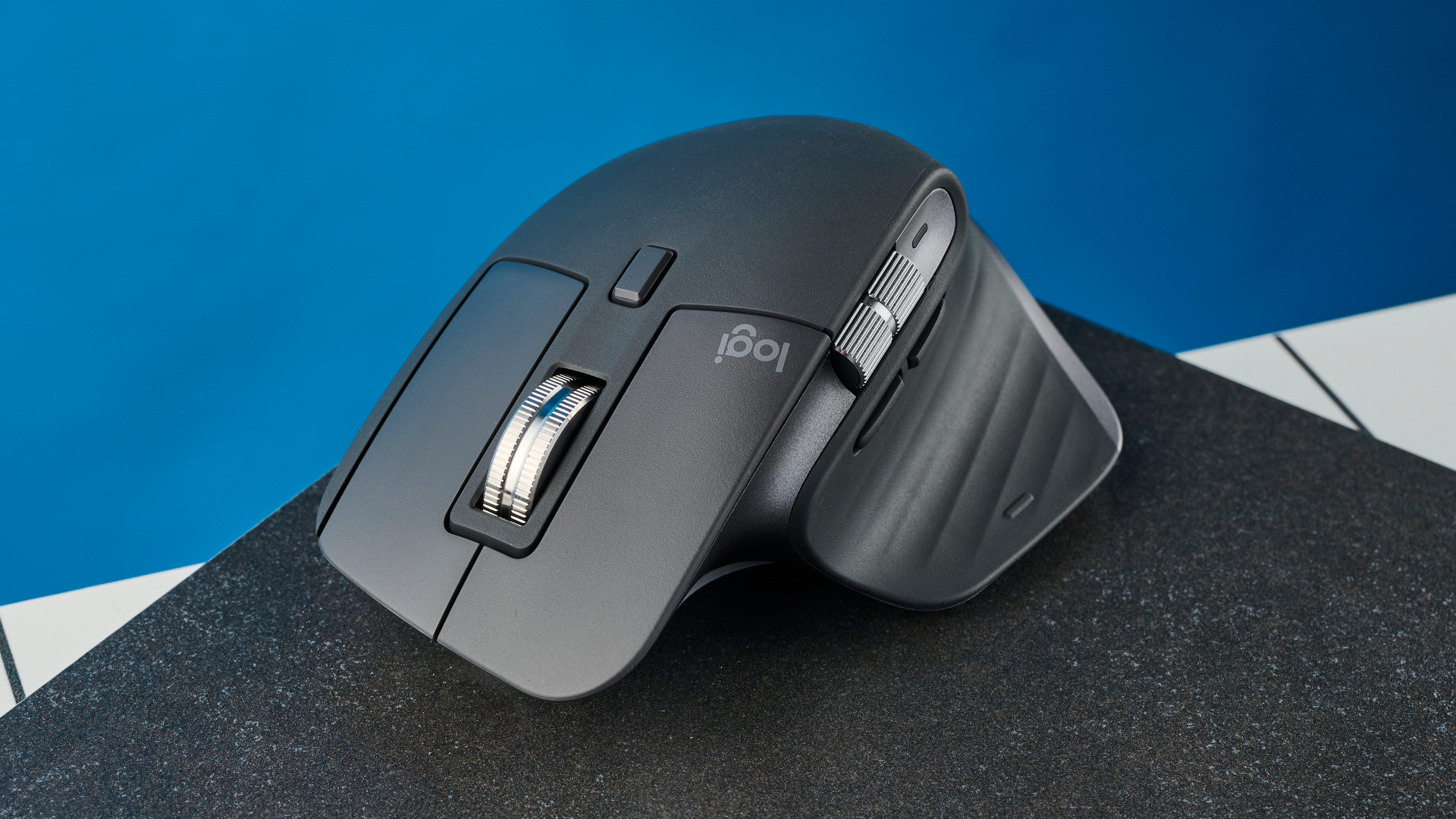
I’ll start with the updates to the MX Master 4 versus its predecessor. The first and most obvious are the new outer construction material and revised finish. The MX Master 3S used a rubberized material with a smooth finish, and it was lovely — soft to the touch, premium-feeling and -looking, with attractive geometric patterns.
The 4, by contrast, employs a hard plastic, which is noticeably less comfortable in hand than the softer rubber, although I can live with it. I think the plastic looks a little less premium, too, although there are some attractive design touches to the finish that help make up for it: the frosted effect on the left and right buttons; the super-fine texturing applied to the upper palm section. In short, it might not be quite as nice looking, but it still looks damn good.

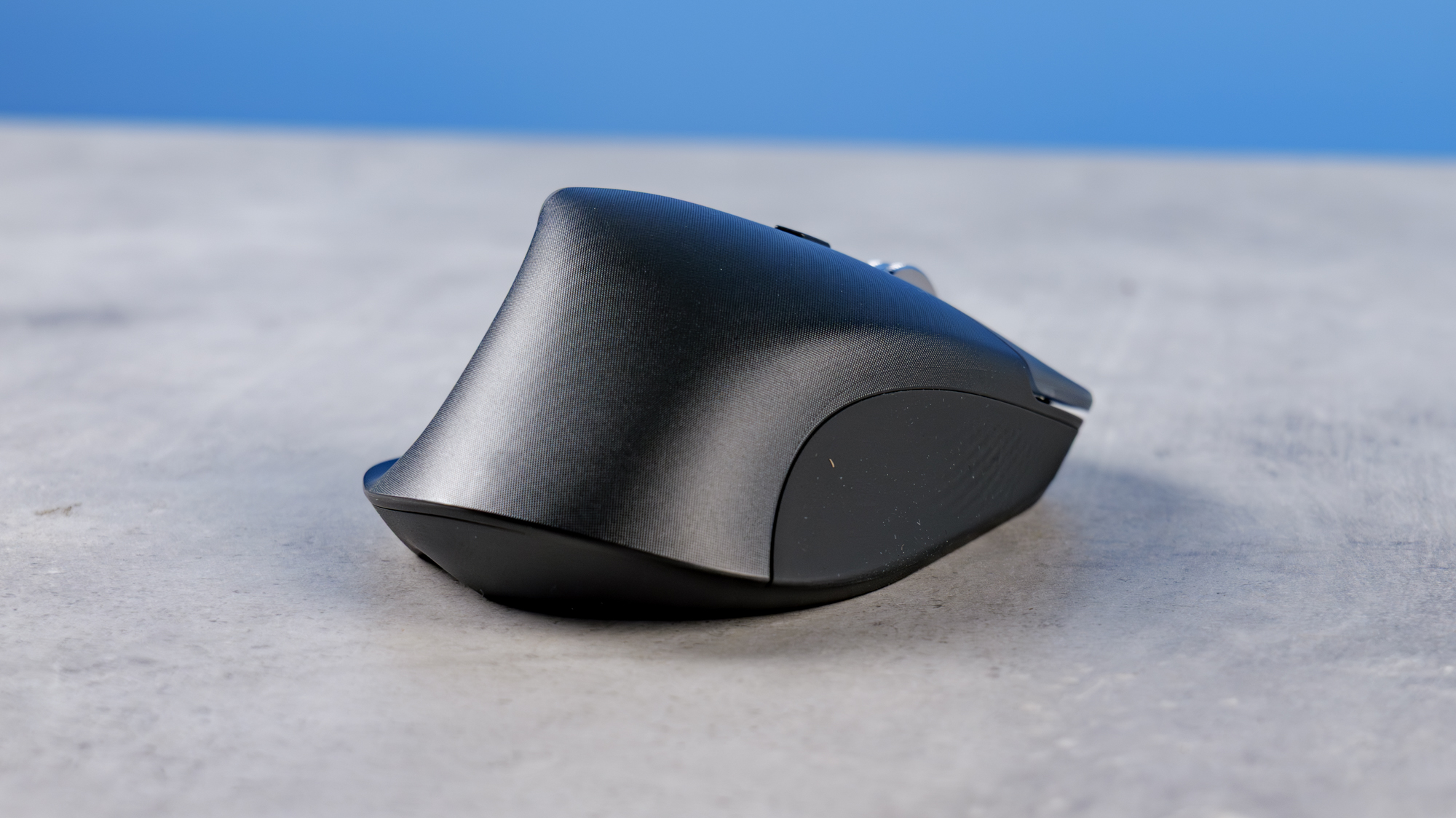
Primarily, though, the new material is a win for longevity. Rubber goes sticky after a while, and it won’t take you long to find plentiful reports online of users experiencing their older MX Masters going tacky or developing holes. Admittedly, these problems are almost always after years of service. But after around 18 months of use, my MX Master 3S does have a slight tackiness to the rubber, so to me, the plastic is definitely an improvement.
As an additional benefit, the new plastics use 54% (graphite) and 48% (pale gray) recycled material, which is a big improvement on the 27% recycled material in the 3S.
Revised touch pad
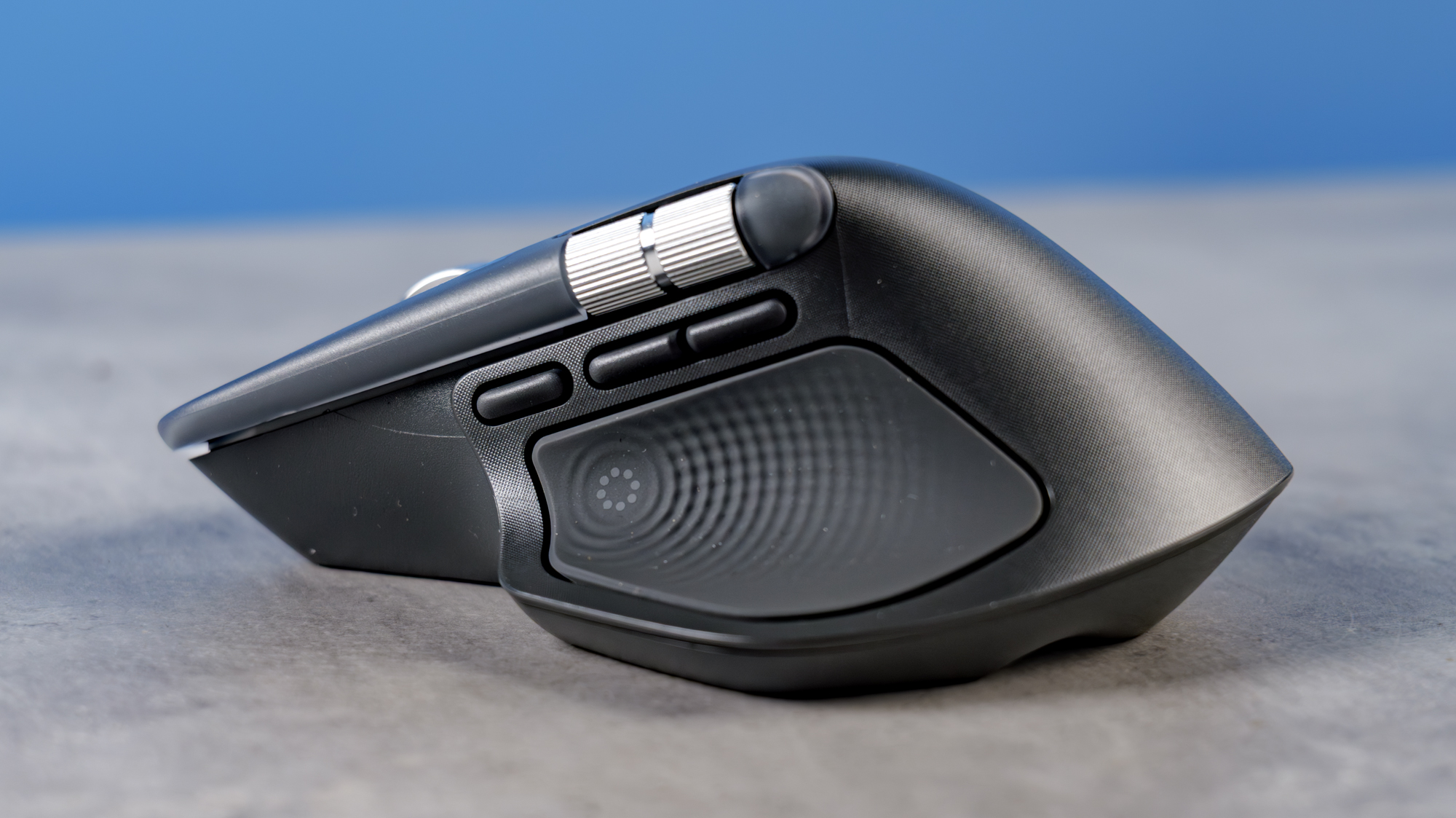
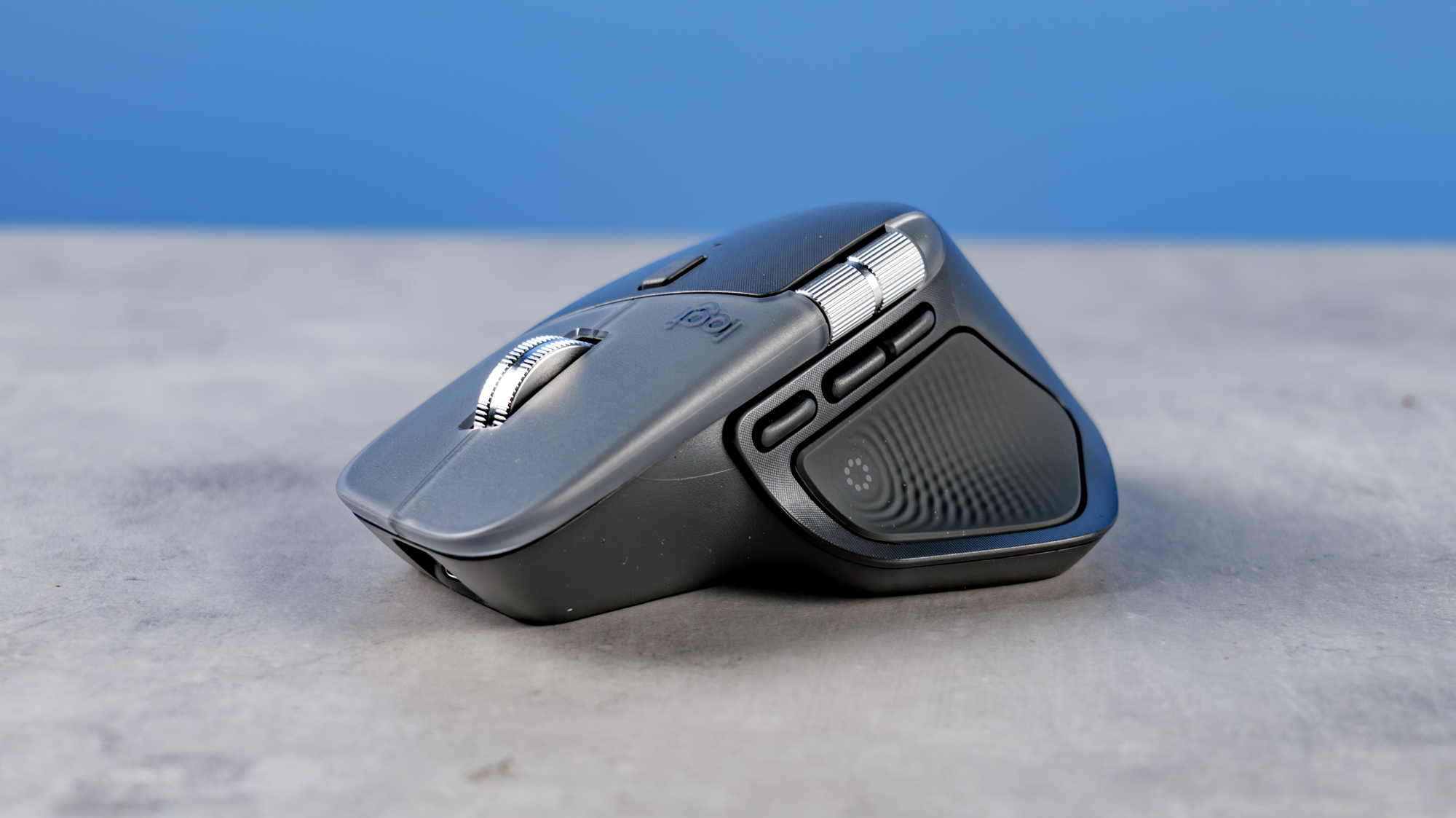
Next up is the new touch pad located in the thumb recess, which replaces the previous gesture control pad in the MX Master 3S. Personally, the new pad is a big improvement in daily use. I always found the gesture controls a little finicky: I often couldn’t remember individual gestures, so I’d have to open Logi Options+ and check what I’d assigned; even when I could remember, it was difficult to reliably hit the gesture I wanted each time. I often found myself accidentally making gestures when I didn’t want to, especially during intense use when gaming.
The new touch pad is a lot easier to use. It’s basically just a button that opens an on-screen control ring with various assigned commands around the ring — you use the cursor to select which command you’d like.
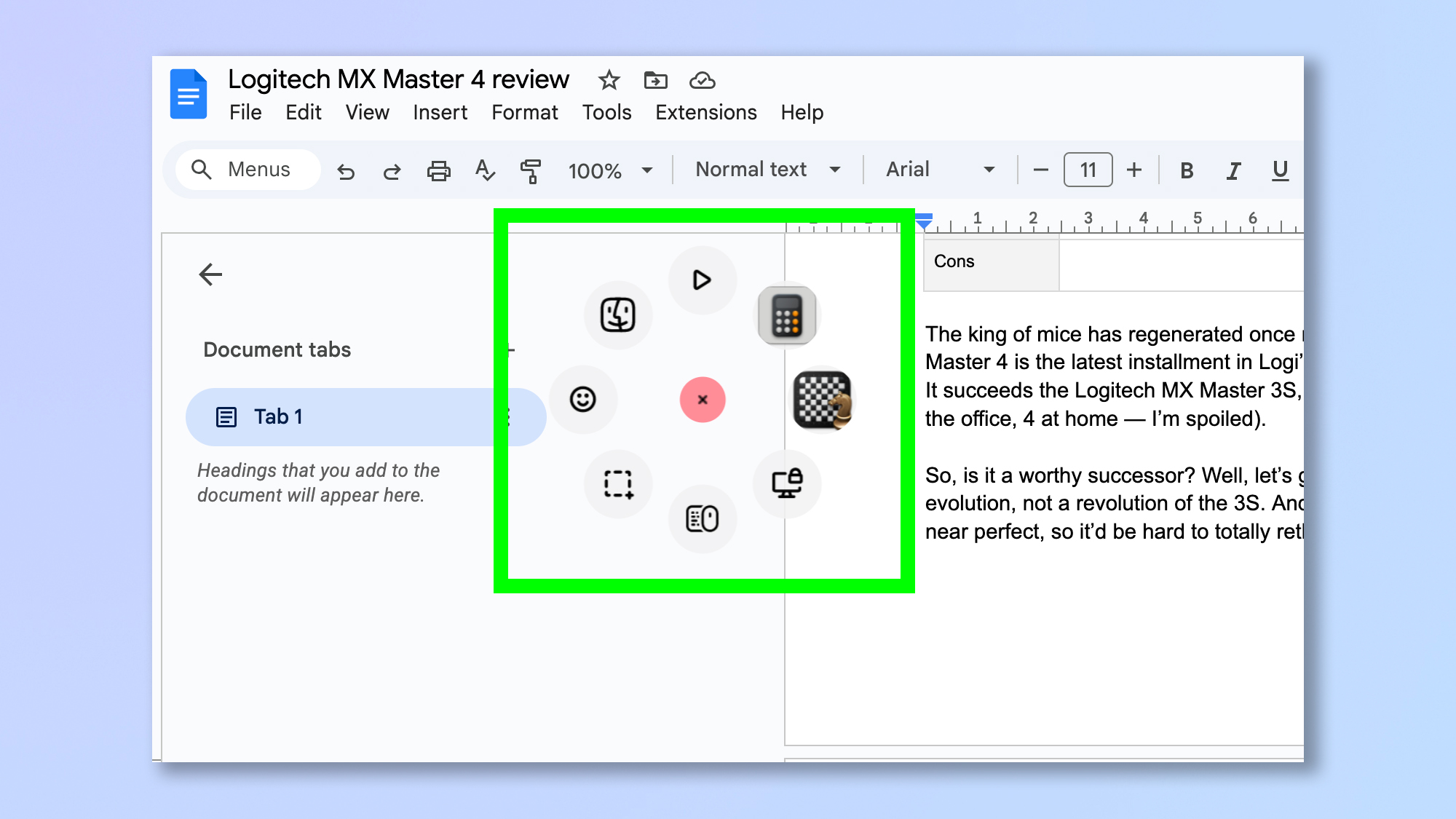

You can customize the control ring to assign what you want using the Options+ app, and everything you’ve assigned is always shown on screen when you press the button, so no forgetting what’s what, and you can reliably select exactly what you want. I find it really useful for quickly switching between my frequently used apps, and it’s replaced some of my regular keyboard shortcuts, like lock screen.
Admittedly, I find myself accidentally hitting the control ring more than the gestures pad during intense gameplay, but thankfully, you can adjust the sensitivity up or downwards — the latter helping avoid those accidental presses.
A monster for productivity
Now, onto the familiar positives of the MX Master formula. One of the major boons of the Master 3S was its customizability, and that’s only changed for the better with the 4. The new model received an extra thumb button, while the new touch pad and control ring have eight assignable commands versus the four gestures of the 3S’ pad.

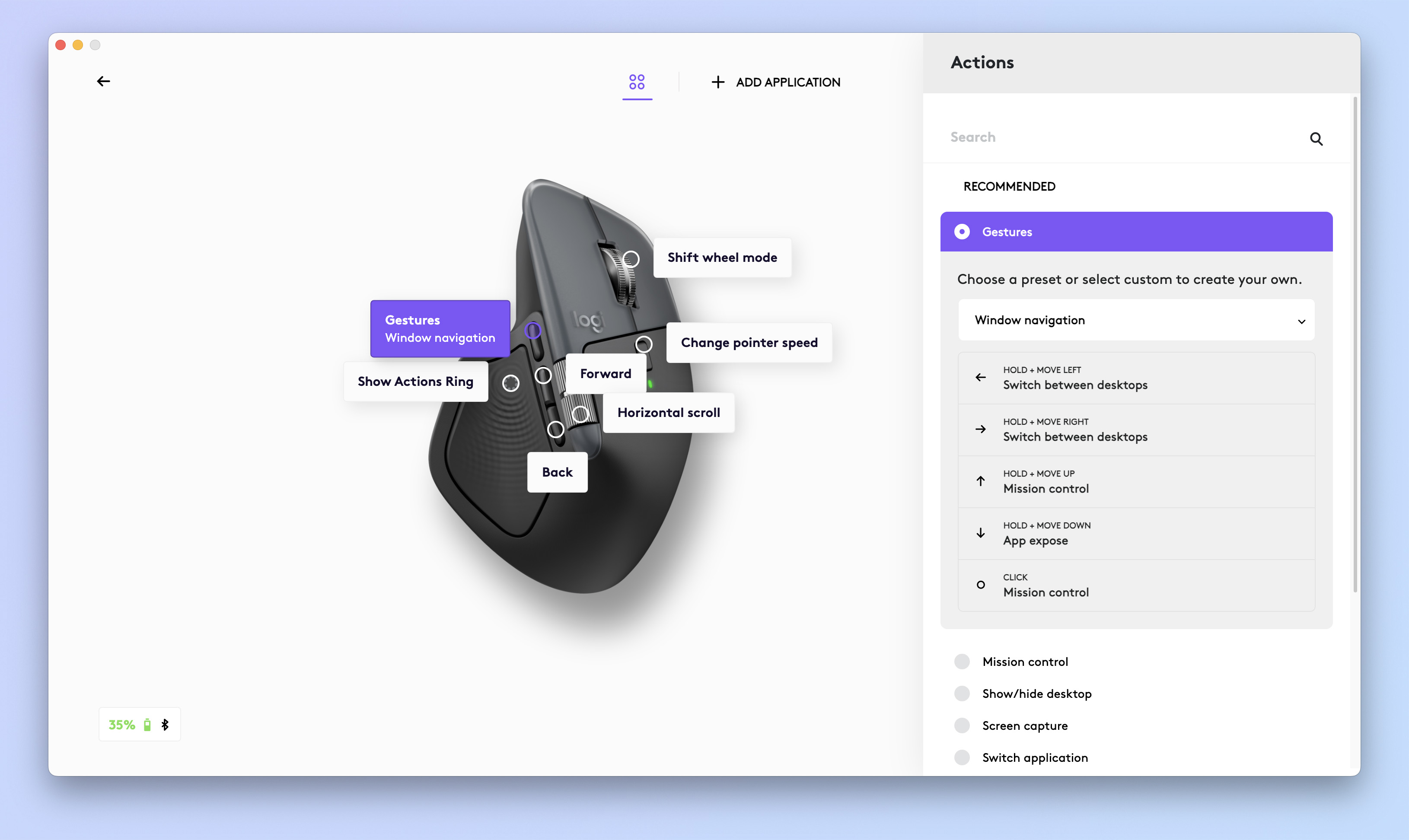
Gestures aren’t gone, though, because you can assign mouse movement gestures to a thumb button, giving you five further gesture controls. The end result is a whole heap more control at your thumb- and fingertips.
Honestly, this mouse is a total wizard for productivity. As I mentioned earlier, I have all my most-used commands assigned to the basic map, allowing me to flick between apps with ease. However, you can use the Logi Options+ app to set custom maps for individual apps, too, providing effectively endless customization options.
Image 1 of 2
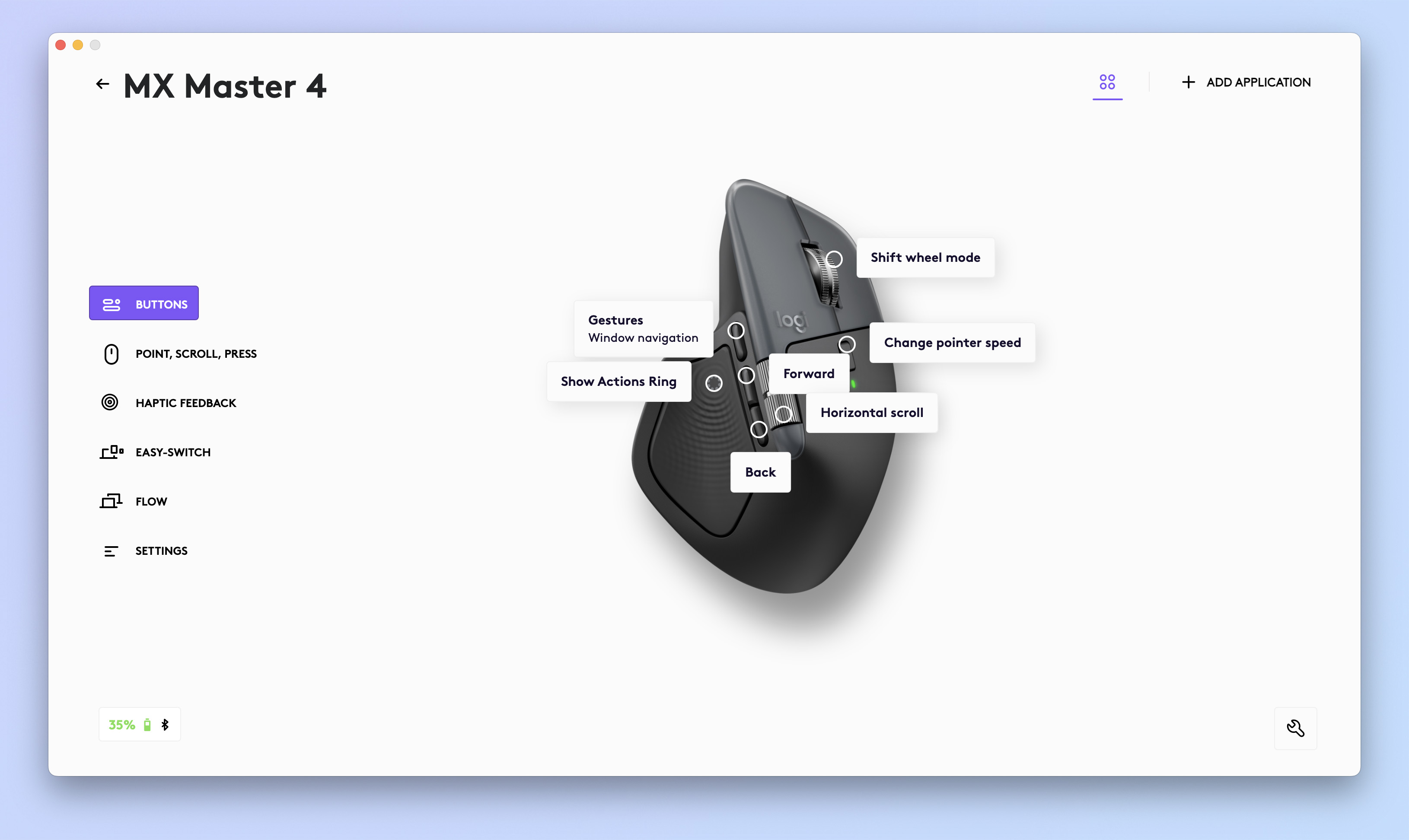

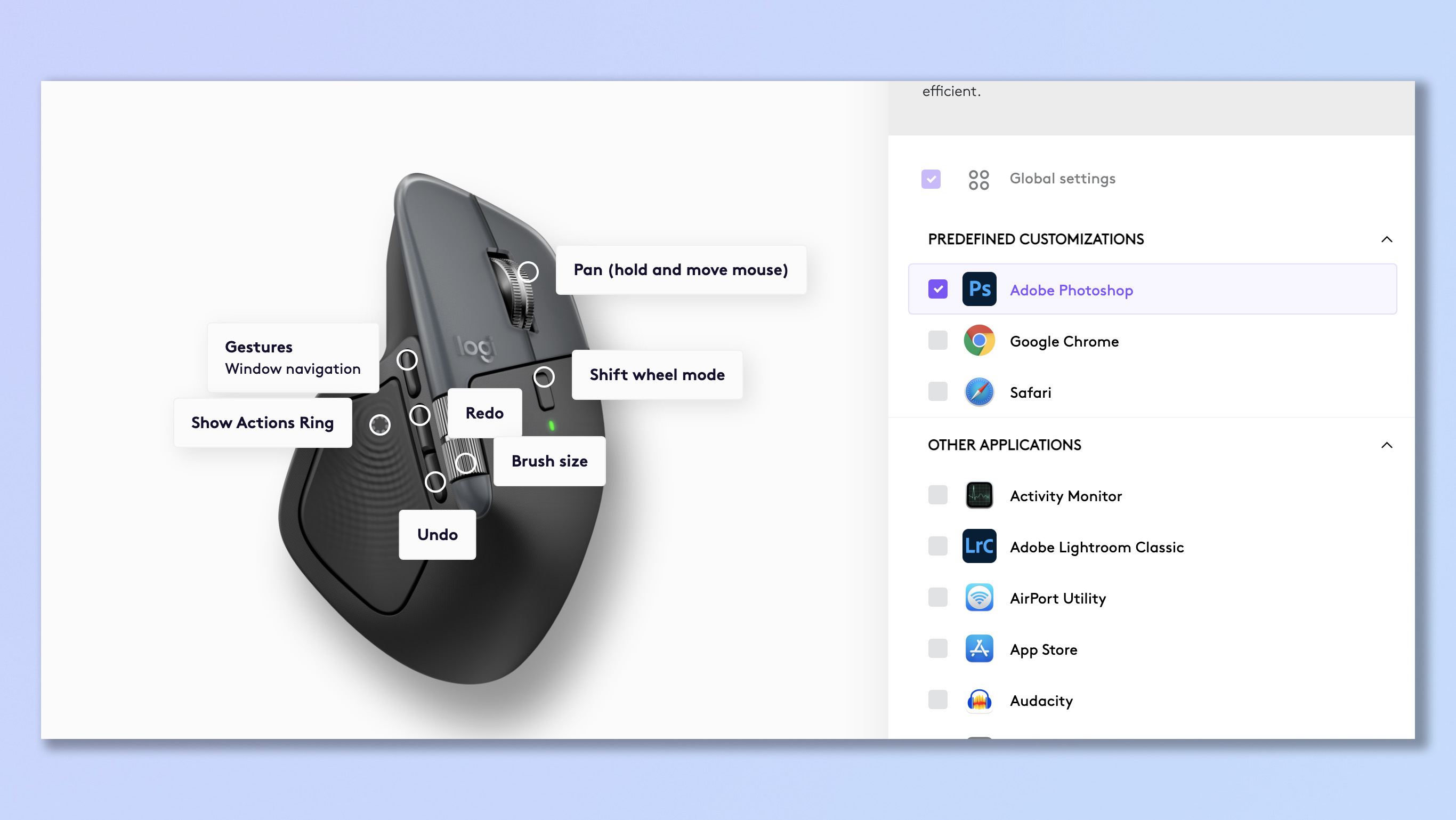
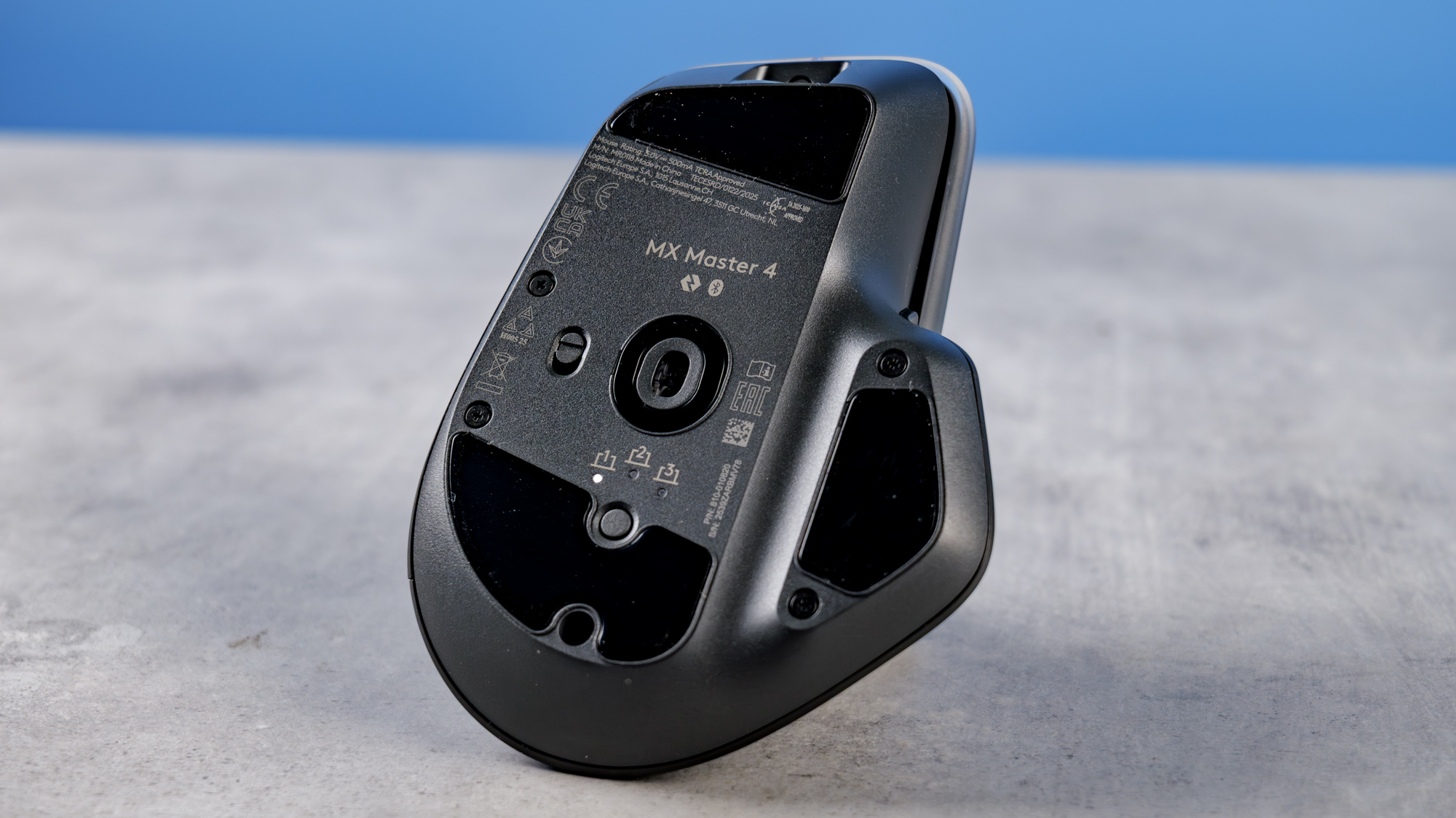
The mouse also has three connectivity channels, one 2.4G and two Bluetooth, so you can flick between different profiles, each with their own maps.
Up to 8K DPI
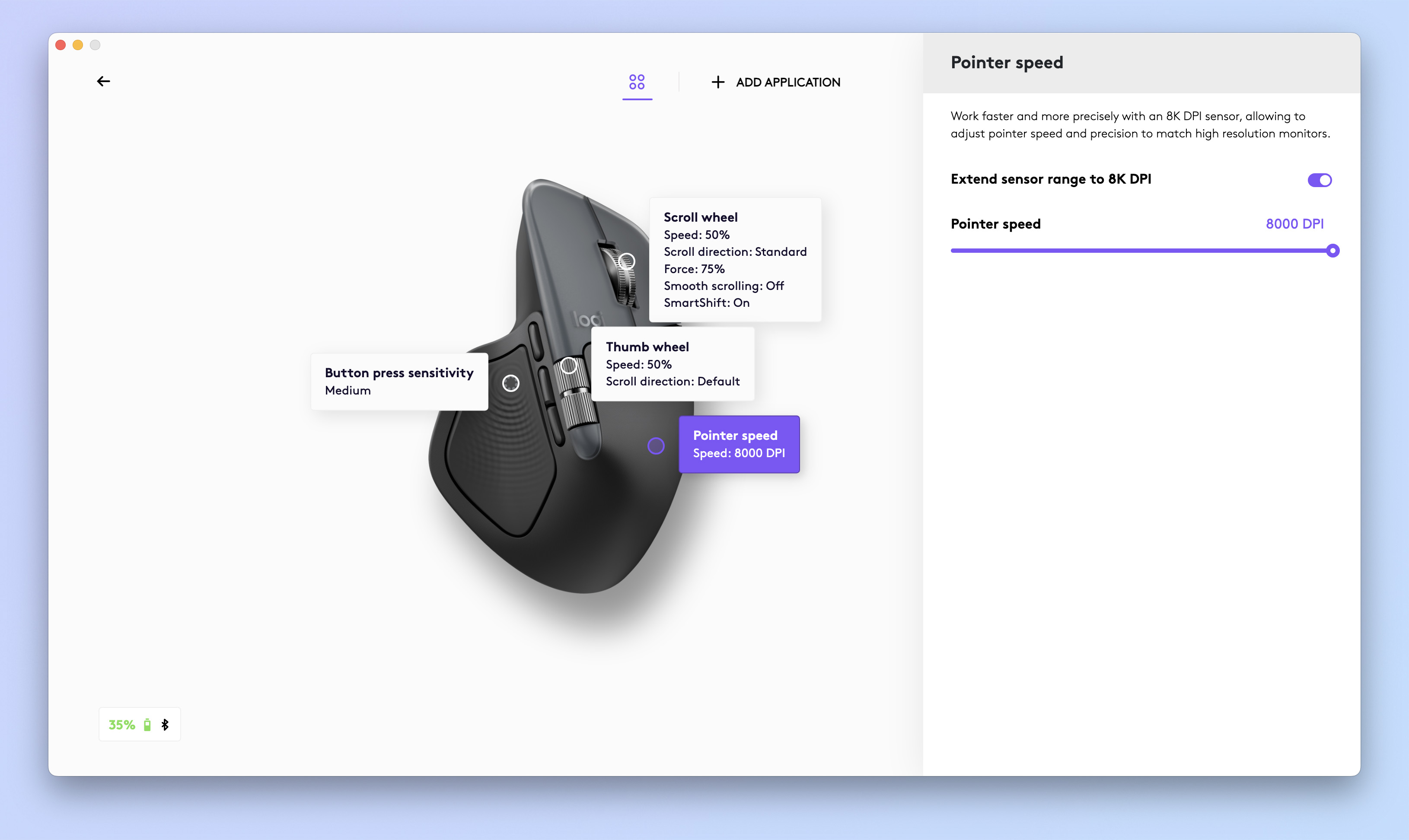
The MX Master 4 uses the same high-precision sensor as its predecessor. Maximum sensitivity has received no boost from the 3S, topping out at 8,000 DPI. Alright, that won’t satisfy elite gamers used to the best gaming mice hitting 20,000 DPI, but this isn’t a dedicated gaming mouse.
8,000 DPI is more than enough for productivity and the majority of casual gaming, allowing for rapid movement across the screen. You can assign a quick toggle button to switch between two preset sensitivity levels. I have the mouse set at around 3,000 DPI for both work and gaming, with a lower ~1,000 DPI preset to give me some finer control when required, particularly when photo editing in Lightroom or using marksman weapons when gaming, where the high-precision sensor proves, well… very precise!
On that note: I’ve used the MX Master 4 for plenty of gaming, playing first-person shooters like Counter-Strike 2, Hell Let Loose and Izonso; RPGs like Kingdom Come Deliverance 2; and strategy games like Total War Rome II. No complaints with the Master 4’s performance here. Its PTFE sliders and precision sensor work on any surface with ease, while 2.4G connectivity results in lag-free gaming (although Logitech doesn’t specify a poll rate).
Fantastic ergos
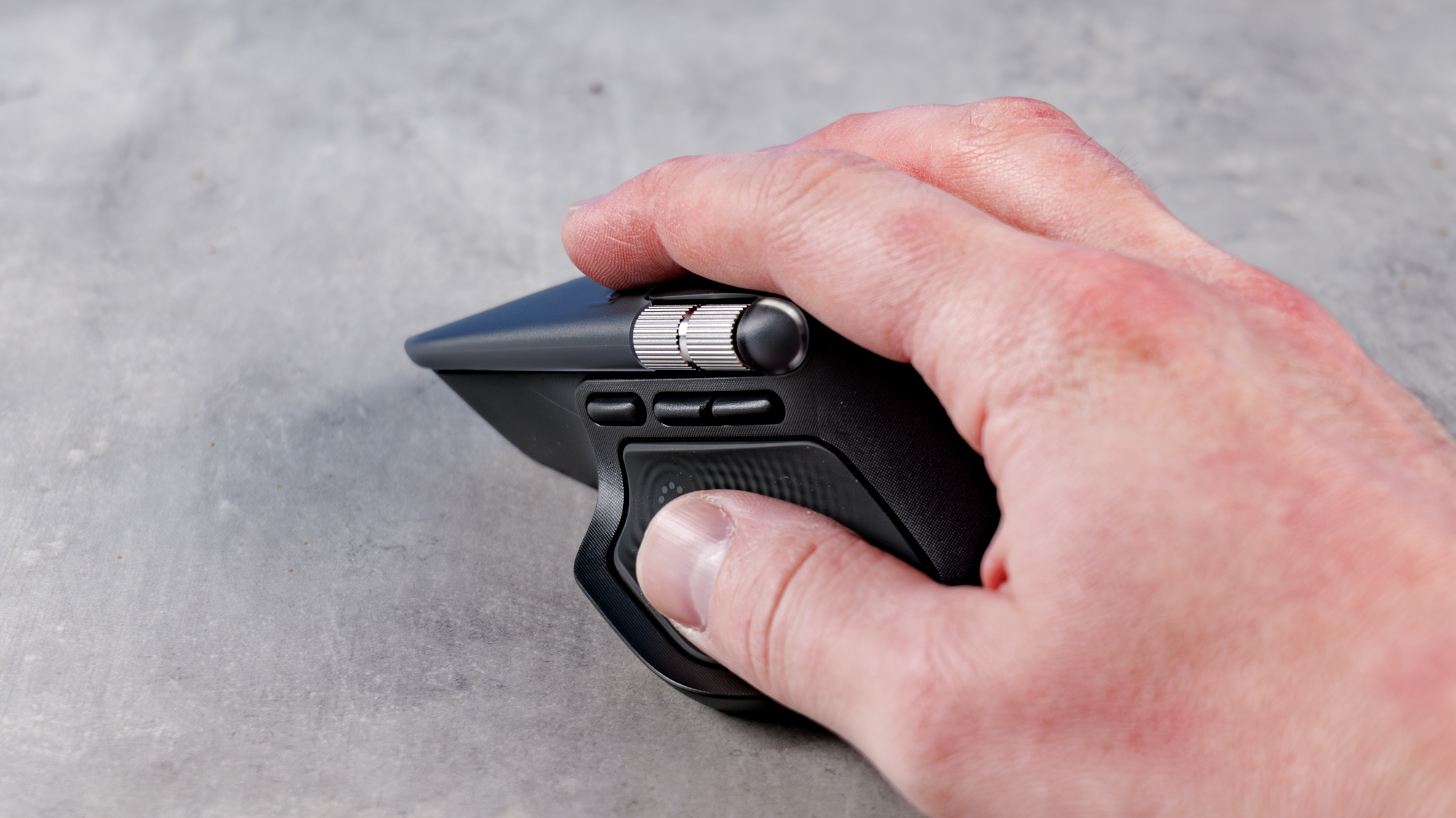
Just like its predecessors, the MX Master 4 feels fantastic in hand. I have a type of immuno-arthritis, which affects (among other joints) my wrists and fingers. I’ve historically been a user of vertical mice like the Contour Unimouse, but the MX Master 4 (like the 3S) has given me no problems either.
The 4’s chunky, sculpted back, downward curvature and thumb recess all help keep your hand and wrist in a comfortable position, relieving pressure in use. I’ve experienced no hand or wrist pain when using the mouse.
Then there are the left- and right-click buttons, which are nice and long, allowing you to keep your fingers outstretched and comfortable. The side buttons, meanwhile, are all sensibly placed to minimize movement, so no awkward stretches are required to hit them.
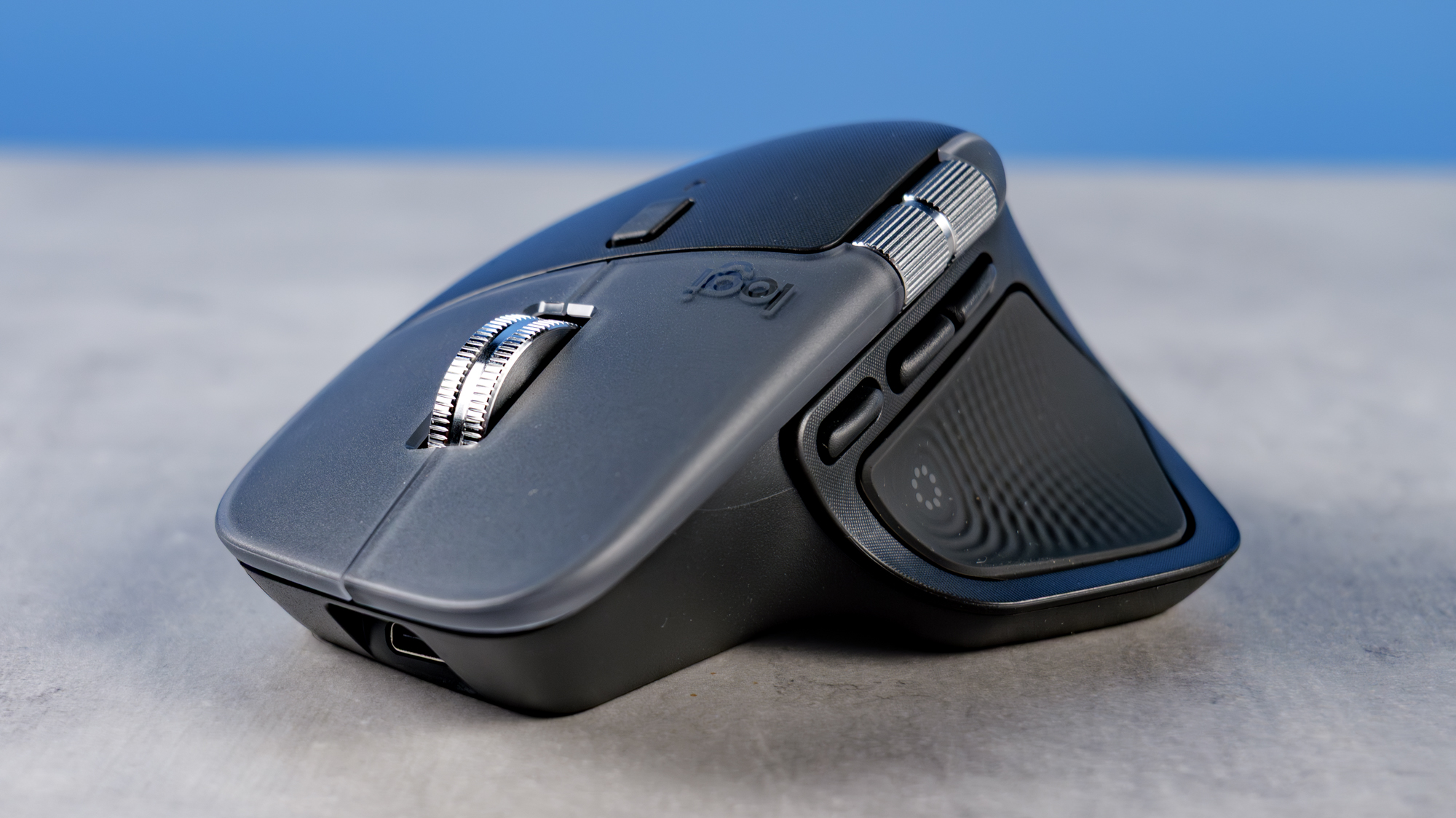
Making a return on the 4 is the beautiful milled aluminum main scroll wheel from the Master 3S and Logitech Anywhere 3S. The main wheel can be toggled between ratcheted and smooth/infinite scrolling, which is super handy during work. When you need to slowly and accurately navigate a page, ratcheted works great; then, when you suddenly need to blast through 500 lines of a spreadsheet, simply toggle to infinite scroll and you’re away.
There’s also a second scroll wheel, as on the 3S, which is located at the top of the thumb recess, allowing horizontal navigation of wide pages. I find this particularly useful for navigating fatter spreadsheets, where all the columns won’t fit on my screen at once.
Strong battery life
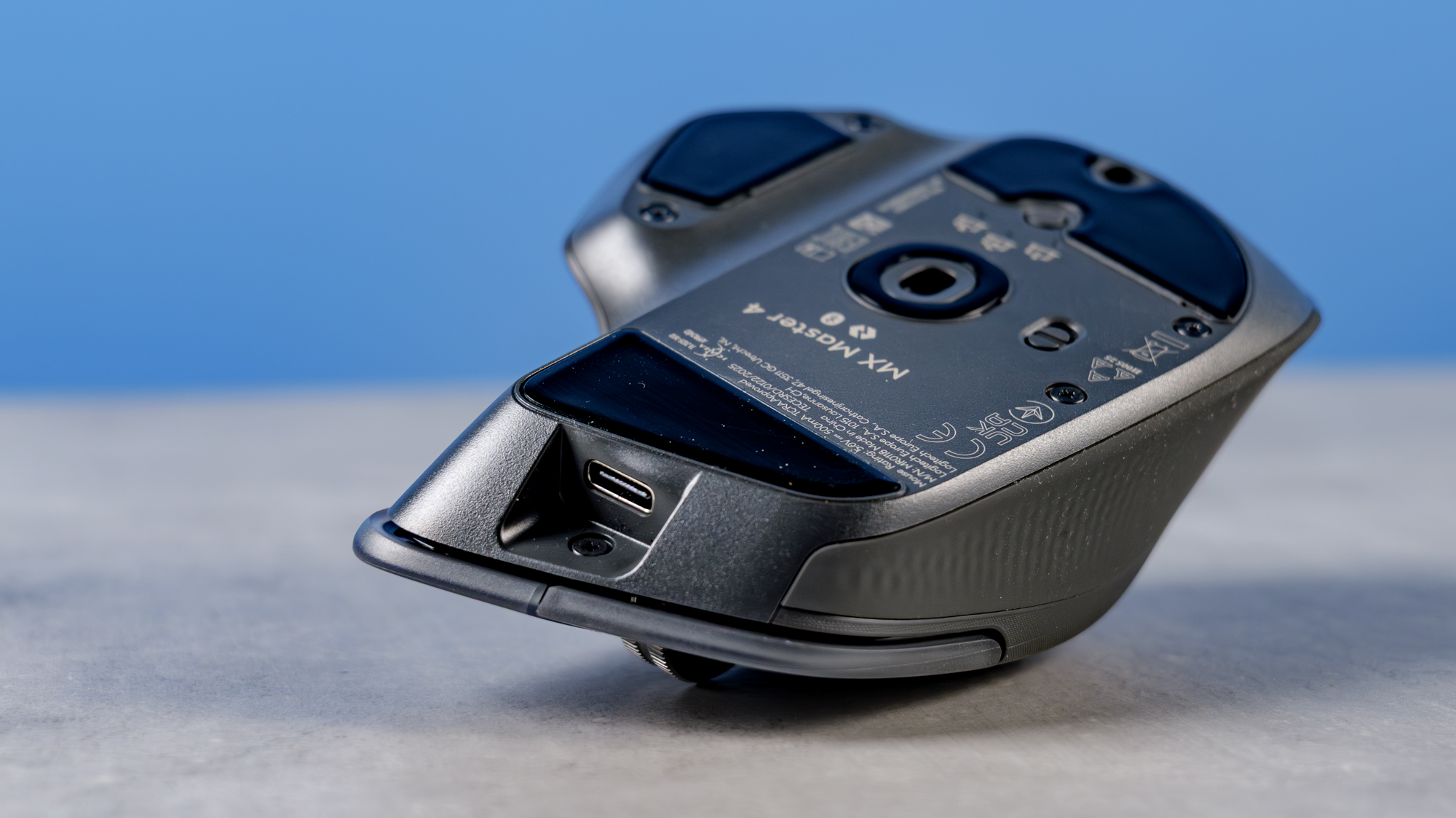
The MX Master 4 features a larger 650mAh battery than its 500mAh predecessor. The reason why I haven’t listed this alongside the “upgrades” above, though, is because the Master 4 is more power hungry than the 3S thanks to the new haptic feedback, so the bigger battery is simply taking up the slack.
As such, rated battery life on the 4 is the same as the 3S, according to Logitech, at 70 hours. For me, that’s plenty. Using the mouse solidly for work, I can easily get two working weeks of charge. However, in reality, I’ve been able to stretch it much further to three or four weeks, as I’m never using my mouse solidly for eight hours a day. With the MX Master 3S, I was able to get around four working weeks, which tallies.
Naturally, use the mouse more in the evenings for casual use or gaming, and it’ll deplete faster. I’ve been gaming pretty heavily recently to test the SteelSeries Arctis Nova Elite and Audeze Maxwell 2 gaming headsets, and I have only needed to charge after around a week and a half. Still pretty good, if you ask me.
Very quiet clicking
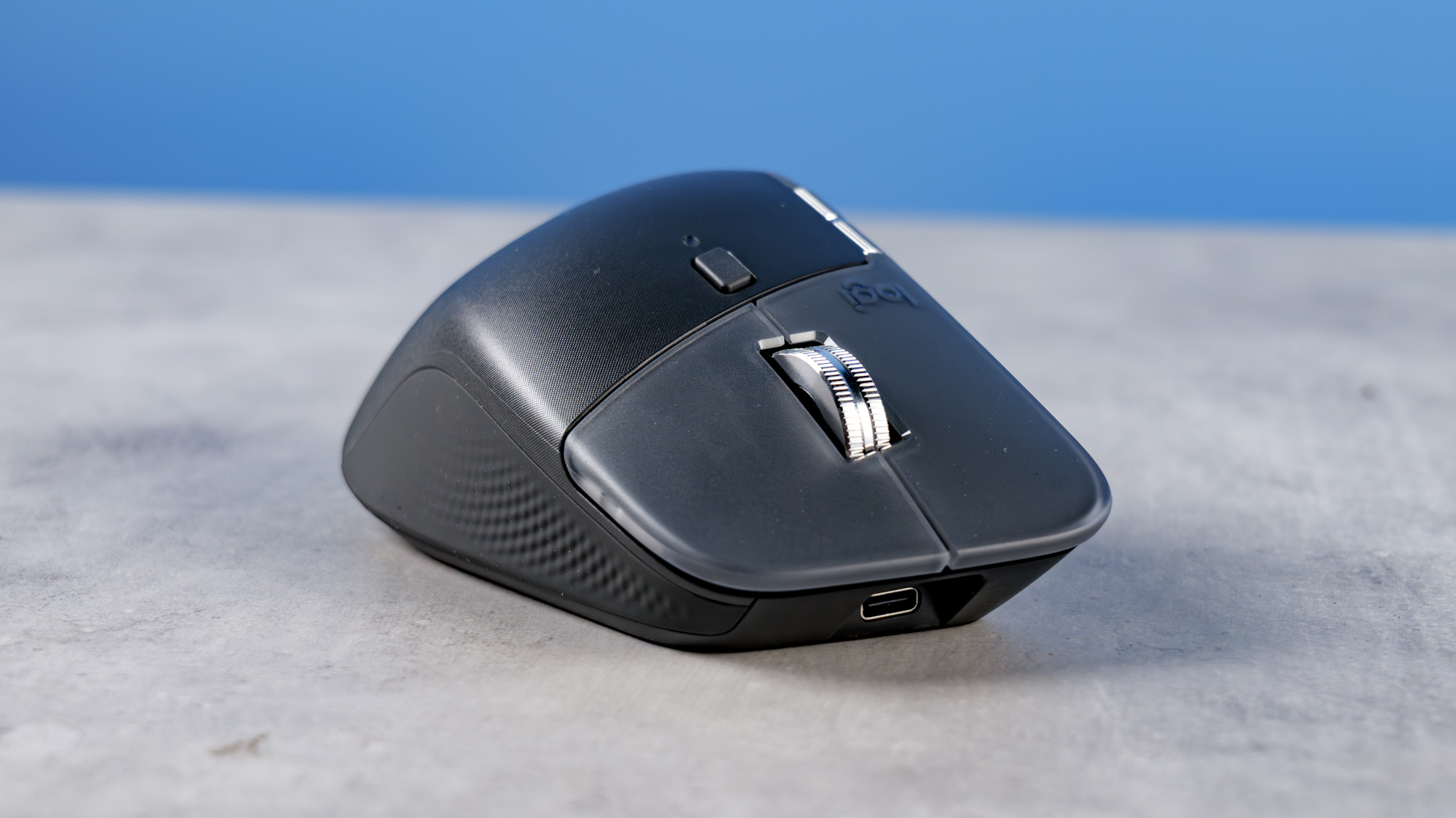
Like its predecessor, the MX Master 4 features quiet clicking, making it great for working alongside others. Truthfully, quiet clicking is slightly redundant for me. I test a lot of the best mechanical keyboards, so I’m always typing on something much noisier than the mouse anyway. My colleagues type on noisy mechs in the office, while my wife types on an equally noisy mech at home. Wherever I work, there’s a cacophony of keycap clatter.
However, I appreciate that many people will relish a quiet-clicking mouse, as it’s less liable to disturb their coworkers. And the MX Master 4 will suit those folks just fine. That said, the Master 4 isn’t appreciably quieter than the 3S, so if you’d like to save some cash and this is a priority feature, the earlier model may well suffice
Logitech MX Master 4 review: The downs
Don’t get me wrong: none of the MX Master 4’s negatives are dealbreakers. But there are a few slightly frustrating niggles and/or divisive features that you may want to consider before buying.
A little pricey
The MX Master 4 costs $119 / £119, so it isn’t cheap. That’s the same U.K. list price as the Master 3S when it launched, but a $20 hike in the States.
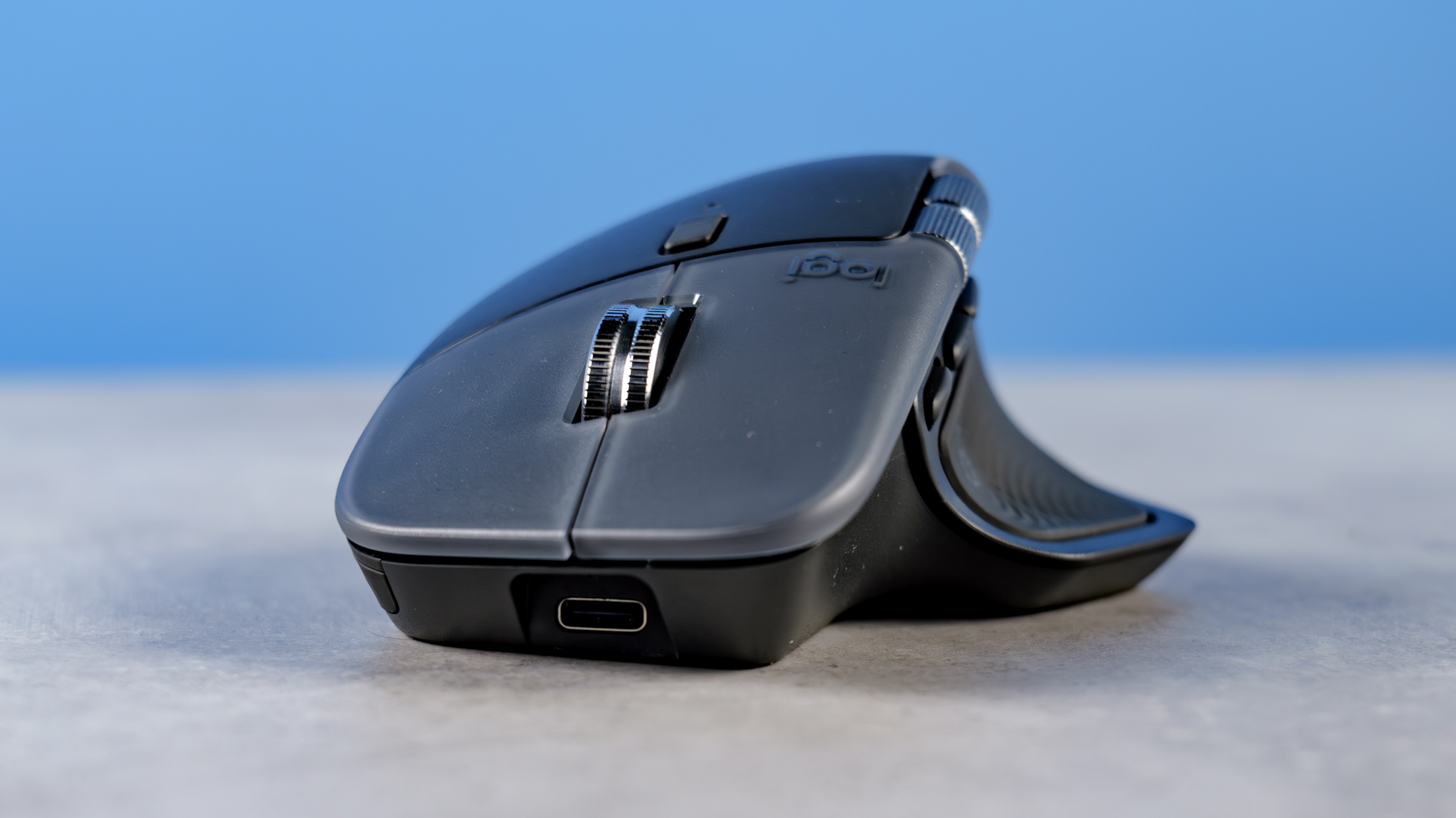
I wouldn’t call this a con, per se. MX Masters are, in my opinion, the best all-around productivity mice on the market, and they’re premium products at that. There’s a reason everyone falls in love with their MX Master — they’re fantastic. The Master 4 offers the most features of any member of the lineup before it. So yeah, it costs money. But you get what you pay for.
What’s more, you can look at the MX Master 4’s price another way: its MSRP has caused the Master 3S’ to drop, and the old model is now cheaper than ever. And there’s the rub. Many of you dear readers will be just fine with the 3S, especially if you’re on a budget. In fact, as I’ll cover below, many of you may even prefer the older model. If that describes you, then you can definitely save a few bucks with the MX Master 3S and still come away very happy.
Divisive updates
As I’ve touched on a few times throughout this review, some of the Master 4’s updates are divisive. As part of my research for this review, I took a look at user experience reports online, and two major features cropped up — both of which I totally get.
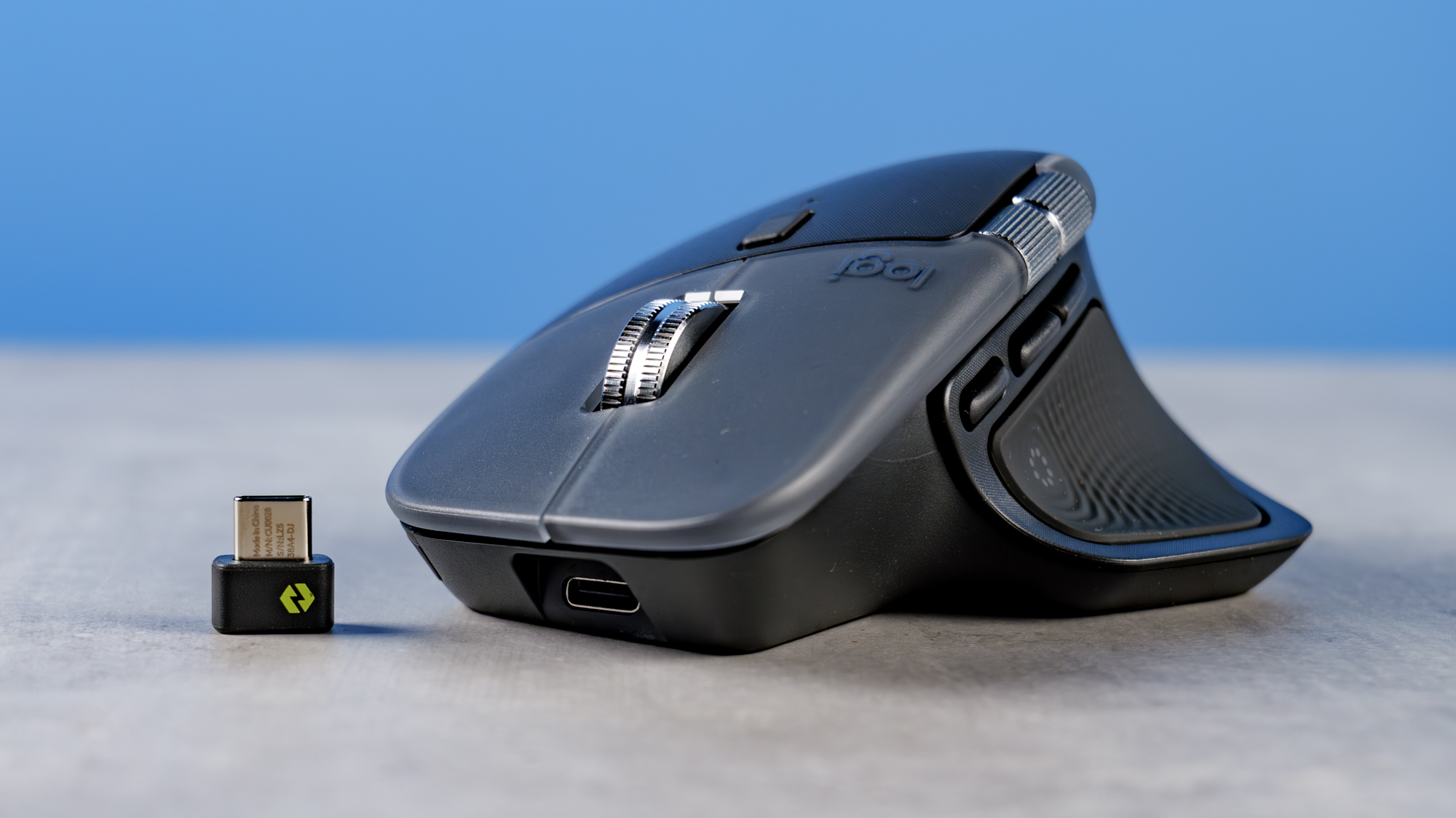
The first is the increased size and weight of the MX Master 4 over its predecessor. It’s several millimetres higher and wider than the 3S (although about the same depth), and nine grams (0.3 ounces) heavier.
The added weight is tiny and simply not noticeable to me, so I wouldn’t let it bother you. I’m skeptical of anyone saying they can feel a 0.3-ounce difference — placebo. Besides, I’m no fan of superlight mice anyway — I like my mouse to feel planted.
My hands are fairly large, so the increased sizing hasn’t bothered me, but I can see how this may affect those with smaller hands, though. The MX Master 3S isn’t small. If that’s about as large a mouse as you can handle, the 4 may just tip things over the edge.
The other divisive feature is, of course, the materials and finish. I won’t dwell too long on this, as I already covered it above, but if you’re a fan of soft-touch rubber, on the MX Master 3S or another mouse, the hard materials of the 4 may feel harsh and uncomfortable. Although, as I’ve already said, the benefit of the 4’s construction is longevity. It simply depends on your priorities.
Slightly gimmicky haptic feedback
My final soft con is the haptic feedback, which I feel is slightly gimmicky. Now I’m not too proud to admit that I like it. Haptic feels good! And it’s cool that you can adjust the levels of feedback to suit your preference and/or extend battery life.
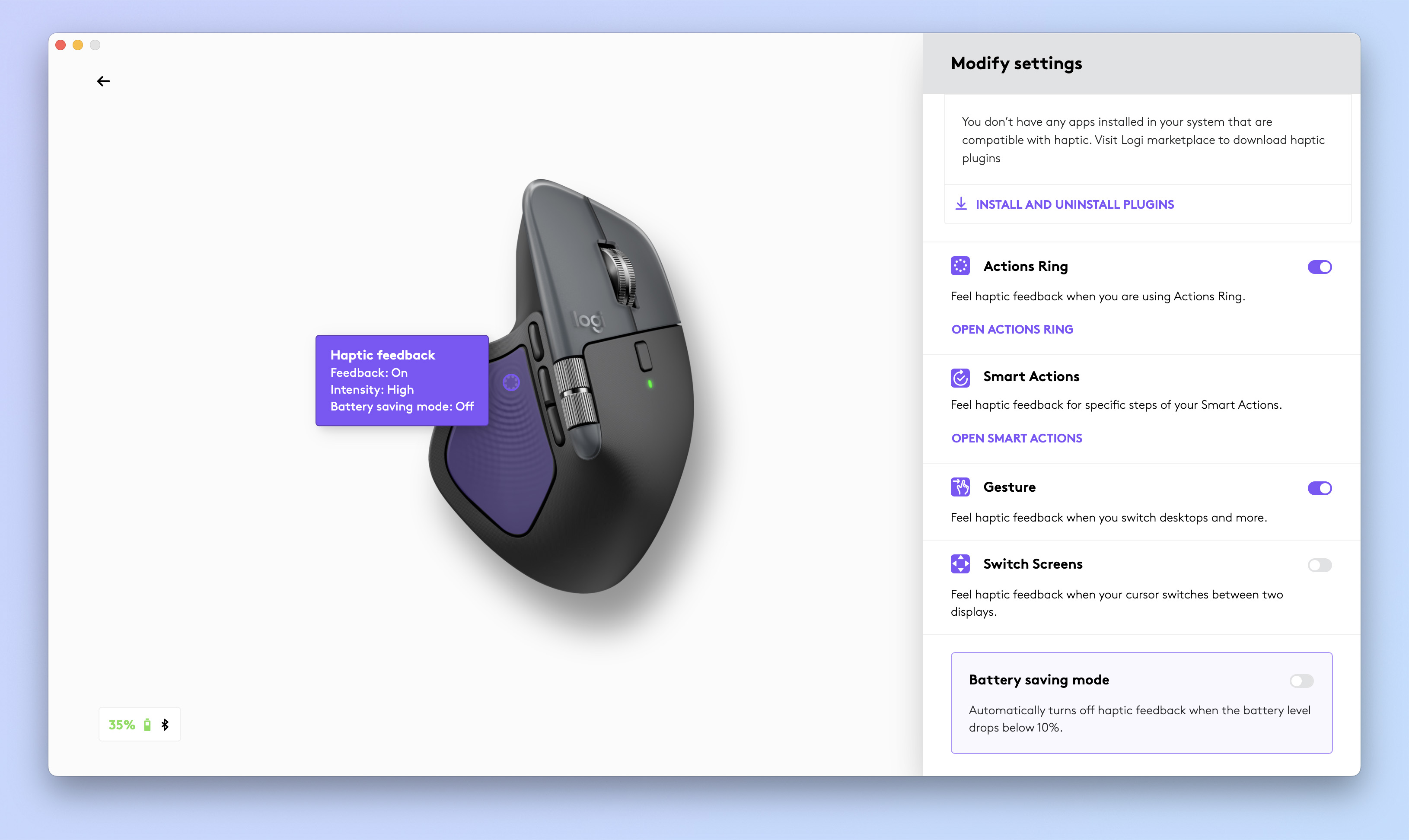
But in reality, placed where it is — exclusively on the touch pad — it doesn’t serve much purpose. While I like the touch pad, it’s still one of my least-used features of the mouse, coming only behind the horizontal scroll wheel. So I don’t get much benefit from haptics there.
As I said, haptic feedback is a neat thing in itself, and I like it being there, but I certainly wouldn’t recommend buying this mouse because of it.
Logitech MX Master 4 review: Verdict
Alright. As I see it, there are two questions to answer here. The first is: should you buy this mouse as a newcomer to the line? To that I answer: yes, absolutely.
The MX Master 4 is the finest mouse on the market, in my opinion. It’s excellent for productivity and gaming, it’s comfortable and highly customizable and I believe the new plastic finish will give the Master 4 more longevity than its forebears, making it better value for money. If you’re on a budget or find any of the specific cons of the Master 4 particularly unappealing, then the MX Master 3S is still a fantastic mouse. But otherwise, if you can stretch to the 4, I would recommend you do so.
The second question is, of course: should you upgrade from the Master 3S? Nah. Like I said, the 4 is an evolution, not a revolution — the formula wasn’t broken and, as such, wasn’t fixed, which is a good thing. But that means that the new features, while lovely to have, simply aren’t justification enough to upgrade from an already stellar predecessor.
Regardless, we have a new king, ladies and gents. All hail the Logitech MX Master 4.
Source link