Even after Apple added support for RCS texting on iPhone, chances are that if you’re outside the U.S., you use WhatsApp as your primary texting app. The app is available on almost all devices — including a dedicated iPad app — and it’s is easy to use. Meta also continues to add new features to its chat offering.
That said, for an app we use dozens of times every day, WhatsApp still has a lot of built-in tools that most people don’t know about. Sure, everyone knows how to send a message, drop a voice note, or make a video call, but WhatsApp has quietly evolved into something far more capable thanks to Meta’s constant updates.
Use more than one WhatsApp account on one phone
Many people use multiple numbers on the same phone, such as a work number and a personal number.
In the past, those users had to rely on their Android phone’s built-in app cloning features, or use the WhatsApp and WhatsApp Business apps together to access multiple accounts on one device. Thankfully, WhatsApp now supports this feature natively on all devices.
To use this feature on Android, head to the three-dot menu in the top right and select Settings. Tap the Plus button next to your name and choose Add WhatsApp account. Then follow the same setup steps you would when adding WhatsApp to a new phone.
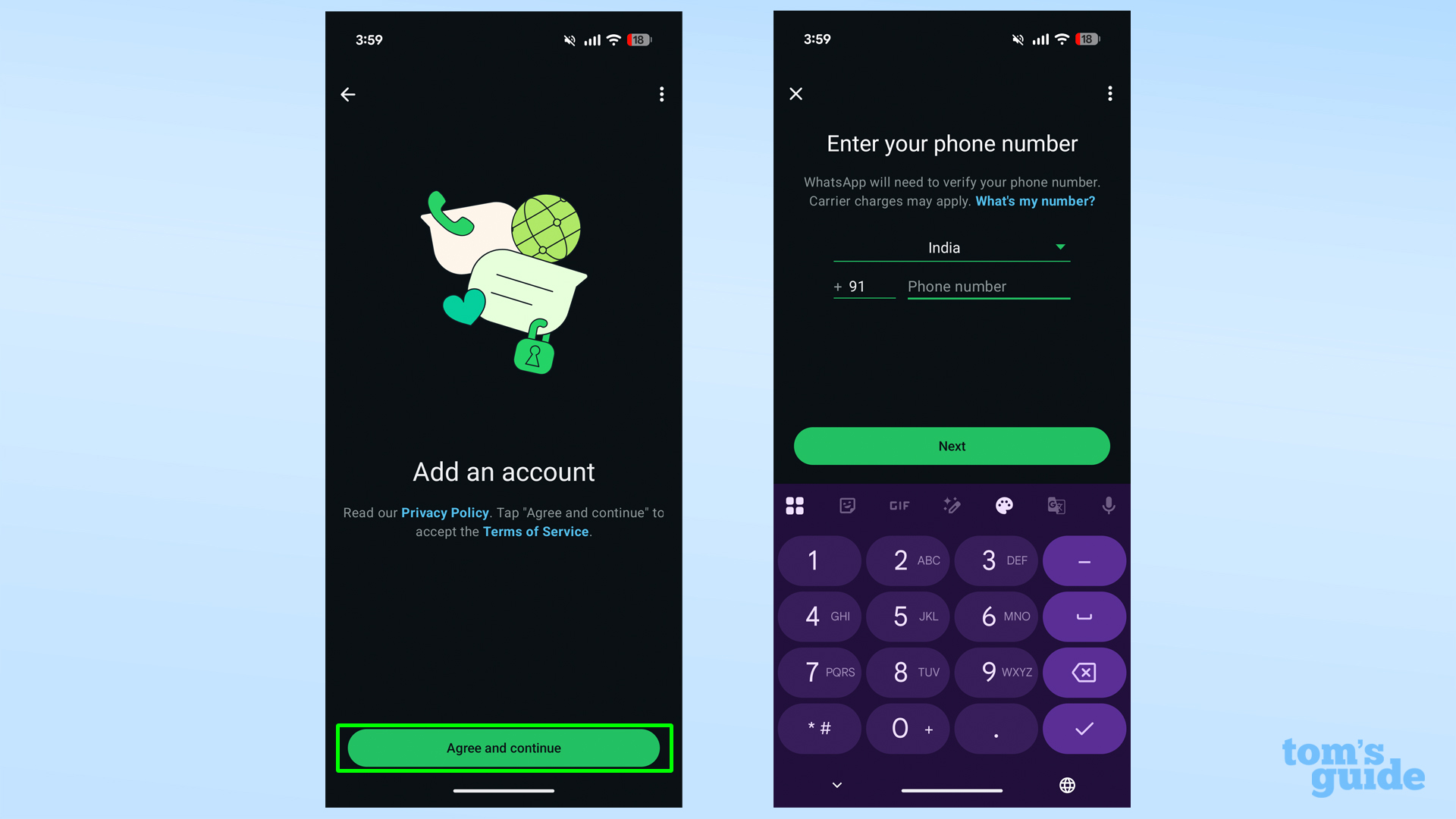

On iOS, the feature isn’t available yet, but it has been spotted in testing, so it should roll out soon.
Translate your WhatsApp messages instantly
While most phones include on-screen text translation features out of the box, such as Circle to Search on Android and ChatGPT integration on iPhones, having the feature built into the app you’re using is a whole other level of convenience.
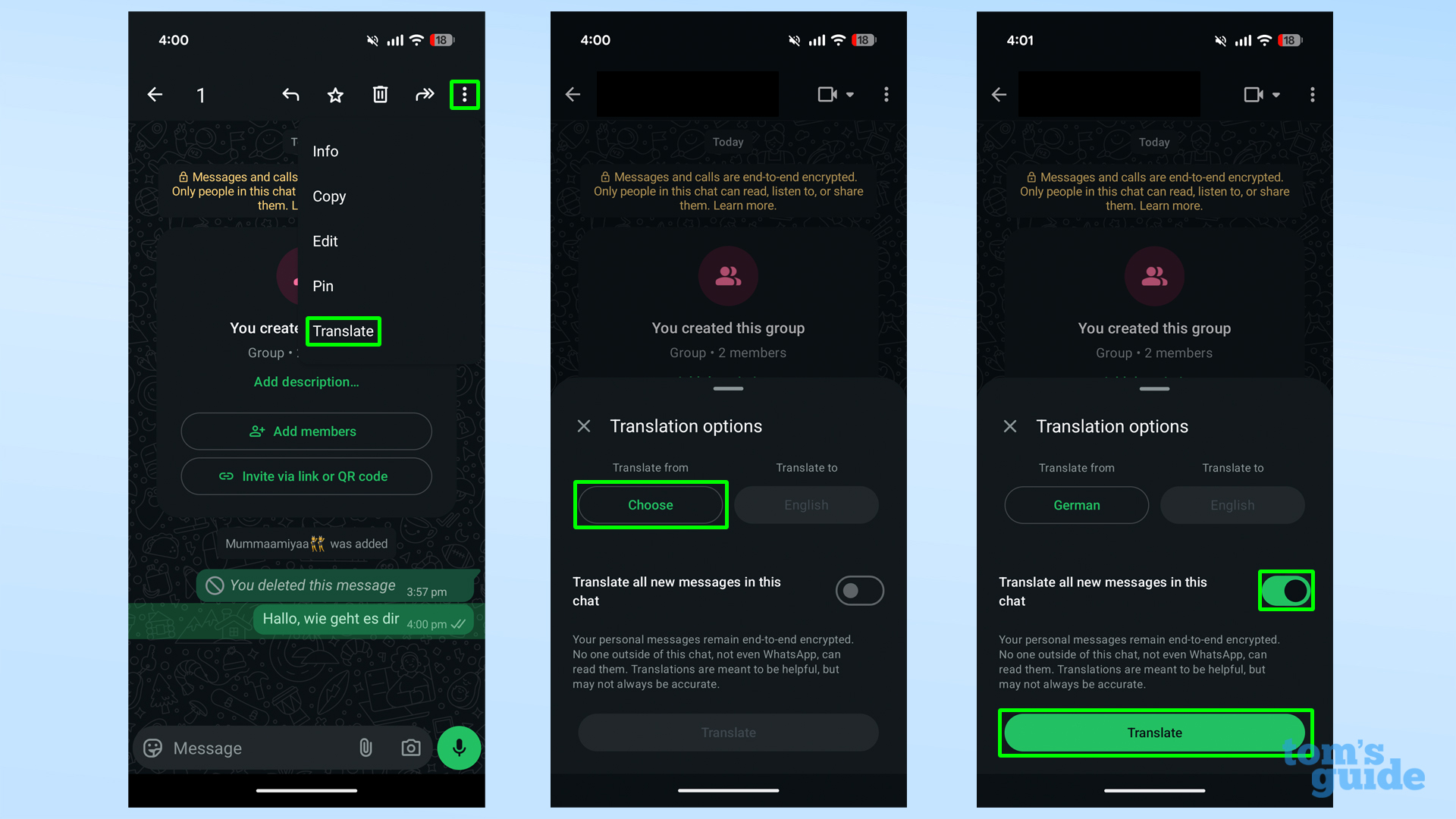
WhatsApp recently added a native translation feature that works directly inside the app, and processes everything on-device to keep your chats private and secure.
To translate a message, tap and hold the message bubble, then tap the three-dot “More” option in the following pop-up menu, and select the Translate button. Then download the language you want to translate from, if required, and tap Translate to get the result on-device.
As well as per-message translation, you can also enable automatic translation for an entire chat thread using the toggle on this page. This way, all incoming messages in that conversation are translated without needing to do it manually for each one.
Get quick summaries of long WhatsApp chats
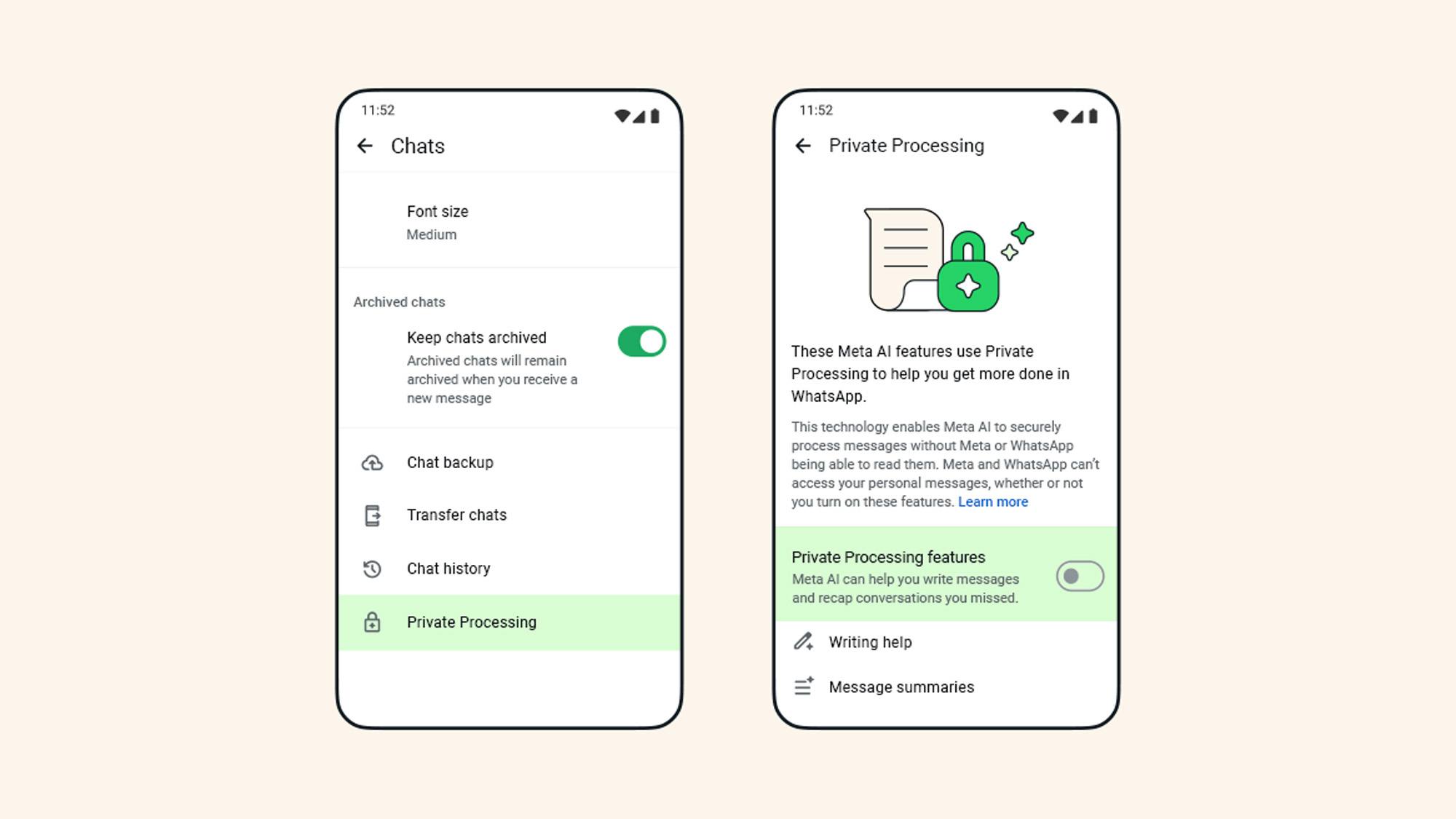

We’ve all been there when a group gets active, you put the app down for just a moment… and suddenly there are hundreds of unread messages. That’s where the Message Summaries feature helps.
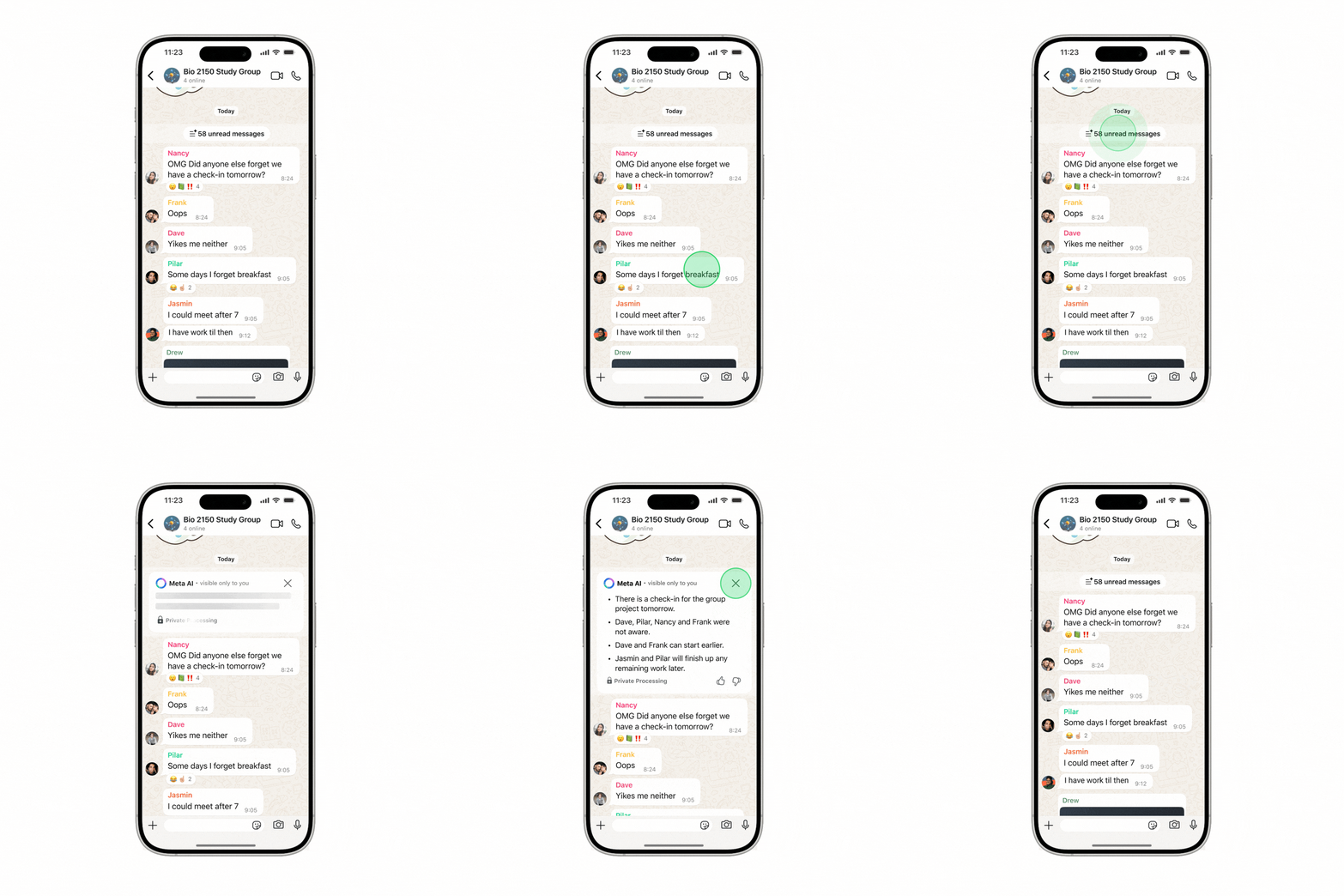

As the name suggests, this feature uses AI to quickly summarize unread messages in a chat so you know what happened while you were gone. Meta also says it uses Private Processing technology so WhatsApp can generate these summaries without seeing your messages. The company has even detailed how it works in an engineering blog.
To use this feature, open a chat with unread messages, then tap Summarize privately next to the unread count label. It will process the messages and generate a quick summary.
It’s worth noting that this feature is only available in a few locations and a few languages right now, and is off by default. In regions it is offered, you’ll need to enable it by going to Settings > Chats > Private Processing and toggling on Private Processing features.
Send and receive photos in high quality by default
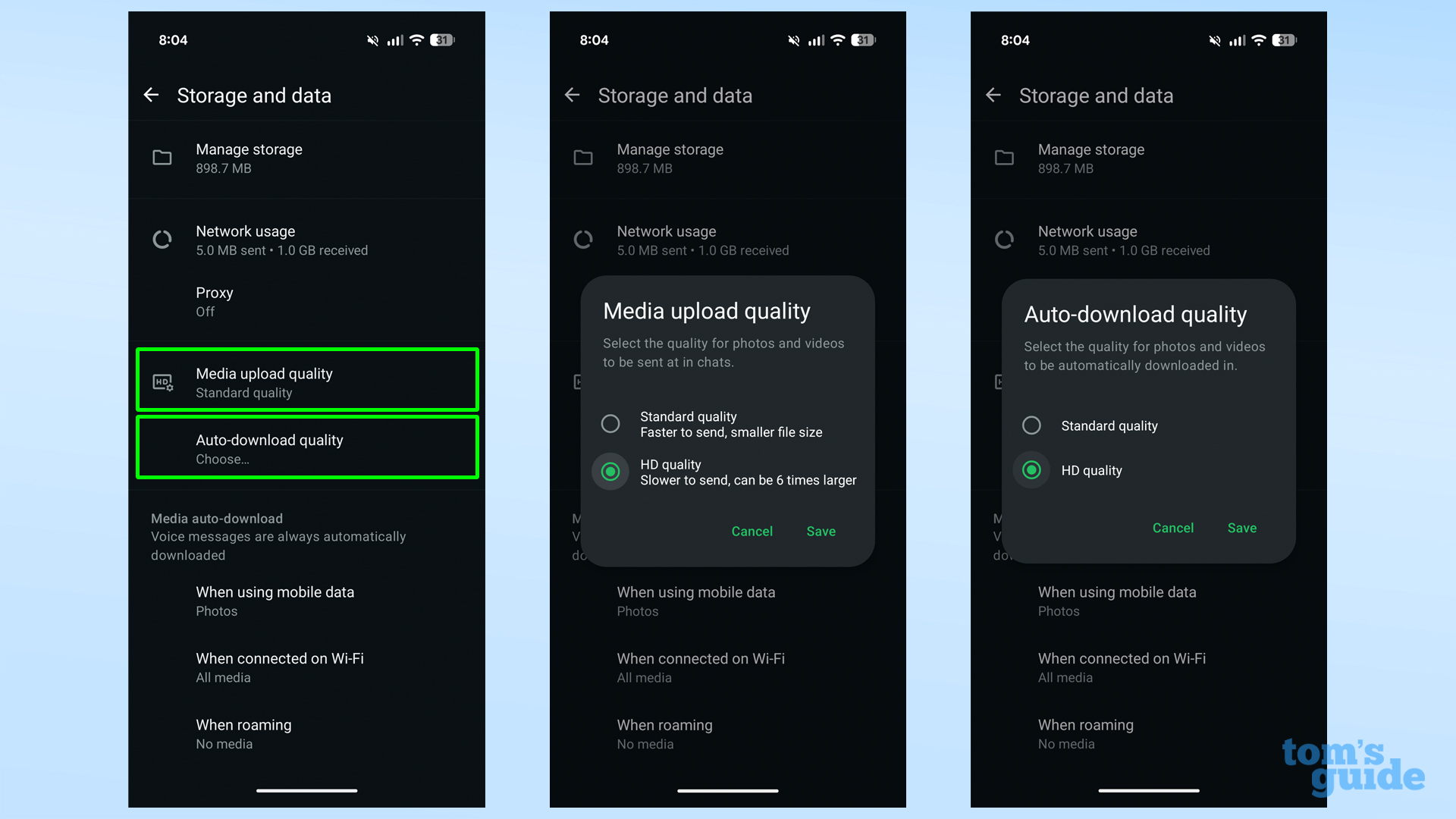
WhatsApp is my go-to tool whenever I need to share anything with others. Whether it’s official documents, photos from a launch event, or videos from a concert, WhatsApp is still easier than using any other app.
However, sharing through instant messaging apps comes with the drawback of reduced quality. Thankfully, WhatsApp has an option to share in higher quality when it matters. It’s still not as good as sending original files, but it gets the job done.
To send a single image or set of images in high quality, select the HD icon before sending the message. But to send and receive photos in high quality by default, go to Settings, select Storage and data, tap Media upload quality, and choose HD quality. Then select Auto-download quality and choose HD quality as well.
Now, every time you share videos or photos through WhatsApp, they’ll always be sent in the highest quality possible. However, using this feature also means photos and videos will take up more storage space on your device than before.
Protect your WhatsApp account and chat backup using Passkey
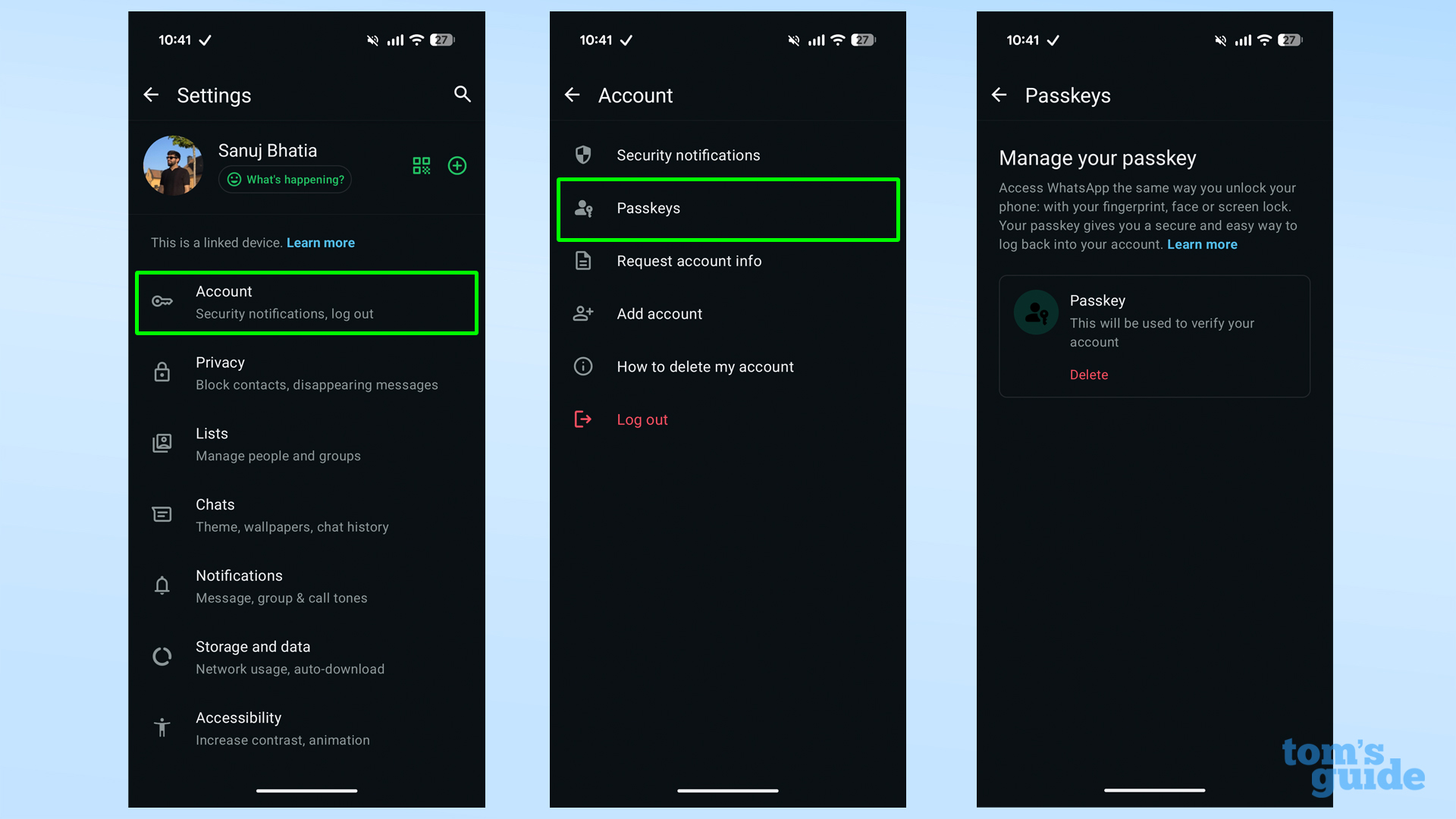
Using WhatsApp as your primary way to communicate is easy and reliable until your phone gets stolen or lands in the wrong hands. WhatsApp holds all your important data, chats, and photos, which makes it a target.
Thankfully, you can secure your WhatsApp account with biometric authentication so that even if you lose your phone or it’s stolen, only you can configure it again.
This feature works through Passkey integration in WhatsApp, which secures not only your account but also your encrypted chats. With this enabled, whenever you set up WhatsApp on a new device, it guarantees that only you can complete the configuration.
To enable this, go to Settings > Account > Passkeys and create a passkey using your phone’s biometric authentication. You can also protect your WhatsApp chat backup with a passkey by going to Settings > Chats > Chat backup > End-to-end encrypted backup and turning it on.
Get instant text transcripts of your voice messages
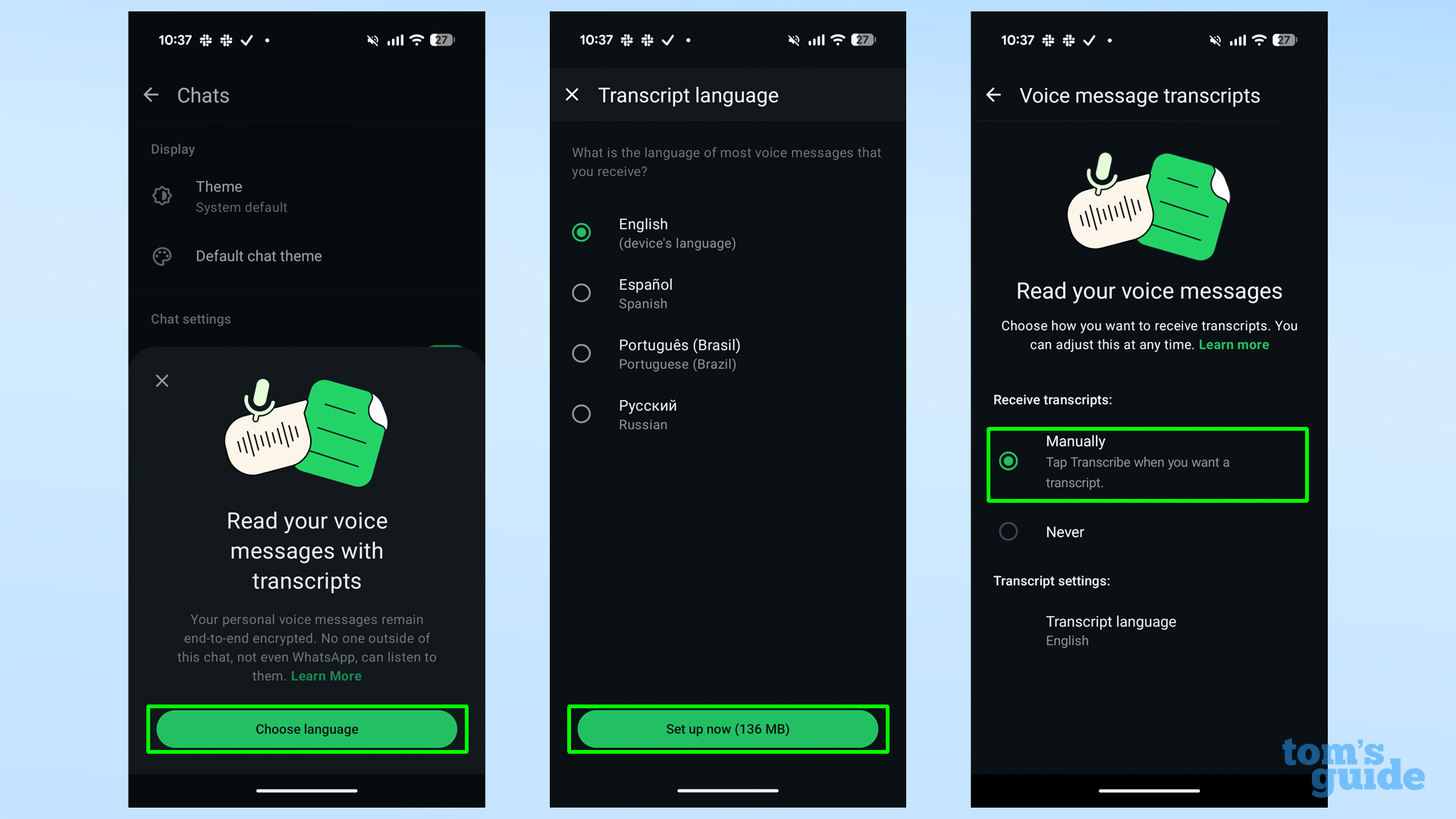
While most of us use WhatsApp mainly for texting, there are times when you don’t have enough time (or available hands) to type, and end up sending a voice note. However, the person on the other end may not be able to listen to it, which is why WhatsApp has introduced text transcripts for voice messages.
Using this feature, you’ll be able to see what the other person is saying in the voice note, thanks to an on-device transcript. WhatsApp says transcripts are generated entirely on-device, so no data is shared with its servers.
To use this feature, first enable it by going to Settings > Chats > Voice message transcripts and turning it on. Then select your transcript language. After that, you can transcribe any message by long-pressing the voice note and tapping Transcribe.
This feature supports only a few languages for now, but WhatsApp says it’s working to expand support to more languages soon.
Lock individual chats for added privacy
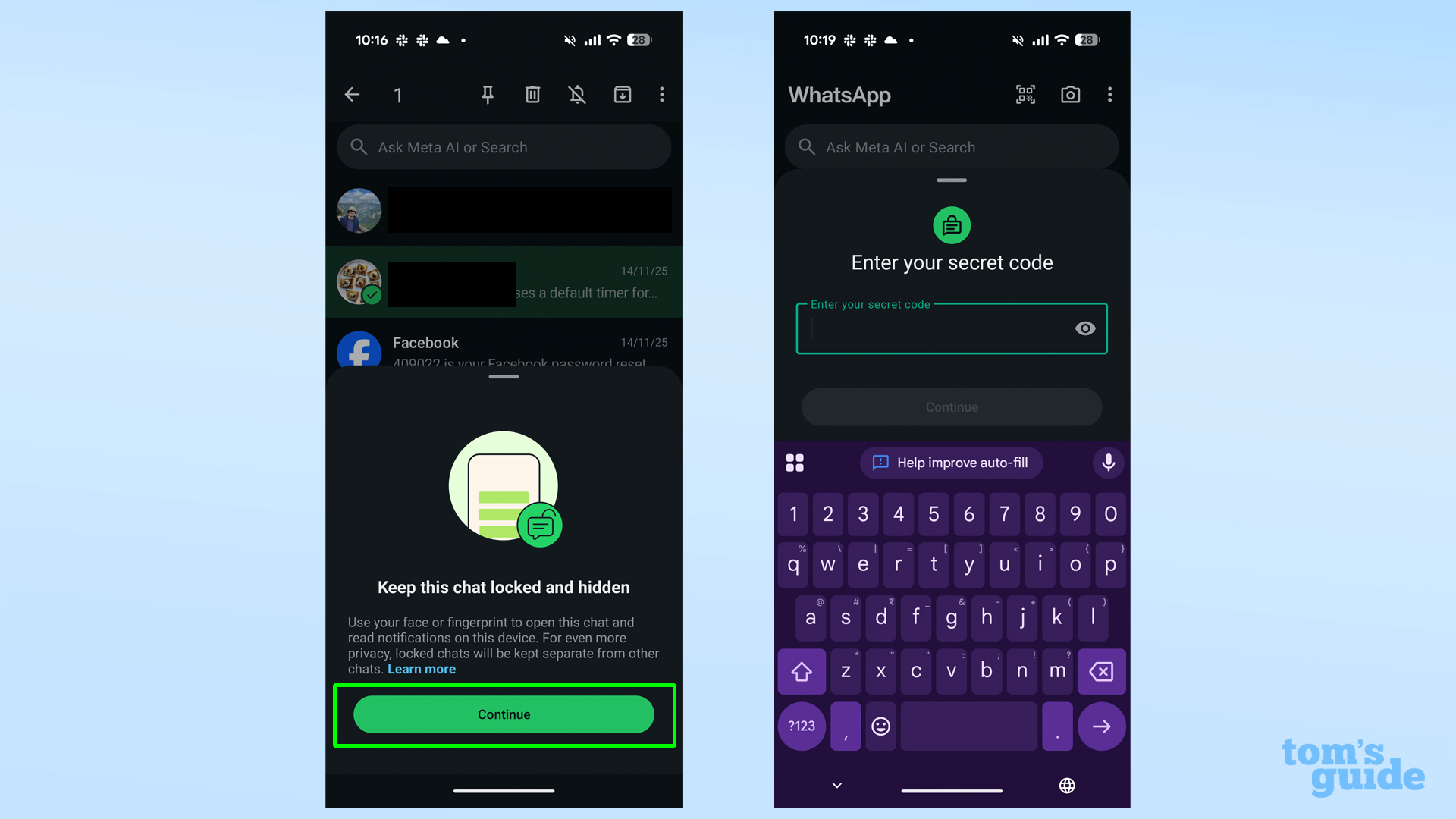
Sometimes you just want to hide a particular chat without locking the entire app, and that’s where WhatsApp’s chat lock feature comes in. This lets you keep certain chats private and protected behind a lock while still using the rest of the app normally.
To lock a chat in WhatsApp, long-press the conversation, tap the three-dot menu, and select Lock chat. Tap Continue, and WhatsApp will ask you to set up a secret code. This code is used to access locked chats on other linked devices. Create a new secret code that’s different from your phone’s passcode and enable biometric access for quicker unlocking.
To access locked chats, swipe down on the top of the home screen and select Locked chats. Authenticate with biometrics, and you’ll see all your locked conversations. To remove a chat from this section, long-press it and select Unlock chat. Enter your secret code, and the chat will move back to the normal conversation list.


Follow Digitpatrox on Google News and add us as a preferred source to get our up-to-date news, analysis, and reviews in your feeds.
More from Digitpatrox
Source link
-

-

-

-

-